
High CPU or Memory usage is known to slow down, hang, or freeze systems with Windows 11 installed. Many applications and processes could cause this high CPU usage. If your system is showing high CPU usage due to the Firefox process, then this article would be helpful for you.
Firefox high CPU or Memory usage in Windows 11
The main causes of high CPU usage due to Firefox are as follows:
- Buggy extensions and themes
- Faulty hardware acceleration
- Corrupt content-prefs.sqlite file
- Insufficient RAM in the system
- Heavy processes running on Firefox.
It is recommended to update Firefox to the latest version as a precautionary measure before troubleshooting. Then you could try the following:
- Kill the Firefox process and restart it
- Disable buggy extensions and themes
- Update your system’s Graphics Card drivers
- Stop heavy downloads and close resource-heavy websites
- Turn On Hardware Acceleration
- Delete the corrupt content-prefs.sqlite file
- Reset/Refresh Firefox.
If you encounter the issue discussed, proceed with the following solutions in sequence to resolve it.
1] Kill the Firefox process and restart it
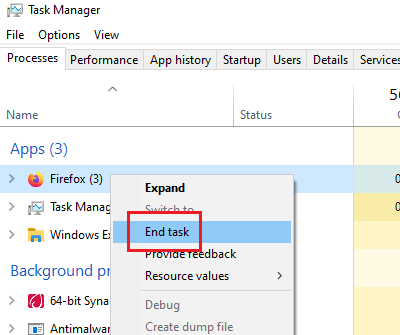
If Firefox is consuming a lot of system resources, it may be due to heavy processes or downloads within Firefox. In such a case, right-click on the Firefox process in the Task Manager and select End process.
Launch Firefox again. This will reopen your tabs.
2] Disable buggy extensions and themes
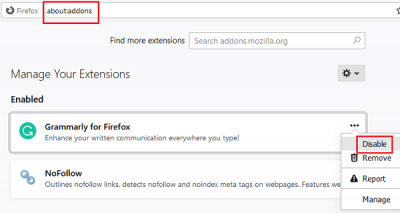
At times, themes and extensions on Firefox consume a significant amount of system resources, even though they may not be visible. To isolate this cause, you could restart Firefox in Safe Mode and check the system usage in the Task Manager.
If it helps, try disabling unverified or heavy extensions as follows:
- Open the address about:addons in the Firefox address bar.
- Right-click and select Disable for heavy and unverified extensions.
Restart Firefox.
This post will show you how to fix Firefox problems with add-ons & plugins.
3] Update your system’s Graphics Card drivers
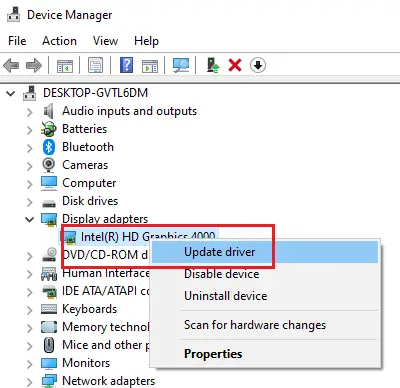
The system’s graphics card driver helps run graphics-intensive content on Firefox, such as videos or games. If it is outdated, you may encounter issues similar to the one discussed. The procedure to update your Graphics Card drivers is as follows:
Press Win+R to open the Run window and type the command devmgmt.msc. Hit Enter to open the Device Manager.
Expand the list of Display Adapters and right-click on your Graphics Card driver.
Select Update driver and follow the instructions for automatically updating it.
Restart the system.
Read: What are Memory Leaks?
4] Stop heavy downloads and close heavy websites
Firefox isn’t a heavy browser in itself; however, the system utilization depends on the processes running through it. Therefore, it is advisable to stop heavy downloads and close resource-intensive websites to reduce the system’s load. This is especially true for online gaming websites.
Read: How to fix 100% Disk, High CPU, High Memory usage in Windows.
5] Turn On Hardware Acceleration
Firefox hardware acceleration is enabled by default. It controls memory usage to some extent when running graphics-intensive media on Firefox. Thus make sure that the option for hardware acceleration is checked in the Firefox settings.
6] Delete the corrupt content-prefs.sqlite file
One of the major causes for Firefox causing high system utilization is a corrupt content-prefs.sqlite file. You can delete this file as follows:
Copy-paste the path about:support on the address bar of the Firefox browser. Hit Enter to open the Troubleshooting Information page.
Under Application Basics, you would find an option names Profile Folder. Corresponding to it, there would be an icon named Open Folder. Please click on it to open the Profile Folder.
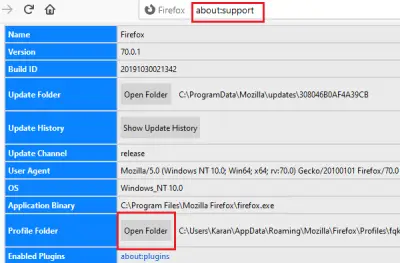
Once the Profile Folder is open, exit Firefox.
Now, in the Profile Folder, delete the content-prefs.sqlite file.
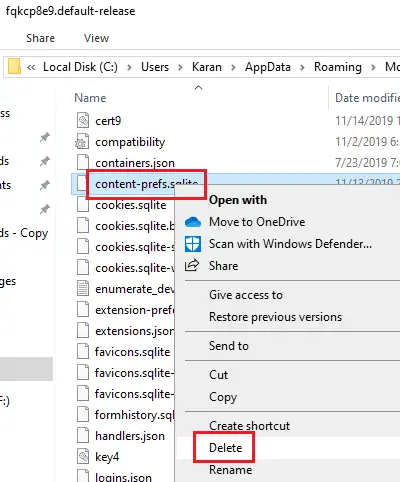
Open the Firefox folder again and start browsing. The file would get recreated.
7] Reset/Refresh Firefox
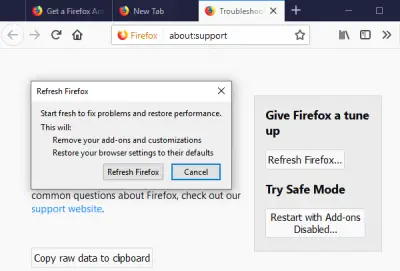
Many a time, changing settings in Firefox causes problems. If you cannot figure out which is causing you a problem, it’s best to Reset Firefox.
If you need more help, this post will help you fix Firefox problems & issues.
How do I fix high CPU on Firefox?
There are several ways to address the high CPU usage caused by the Firefox browser on Windows 11/10 PCs. For example, you can close all Firefox processes using the Task Manager and then restart it. Then, you can disable all the add-ons, update your graphics driver, turn off/on hardware acceleration, etc. Finally, if nothing happens, you can reset the browser.
Is Firefox supported on Windows 11?
Yes, you can undoubtedly use the Firefox browser on Windows 11. There is nothing new in the download and installation process. You can visit the official Mozilla website and download the Firefox browser. It is one of the best alternatives when you do not want to use Chromium-based browsers.
