
After discussing many good and useful Microsoft Store apps, I will focus on two very useful File Explorer apps for Windows 11 and Windows 10 today.
File manager & Explorer apps for Windows 11/10
While the Windows OS has its own File Explorer, and I am quite comfortable with it, I would still like to tell our readers about the new File Explorer apps I am currently checking out. These apps are useful for users who are not comfortable with the Metro-style file explorer, as they help users manage their files and folders without needing to open the File Explorer.
Although none of these apps are as futuristic as the native File Explorer of Windows, trust me, these apps are really great.
1] Files – File Manager for Windows
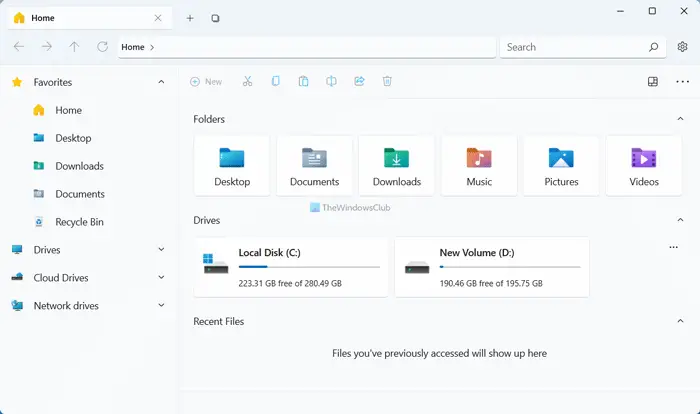
Files is one of the best file manager apps for Windows 11 and Windows 10. If you like the user interface of the in-built File Explorer but want to get more options or features, Files can help you do that. Whether you need to navigate to a specific path, open a file or do something else, you can perform that in the File app. On the other hand, it comes with a sidebar, where you can show or hide various icons such as Recycle Bin, library folders, drives, cloud storage, network, WSL, etc. Download from Microsoft.com.
2] File Brick
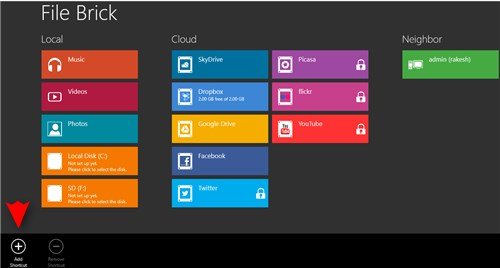
File Brick is a free file browser app available for download in the Microsoft Store. While I was happy with the native File Explorer, File Brick helps me manage my files in a much easier way. I can open many files within the app.
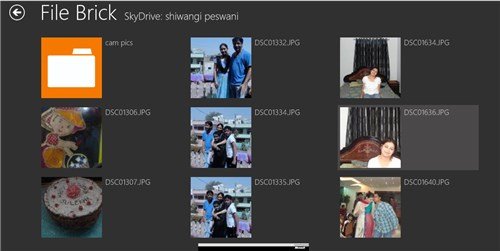
For example, I can view the pictures and play my audio files simultaneously with this app. I can also access my OneDrive, Google Drive and Dropbox files with just a single click.
File Brick has a very simple user interface. I can add the shortcuts of the folder I use frequently. Music, Photos, Videos, OneDrive, Dropbox, Google Drive, and Facebook are some shortcuts available for the free version of File Brick. It also shows all the local drives. Other features like X, YouTube, etc. are accessible only for the paid version of the app. With just a click, you can access any of your folders and the files within them.

Honestly, when I first read about File Brick on the Microsoft Store, I didn’t think it would be so useful. But now that I have it installed on my laptop, I am loving it. It’s like a one-stop for everything. I can access any of my folders right here. I can also access my Facebook profile directly from the File Brick app.
This is truly an awesome file explorer app in the Store, making file browsing and file exchange operations quite easy for me.
While searching for File Brick in the Microsoft Store, I came across two additional file manager apps – My Explorer and File Explorer. My Explorer is a free app but File Explorer is a paid app. However, it is affordable and is available in the Microsoft Store at $1.49.
3] My Explorer
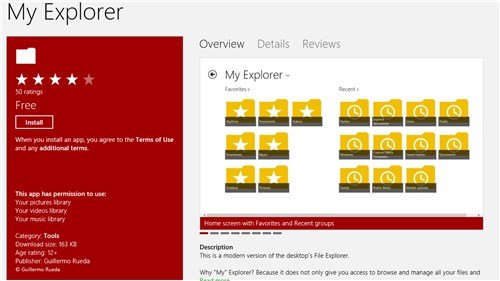
My Explorer is a straightforward alternative to the native File Explorer. You can add the desired folder here for easy navigation. This is a Modern UI version of the desktop’s File Explorer.
My Explorer gives you access to manage all your folders and files with a single click. Moreover, you can also personalize it by adding files from local drives, making it easy to access those locations in just a few steps.
My Explorer has a few restrictions, though. You cannot add the protected or hidden files from the system folder, nor can you launch the files that depend on other files.
4] File Explorer
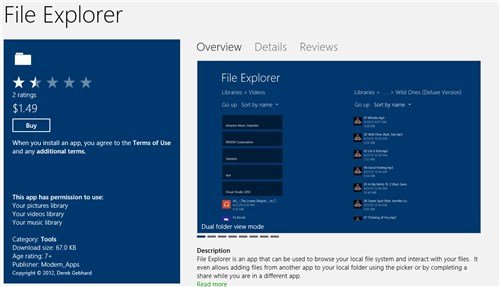
This App is a paid app, but it helps users browse local files in a simple and hassle-free way. Similar to File Brick and My Explorer, you can add files from any of the apps in your local folders.
5] File Commander – File Manager
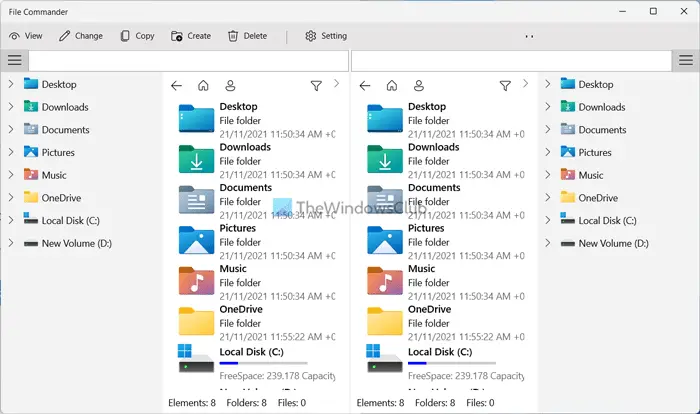
If you always browse multiple paths simultaneously to open different files from different locations, you can give File Commander a try. The latest version of File Commander comes with tons of new features, options, and improvements so that you can get the most out of a file explorer app. The user interface is uncluttered, and you can find almost all essential options in a single window. Like Files, you can find a sidebar on the left side, showing library folders, cloud storage, drives, and more. Regarding the settings, it doesn’t offer as many options as Files, but you can find options to enable dark mode and adjust the view. Download from Microsoft.com.
6] Factory File Manager
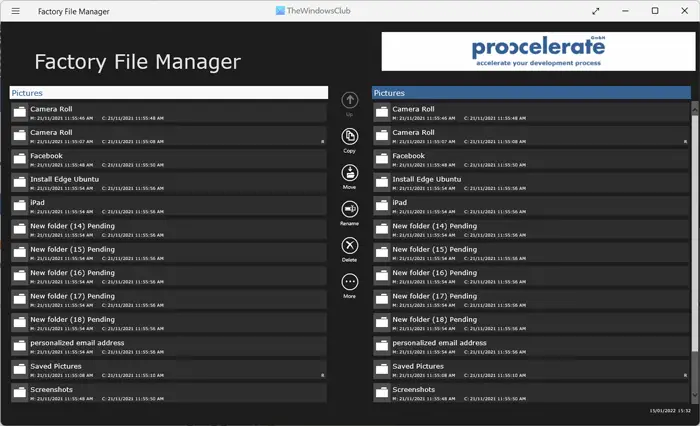
If you prefer not to have numerous options available, Factory File Manager can be a handy alternative for you. That being said, it is a minimal file explorer app that can be found on the Microsoft Store. The highlight of this app is that it comes with two integrated windows. In other words, if you want to browse two paths at the same time, you can do that without creating another window of Factory File Manager. Another useful feature of this file explorer app is that it provides keyboard shortcuts, allowing you to perform various tasks quickly. Download from Microsoft.com.
Related: Windows File Explorer replacements and alternative software.
Is there a better File Manager than Windows Explorer?
There are many best free File Manager software for Windows 11/10 that you might actually find better than Windows native File Explorer. Explorer++, One Commander, Konverter, Multi-Commander, etc., are some examples you should use. The interface of third-party file manager software may appear complicated, but for those who require feature-rich alternatives to Windows Explorer, these options are beneficial.
Is File Explorer a Microsoft Store app?
No, File Explorer is not a Microsoft Store app. File Explorer in Windows 11/10 is an integrated utility that cannot be uninstalled or reinstalled from any source. Although it is possible to restart File Explorer or Windows Explorer, there is no option to install it from the Microsoft Store.
