
If you are trying to install Windows in VirtualBox but receive FATAL, No bootable medium found, System halted error continuously, here is what you can do to fix the problem. This is a very common problem when you have a corrupted ISO file or you haven’t selected an ISO file for your virtual machine. This article will let you know how to choose the ISO image so that you can fix this No bootable medium found error in VirtualBox.
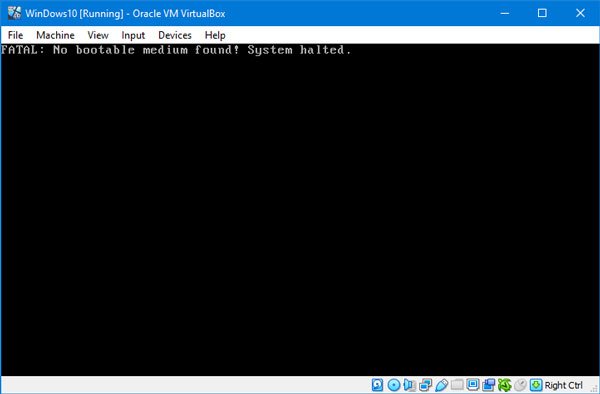
As mentioned earlier, this problem occurs when your ISO file is corrupted or the ISO file is not attached to the virtual machine. While creating the virtual hard disk, users need to select the ISO file. Otherwise, they can face this issue.
FATAL: No bootable medium found! System halted VirtualBox error
To fix this problem, you need to go through these steps-
- Download fresh Windows ISO
- Create a new Controller: IDE
- Assign Windows ISO to the IDE Controller
- Boot your virtual machine.
Before starting, ensure you have a valid and non-corrupt Windows ISO. After that, follow the following steps to get it done.
Open the VirtualBox software on your computer, select the virtual machine, and click the Settings button. Alternatively, you can right-click on the virtual machine and select Settings from the context menu.
After opening the Settings panel, go to the Storage section. Here you have to create a Controller: IDE. Click the Adds new storage controller icon and select Add IDE Controller.
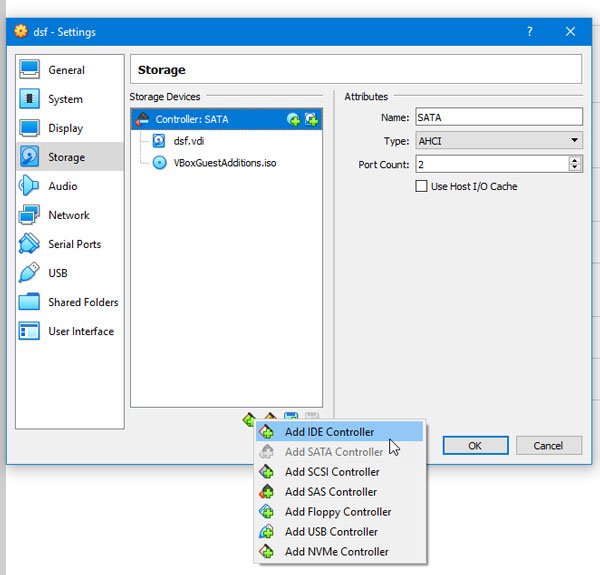
Next, click the Adds optical drive icon and select Choose disk button. Here you can find all the attached and non-attached ISO files. However, you need to add the new ISO file that you downloaded. For that, click the Add button and select the ISO file.
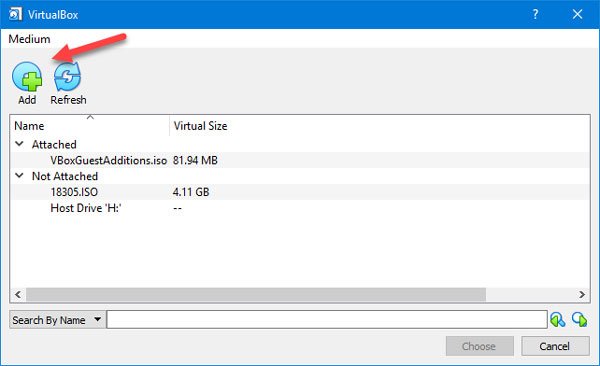
Select the .iso file from the Non Attached section, and click the Choose button.
After that, make a check mark in the Live CD/DVD checkbox, and select IDE Primary Master from the Optical Drive drop-down menu.
After saving this change, try to boot your virtual machine.
You should not face this problem anymore.
How do I make a bootable medium?
When a PC or system boots, it checks for files it can use to load the OS. So if you want to make a bootable USB drive or medium, you need a set of files that the BIOS or UEFI can use to determine what to load. Bootable media, such as a Windows Bootable USB drive, can be created using the Media Installation tool available on the Microsoft website. To make a bootable medium, first download the ISO file of the operating system you want to install, then insert a USB drive or DVD into your computer. Use a tool like the Media Installation tool or Rufus to write the ISO onto the medium. Ensure you select the correct device and format it properly before starting the process. Once complete, the USB or DVD will be bootable and ready to install the OS on another machine.
Read: VirtualBox error: VT-X/AMD-V hardware acceleration is not available
How to add an ISO to VirtualBox?
To start a virtual machine in VirtualBox and use an ISO file, open VirtualBox, then right-click the virtual machine. Select Normal start from the Start submenu. Click on Devices, then Optical Drives, and choose the Choose a disk file option. Select the ISO file and click Open.
