
If you get A fatal error occurred while creating a TLS client credential error in the Event Viewer, you can resolve the problem with the help of this guide. This error occurs on Windows 11 as well as Windows 10.
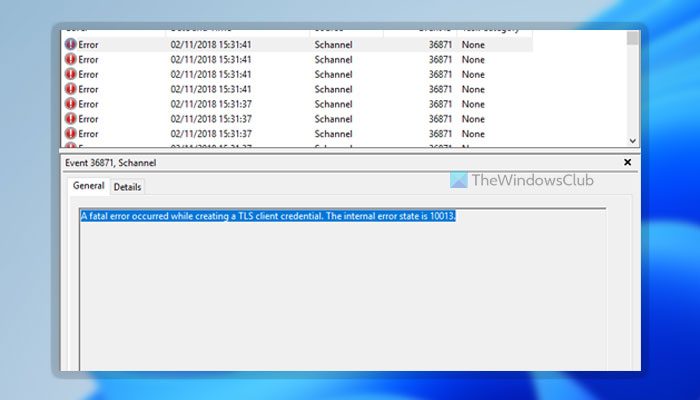
The entire error message says:
A fatal error occurred while creating a TLS client credential. The internal error state is 10013.
This error appears on your computer when TLS 1.0 and TLS 1.1 are not enabled. Although most programs may not require TLS 1.2 or 1.3 when you have them, some older programs might require them to connect to the internet. If it happens, you can resolve this error using this method.
TLS or Transport Layer Security is a security protocol that is designed with two goals in mind—maintaining Privacy and Data security on the internet. Vulnerabilities were detected in TLS 1.0, and so for this reason it is disabled by default in Windows. TLS 1.3 is aimed at making sure less user information is available in plain text. It uses three cipher suites to achieve that in earlier versions of TLS. Client authentication exposed the client identity unless renegotiation occurred.
If you wish to work around this issue, you may temporarily enable TLS 1.0 and TLS 1.1 on your system by following any of these methods.
A fatal error occurred while creating a TLS client credential
To fix A fatal error occurred while creating a TLS client credential, The internal error state is 10013 while creating a TLS client credential error, follow these steps:
- Enable TLS 1.0/1.1 using Internet Properties
- Change values in the Registry
To learn more about these steps, continue reading.
1] Enable TLS 1.0/1.1 using Internet Properties
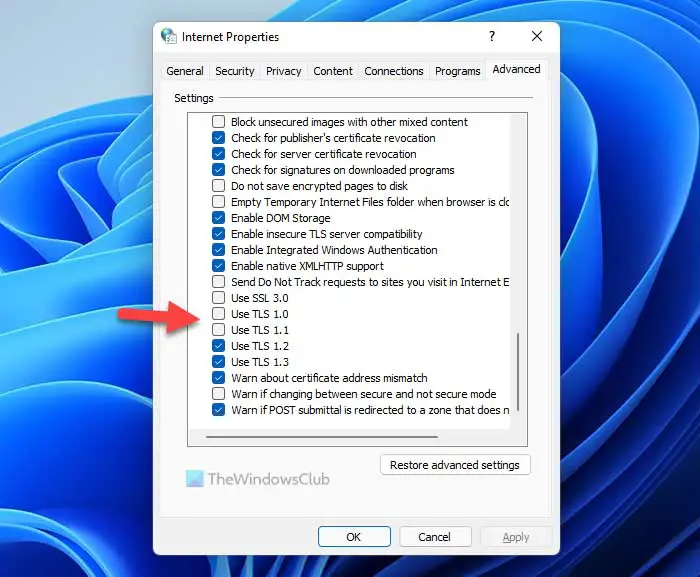
As mentioned earlier, you need to enable TLS 1.0 and TLS 1.1 on your computer to fix this issue. As these are not enabled by default on Windows 11 and Windows 10, you need to do that manually. For that, you can use the Internet Properties panel. In order to enable TLS 1.0/1.1 on Windows 11/10, do the following:
- Search for internet properties in the Taskbar search box.
- Click on the individual search result.
- Switch to the Advanced tab.
- Find the TLS 1.0 and TLS 1.1.
- Tick both checkboxes.
- Click the OK button.
You may need to restart your computer to get the job done. Once done, you won’t find the aforementioned error message. To verify that, you can open the Event Viewer and check if the problem is resolved or not.
However, this needs to be a temporary measure only, as it is not very secure to use TLS 1.10 and TLS 1.1 for long.
2] Change values in the Registry
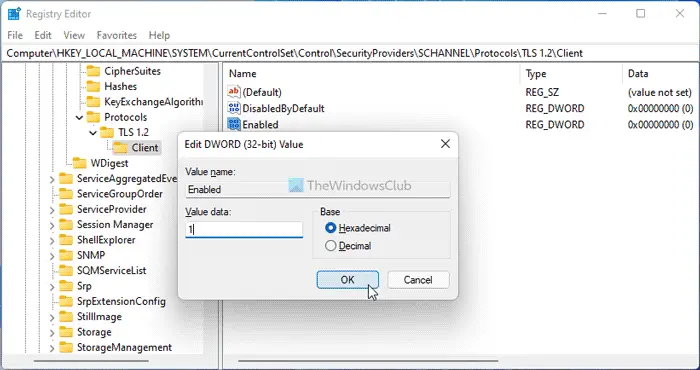
If you get the above-mentioned error, a simple change in the Registry file could fix the issue. However, you may need to create some keys and REG_DWORD values as well. Whether it is Windows 11, Windows 10, or any other older version, you can do the following:
Press Win+R to open the Run prompt.
Type regedit > click the OK button > click the Yes option.
Navigate to this path:
HKEY_LOCAL_MACHINE\SYSTEM\CurrentControlSet\Control\SecurityProviders\SCHANNEL\Protocols
Right-click on Protocols > New > Key and name it as TLS 1.2.
Right-click on TLS 1.2 > New > Key and name it as Client.
Right-click on Client > New > DWORD (32-bit) Value.
Set the name as DisabledByDefault.
Right-click on Client > New > DWORD (32-bit) Value.
Set the name as Enabled.
Double-click on it to set the Value data as 1.
Click the OK button.
Finally, restart your computer. Once done, your computer won’t show such error messages in the Event Viewer anymore.
That’s all! I hope this guide helped.
How do you check if TLS 1.2 is enabled?
The easiest way to check if TLS 1.2 is enabled or not on Windows 11/10 PC. You can use the Internet Properties panel. For that, press Win+R to open the Run prompt, type inetcpl.cpl, and hit the Enter button. Then, switch to the Advanced tab and navigate to the Security section. Now, check if the Use TLS 1.2 checkbox is enabled or not. If ticked, TLS 1.2 is turned on.
How do you check if TLS 1.0 is enabled on server?
To check if TLS 1.0 is enabled on the server or not, you can use the same steps as above. Having said that, you can search for internet properties in the Taskbar search box and click on the individual search box. Go to the Advanced tab and check if the Use TLS 1.0 checkbox is enabled or not.
