
When you select a range of numbers in Microsoft Excel, the Status Bar at the bottom of the window typically displays quick calculations, such as Sum, Count, and Average. However, some users notice that these values are missing even when the selected cells contain numeric data. If you’re experiencing the same issue, continue reading. In this post, we’ll explain why Excel’s Status Bar may not show Sum, Count, or Average and how you can restore these options.
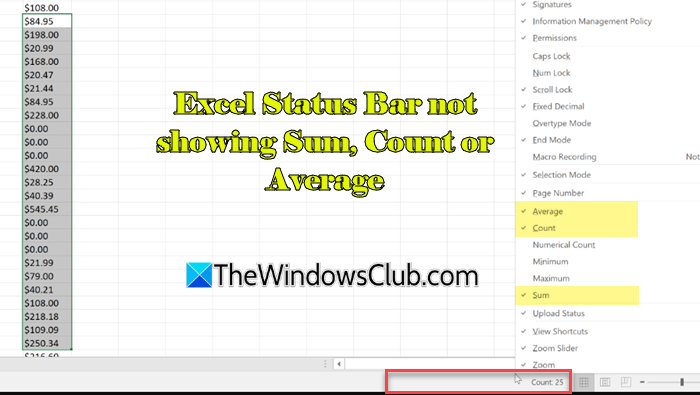
Why sum and average do not appear in Excel status bar?
Sum and Average may not appear in Excel’s status bar if they are not enabled in the Status Bar customization menu, or if the selected cells do not contain true numeric values (such as numbers stored as text or mixed with symbols). In some cases, applied filters, hidden rows, or problematic add-ins can also prevent Excel from showing these calculations.
Excel Status Bar not showing Sum, Count or Average
To fix Excel’s Status Bar if it is not showing Sum, Count, or Average on a Windows 11/10 PC, use these fixes:
- Re-enable Status Bar options
- Convert numbers stored as text
- Copy data to a new workbook and clear formatting
- Disable Excel add-ins
- Clear filters and select visible numeric cells
Let us see this in detail.
1] Re-enable Status Bar options
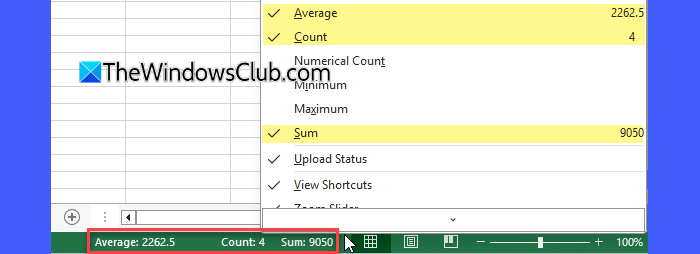
Excel allows customizing what appears in the Status Bar. If it is not showing Sum, Count, or Average at the bottom, it’s most likely because these options have been disabled in the Status Bar settings.
Open Excel and select the range of cells containing numbers. Right-click anywhere on the Status Bar at the bottom of the Excel window. In the menu that appears, select Sum, Count, and Average.
Re-enabling these options will instantly restore quick calculations in your Excel Status Bar.
2] Convert numbers stored as text
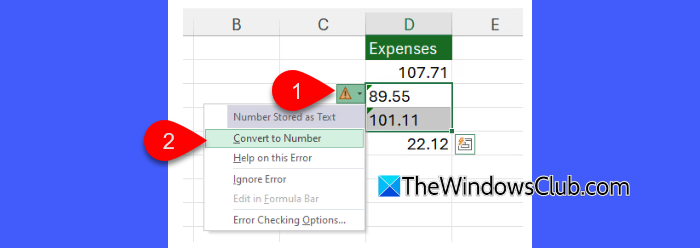
If the selected cells contain numbers stored as text, Excel will not be able to calculate their Sum or Average in the Status Bar. This often happens when data is imported from other sources or includes hidden spaces or symbols. In such cases, Excel usually displays a small warning icon (yellow triangle) next to the cells, indicating that the numbers are stored as text.
To fix this, click the warning icon, then choose Convert to Number. Reselect the cells to refresh the Status Bar.
Alternatively, select the cells, go to Data > Text to Columns, click Next twice, then Finish (without changing any settings).
After conversion, Sum, Count, and Average should appear in the Status Bar.
Note: This can also happen if:
- A leading apostrophe (‘) was added before the number to force Excel to treat it as text. Removing the apostrophe or converting the value to a number restores normal Status Bar calculations.
- Currency symbols such as $, ₹, or € are typed manually into cells instead of using Excel’s built-in Currency format, causing the values to be treated as text. Remove the manually typed symbol and apply the appropriate number or currency format to fix this.
3] Copy data to a new workbook and clear formatting
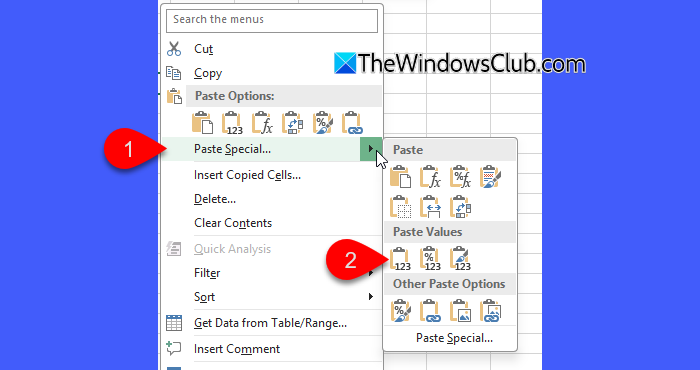
In some cases, the issue occurs only in a specific Excel file, while other workbooks work normally. This usually points to hidden formatting or workbook-level corruption rather than a problem with the data itself.
To fix this, open a new blank Excel workbook. Go to the affected worksheet, select the data range, and press Ctrl + C. In the new workbook, right-click a cell and choose Paste Special > Values. Reselect the pasted data and check the Status Bar.
In many cases, clearing formatting this way immediately restores the Status Bar calculations.
4] Disable Excel add-ins
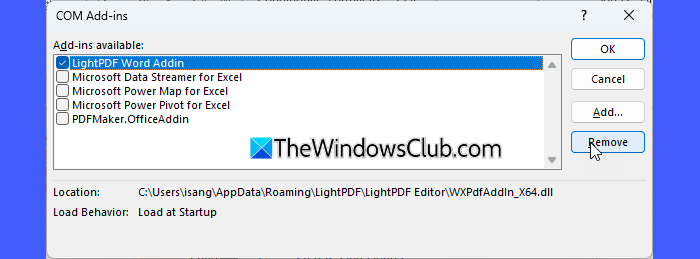
Some users found that the Status Bar started showing Sum or Average again after they disabled certain Excel add-ins, indicating that a problematic or incompatible add-in was interfering with the Status Bar behavior. To check whether this is the cause in your case, follow these steps:
Press Win + R to open the Run dialog box. Type excel /safe and press Enter to launch Excel in Safe Mode. Select the cells and check if Sum or Average appears in the Status Bar. If it works, it indicates that one of the installed Excel add-ins is causing the issue.
Close Excel and reopen it normally. Go to File > Options > Add-ins. Select COM Add-ins from the Manage drop-down and click Go. Disable all add-ins, restart Excel, then enable them one at a time to identify the problematic add-in.
5] Clear filters and select visible numeric cells
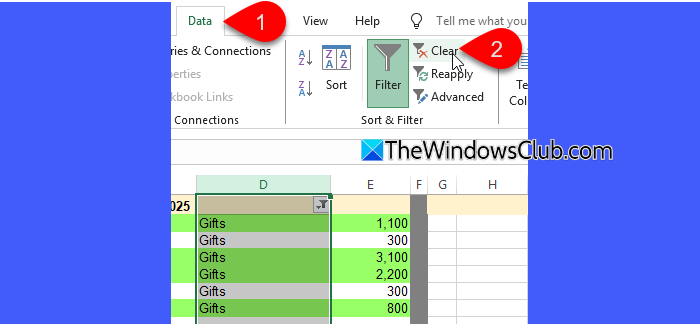
In some cases, users found that Sum and Average did not appear because the selected range included filtered data or hidden rows. Excel calculates Status Bar values only for visible numeric cells, and if the visible selection contains no valid numbers, nothing is shown.
To fix the issue:
- Check whether filters are applied to the worksheet. Clear all filters using Data > Clear.
- Ensure that at least one visible numeric cell is selected.
Once filters or hidden rows are removed, Excel starts displaying Sum, Count, and Average normally.
If none of the above solutions work, try repairing or reinstalling Excel on your system.
I hope this helps.
Read: Excel Status Bar missing; How to Unhide it?
How to display sum and count in Excel status bar?
To display the sum and count of numbers in the Excel Status Bar, select the range of cells that contains numeric values, then right-click the Status Bar and select the Sum and Count options. If the values still do not appear, ensure the numbers are not stored as text and that the file is not opened in Protected View.
Read Next: Excel not auto-calculating formulas.
