
Adobe Premiere Pro is a great program for professional video editing. It is used by millions of users worldwide alongside After Effects. Though it is a premium software with a monthly subscription, users are never discouraged as the features and video editing capabilities it gives to your machine are unmissable. While exporting a video on Premiere Pro, some users are seeing Error Code 3, Error compiling movie, Export error, Error completing render on their Windows 11/10 PC. In this guide, we have some fixes.
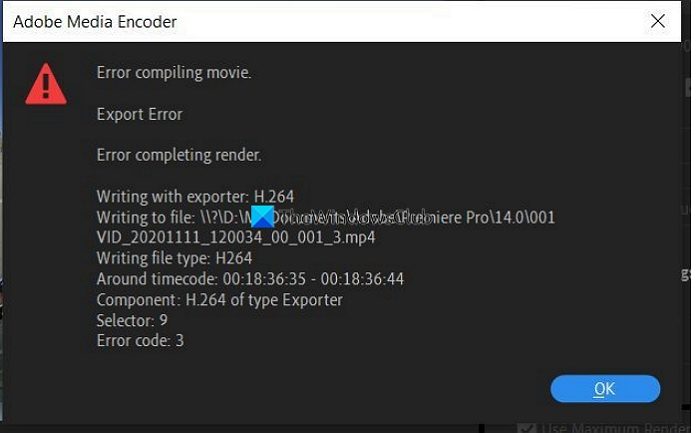
Error Code 3 appears on recently installed PCs when the settings required for Premiere Pro are not configured properly. This error is primarily observed when a user attempts to render a video in H. 264 format. Let’s see how we can fix the issue.
Error Code 3, Error compiling movie, Export error on Premiere Pro
When you are unable to render a video in H264 format and see Error Code 3, Error compiling movie, Export error, Error completing render on Premiere Pro, follow the below fixes.
- Disable Hardware Encoding Preferences
- Set Power management mode to Maximum
- Update Graphics drivers
- Update Premiere Pro
Let’s get into the details of each method.
Fix Premiere Pro Error Code 3
1] Disable Hardware Encoding Preferences
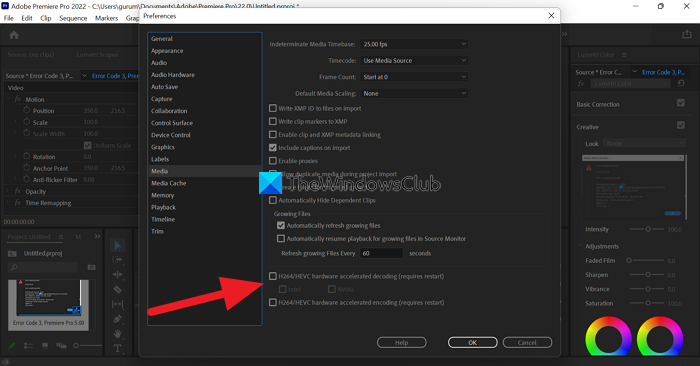
This is a fix that worked for me personally. You need to disable Hardware encoding preferences. To disable them,
- Open Premiere Pro
- Click on Edit in the Menu bar and hover over Preferences at the bottom of the list
- Then select Media in the Preferences
- Uncheck the buttons beside H264/HEVC hardware accelerated decoding (requires restart), and H264/HEVC hardware accelerated encoding (requires restart)
- Click OK and close Premiere Pro
- Then, restart your PC
Check whether the fix resolved the issue.
2] Set Power management mode to Maximum
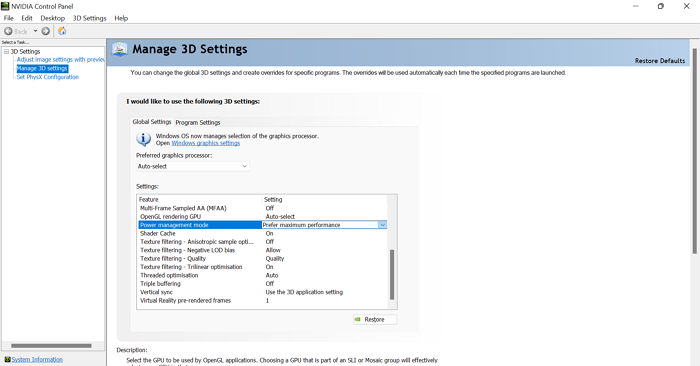
You need to set your GPU’s power management to maximum to resolve the issue. You can do it through NVIDIA Control Panel or AMD Radeon Software on your PC. If you are an NVIDIA user,
- Right-click on the desktop
- Click on Show more options
- Select NVIDIA Control Panel in the context menu
- Click on Manage 3D settings
- Find Power management mode under Settings and set it to prefer maximum performance using the drop-down menu.
3] Update Graphics drivers
Some users are seeing this error due to outdated graphics drivers. You need to update the graphics drivers on your PC and fix the issue.
You can update graphics drivers,
- via Windows Update
- by downloading drivers according to your manufacturer’s website
- via a third-party driver updating software
4] Update Premiere Pro
Check for any updates available for Premiere Pro. Open the Adobe Application Updater on your PC and click the Update button next to Premiere Pro. It will check for the updates, download and install them automatically.
How do I fix error code 3 in Premiere?
Error code 3 in Premiere Pro can be fixed easily by disabling hardware-accelerated preferences, updating graphics drivers, updating Premiere Pro, and setting the power management mode to maximum.
How do I enable hardware encoding in Premiere Pro?
To enable hardware-accelerated encoding in Premiere Pro, click on Edit in the menu bar of Premiere Pro, hover over to Preferences, and select Media. Then check the button next to H. 2. 64/HEVC hardware-accelerated encoding (requires restart). Then, restart your PC.
Related read: How to stabilize Shaky Video Footage in Adobe Premiere Pro.
