
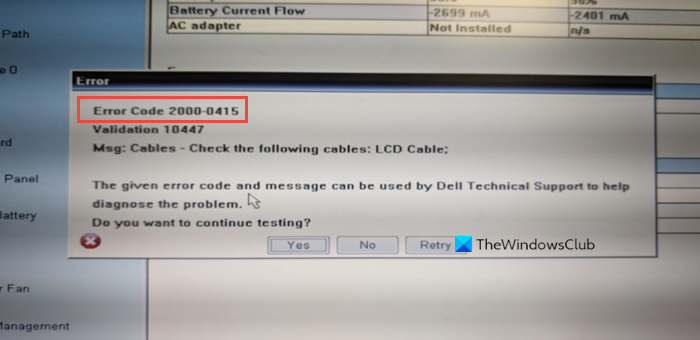
When running the ePSA (Enhanced Pre-Boot System Assessment) diagnostics on your Windows 11 or Windows 10-powered Dell computer, you may receive the Error Code 2000-0415. In this post, we provide the most suitable solutions that affected PC users can try to resolve the issue.
What does Error Code 2000 mean?
Error Code 2000, which you might encounter on your Windows 11/10 PC, indicates that the ePSA was unable to successfully read information from the hard drive. This error usually occurs due to faulty or misaligned cabling in your computer’s case, connecting your hard drive to the motherboard. This error typically indicates that a specific cable is not connected or is not seated correctly, and it will normally identify the specific cable in question, as shown in the lead-in image.
The most likely culprits to this error include;
- The A/C power adapter is not connected.
- Unconnected power cable.
- CMOS battery retains old configuration data.
Fix Error Code 2000-0415 on Windows computers
If you’re faced with this Error Code 2000-0415 on your Windows 11/10 computer, you can try our recommended solutions below in no particular order and see if that helps to resolve the issue.
- Check and connect the A/C Power Adapter
- Check and connect any disconnected cables
- Clear CMOS
Let’s examine the descriptions of the processes involved with each of the listed solutions.
1] Check and connect the A/C Power Adapter
This solution to Error Code 2000-0415 on your Dell Windows 11/10 computer requires that you ensure the A/C power adapter is connected to the computer. The ePSA diagnostics are designed to test the charging functionality of the PC and the A/C power adapter needs to be connected for the ePSA diagnostics to run.
Try the next solution if this doesn’t apply to your case.
2] Check and connect any disconnected cables
As indicated on the error prompt that appears on your system, this solution requires you to check and reconnect any disconnected cables. In addition to the cables identified on the error prompt, note that this error can also be a symptom of a component that lacks a power cable connection. This could be a SATA or ATA cable that is disconnected from the HDD/SSD. To rule out this scenario, shut down your computer completely, disconnect it from the mains, and then open up the case to check for any loose or disconnected cables.
If there are disconnected or loose cables, ensure that every cable is pushed through to prevent it from being loosely connected. Once done, you can rerun the ePSA scan after you put the computer case back on and reconnect the power cable and power on your Windows system.
If this didn’t work for you, you can try the next solution.
3] Clear CMOS
This solution requires you to simply reset or clear CMOS on your Dell Windows PC.
Hope this helps!
How do I fix error 2000-0146 on my hard drive?
PC users who encounter the hard drive Error Code 2000-0146 on their Windows 11/10 computer can fix the error by applying the following solutions:
- Scan your system.
- Run CHKDSK.
- Repair PC Registry.
- Run PSA (Pre-Boot System Assessment) Diagnostics.
- Reset BIOS settings.
- Restore PC in Safe Mode.
- Perform a Clean Boot.
What does System fan failure mean?
If the “Fan System Failure” message pops up on your Windows computer screen, it simply means that your power adapter was faulty before completely stopping to work and the CPU Fan wasn’t getting enough current and turning slowly.
How do I fix the fan error on my Dell laptop?
You may require the services of a PC hardware technician to perform this task successfully. To fix the fan error on your Windows 11/10 Dell laptop by cleaning the air vents on your computer. To clean the air vents on your computer, do the following: Turn off the computer. Open up the computer case. Check the air vents on the computer for dust or debris. Use a can of compressed air to remove dust or debris from the air vents, dust filters (if any) and cooling fan fins.
