
When trying to update or upgrade Windows 11/10 via Windows Update or .NET installation, if you encounter Error 0x800f0900, the issue is likely caused by corrupted system files. The chances are that the Windows Database may have been corrupted. If you’re facing this issue, this post is sure to help.
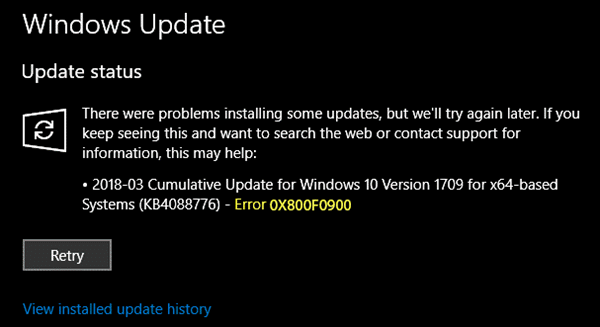
Fix Windows Update Error 0x800f0900 in Windows 11/10
1] Run System File Checker
Run System File Checker. This will repair corrupted or damaged Windows files. You will need to run this command from elevated CMD, i.e., command prompt launched with admin privileges.
2] Run DISM Tool
When you run DISM (Deployment Imaging and Servicing Managemen) tool it will repair Windows System Image and Windows Component Store in Windows 10. All of the system inconsistencies and corruptions should be fixed.
3] Run Windows Update Troubleshooter
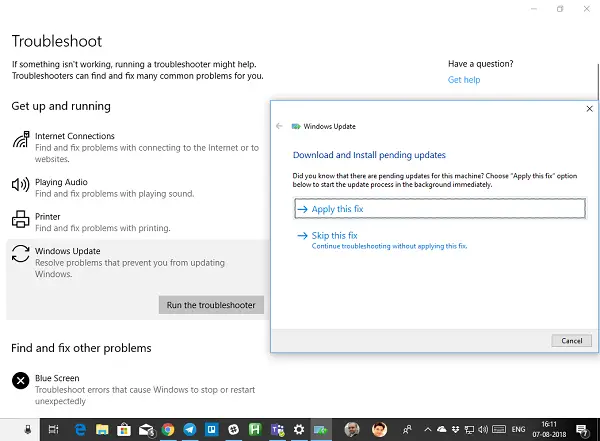
Run this Windows Update troubleshooter to fix most common Update problems on Windows 11/10.
4] Reset SoftwareDistribution & Catroot2 folders
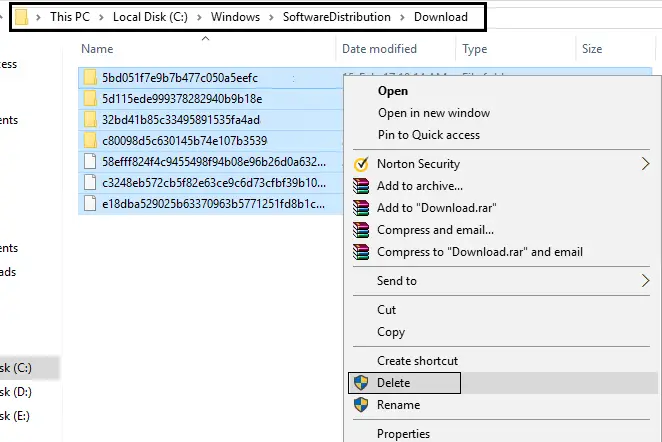
You need to delete the contents of SoftwareDistribution folder. All the update files are downloaded inside the Software Distribution folder which is located at C:\Windows\SoftwareDistribution. First, delete all the files in it after pausing Windows Update Services. Second, try restarting the computer multiple times to see if the update process automatically starts.
You should also reset the Catroot2 folder which stores the signatures of the Windows Update package and helps in its installation.
5] Run System Restore
Lastly, you can try System Restore to get back to a working state of Windows, and then initiate the download again. If you have been creating restore point frequently, it’s going to help.
Please let us know if this helped you resolve the Windows Update Error 0x800f0900.
How to fix error 0x800F0900 when installing .NET Framework?
Error 0x800F0900 during .NET Framework installation usually indicates corrupted system files or a damaged Windows component store. Apart from running SFC and DISM, make sure that .NET Framework is enabled, using Windows Features. If installation fails, use the DISM command DISM /Online /Enable-Feature /FeatureName:NetFx3 /All /Source:D:\sources\sxs /LimitAccess
or use the offline installer from Microsoft’s official site,
