
Google Chrome is one of the popular web browsers used by Windows users. And for staying on the top, they have been introducing a ton of features lately but that makes the software more complex and hence more prone to errors. This is not a big deal. Various kinds of errors can come up with this level of complexity of the program. In this post we will see how to fix – This site can’t be loaded from the cache, ERR_CACHE_MISS error message on Google Chrome on Windows 10/8/7 computers.
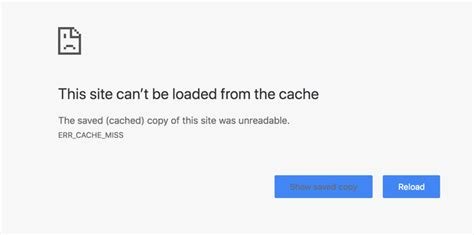
Fix ERR_CACHE_MISS error on Chrome
It is worth mentioning that when the user gets this error, there is no direct fault in the browser. There are issues with caching the website data locally on the computer. This error can also arise when a website is coded in an incorrect manner or if there are any browser extensions that conflict with the proper functioning of the website.
We will be checking out the following fixes-
- Clear Browser Data.
- Use the Developer Tools.
- Flush DNS cache
- Remove conflicting browser extension.
1] Clear Browser Data
There is a high likelihood that some browser data is conflicting with the website’s loading. This might be a very basic fix, but in this case, it can be proven a highly reliable one.
For this, start by opening Google Chrome. Now hit the CTRL + H button combination on your keyboard.
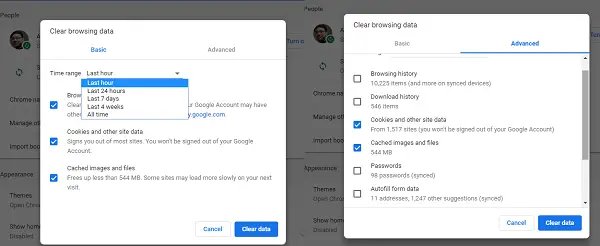
This will open a new panel to delete your browsing history and other data.
Select every checkbox that you see and finally click on Clear browsing data.
Restart your browser and check if your error is fixed or not.
2] Use the Developer Tools
Open Google Chrome and hit the CTRL + Shift + I button combination on your keyboard. And then hit F1.
This will open the settings tab inside of the Chrome Developer Tools.
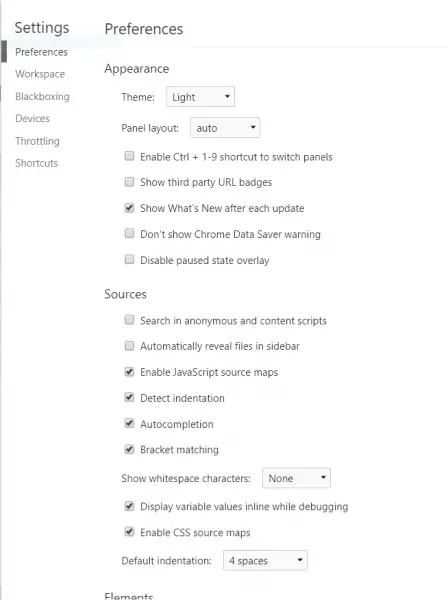
Now, select Disable cache (while DevTools is open) and apply those settings.
Just Refresh your page and check if all the previously seen entries inside the Network tab is gone.
Now, try to load the same page and check if your issue is fixed.
3] Flush the DNS Cache
You can Flush DNS cache and check if that fixes your issues.
4] Remove conflicting Browser Extensions
There is a high chance that the extensions and toolbars installed on your browser might be conflicting with the loading of your website. So, in order to fix that, you need to remove or disable these extensions and toolbars.
Please let us know if anything here was helpful to you.
What is ERR_CACHE_MISS error in Google Chrome?
When your computer fails to handle the stored cache of a website, Google Chrome displays an error message. If you encounter this problem as a website user, you need to clear your browser’s data first. In most cases, it resolves the issue within moments. However, if you still encounter the same issue, you need to flush the DNS cache and may need to disable all firewall and security extensions in the browser.
How to fix ERR_CACHE_MISS in Google Chrome?
As this is a cache-related issue, you can resolve it by clearing your browser data. You can try removing the site data first. If it does nothing, you need to clear the browsing data of your browser itself. Next, you can flush the DNS cache and hard refresh your browser to resolve the issue.
