
This tutorial helps to enable or disable Experimental agentic features on a Windows 11 computer. It’s a new setting (currently in preview) available to insiders, and it doesn’t have its own AI capabilities. Instead, it’s a security feature in Windows 11 for AI agents like Copilot Actions (available in Copilot labs) that helps perform complex tasks in the background to improve productivity and efficiency. When enabled, the Experimental agentic features setting allows the creation of a separate agent account on your PC and an individual agent workspace where the agent can work in parallel in a contained space with its own desktop and permissions. This also enables agentic apps (like Copilot) to request and access commonly used folders, say Desktop, Downloads, Pictures, etc., in the agent workspace.
Enable or disable Experimental agentic features in Windows 11
You can enable or disable Experimental agentic features in Windows 11 with two native options. These are:
- Using the Settings app
- Using the Windows Registry.
1] Using the Settings app
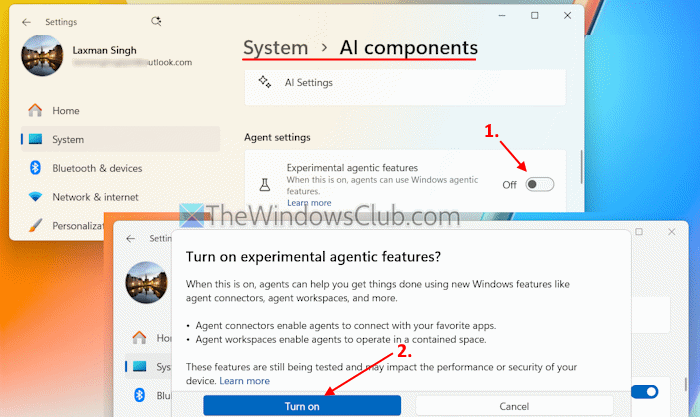
The steps to enable Experimental agentic features setting using the Settings app in Windows 11 are as follows:
- Open the Windows 11 Settings app. You can press the Win+I hotkey or use another way to open it
- Select the System category
- Click on the AI components option on the right side
- Under the Agent settings section, use the toggle for the Experimental agentic features setting to enable it
- A confirmation pop-up will open
- Press the Turn on button.
When you want to disable or turn off the Experimental agentic features setting, follow the steps mentioned above, and turn off the toggle for this setting.
Read: How to create Copilot agents using Microsoft AI
2] Using the Windows Registry
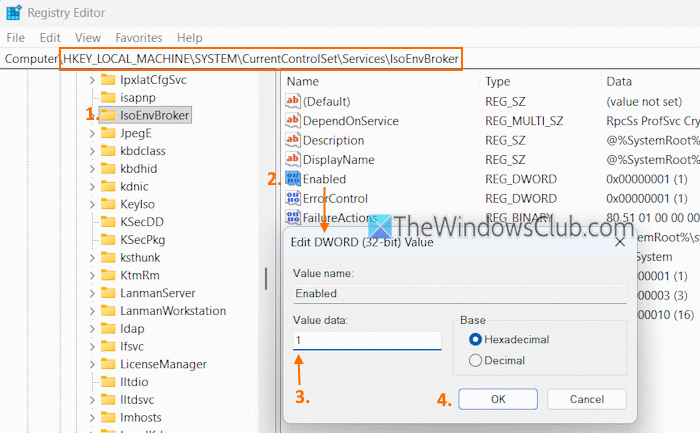
You can enable Experimental agentic features using the Windows Registry (or Registry Editor) in Windows 11 with these steps:
- Open the Run dialog box (Win+R)
- Type regedit in the text field. Press Enter to open the Registry Editor
- Access the IsoEnvBroker Registry key. Its path is:
HKEY_LOCAL_MACHINE\SYSTEM\CurrentControlSet\Services\IsoEnvBroker
- Create a new DWORD (32-bit) Value on the right side. For this, right-click > New > DWORD (32-bit) Value
- Rename this value to Enabled
- Double-click on the Enabled value to open its edit value box
- Add 1 in the Value data text field in that box
- Press the OK button.
This will turn on the Experimental agentic features setting in the Settings app.
To turn off or disable the Experimental agentic features setting using Windows Registry, follow the steps covered above. Add 0 in the Value data of Enabled DWORD (32-bit) Value and press OK.
That’s all.
Also read: How to build AI CoAgents or apps powered by Copilot
Is it better to have S mode on or off in Windows 11?
Windows 11 in S mode is streamlined for security and performance, and it allows only Microsoft Store apps and requires Microsoft Edge (for safe browsing). If that’s OK, you can keep using the S mode version of Windows 11. But if you want to install third-party apps (from unknown sources) or use other browsers outside the Microsoft Store, you will have to switch out of S mode in Windows 11.
Can you opt out of AI in Windows 11?
Yes, you can opt out, turn off, or remove AI features in Windows 11, but you have to do it individually, as there’s no single setting or option available for it. For example, you have to uninstall or disable Copilot separately, turn off or disable Click to Do, disable the Settings agentic search experience, turn off Copilot Mode in Edge, and more.
Read next: How to build AI Agent: Beginners Guide from Microsoft.
