
The em dash (—) is a versatile punctuation mark for setting off phrases or indicating interruptions, and Word provides handy shortcuts to insert it quickly. However, users on Windows 11 may sometimes find that these shortcuts, like Ctrl+Alt+Minus, suddenly stop working. This can disrupt your writing flow, but the problem is usually fixable with a few straightforward checks and adjustments. In this post, we will see what you can do if the Em Dash shortcut is not working in Word.
Why can’t I type an em dash?
The most common reason you can’t type an em dash is using the wrong minus key; the shortcuts require the minus sign on the separate numeric keypad, not the hyphen key. If your keyboard lacks a numeric keypad or has Num Lock turned off, the shortcuts will fail. Sometimes, the feature in Word that auto-replaces two hyphens with a dash might be turned off, or a software glitch could cause the standard keyboard commands to stop working temporarily.
Read: How to customize Keyboard Shortcuts for Word
Fix Em Dash shortcut not working in Word
Shortcut failures usually come from a few common issues. The most frequent cause is pressing the wrong minus key; you need the one on the numeric keypad, or having NumLock turned off. Other possible reasons include a temporary glitch in Word, a missing or corrupted AutoCorrect entry for the EM dash, or a conflict with your system or keyboard language settings that overrides Word’s default shortcuts.
If the Em Dash shortcut is not working in Word, follow the solutions mentioned below.
- Use the correct keyboard combination
- Employ the Universal Alt Code
- Create a Foolproof AutoCorrect Entry
- Insert the Symbol Directly
- Reset Word’s Keyboard Shortcuts
Let us talk about them in detail.
1] Use the correct keyboard combination
Ensure you are pressing the exact keys. For the em dash, the standard shortcut is Alt + Ctrl + – (Minus Sign). Crucially, the minus sign must be the one on the numeric keypad, not the hyphen next to the number row. Your NumLock should also be turned ON for this to work.
2] Employ the Universal Alt Code
For a highly reliable method that works in any Windows application, ensure NumLock is on, then hold down the Alt key, type 0151 on the numeric keypad, and release Alt to produce an em dash (—).
3] Create a Foolproof AutoCorrect Entry
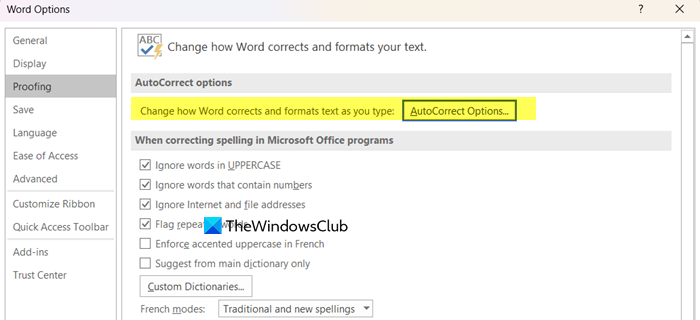
In this method, we need to bypass the faulty shortcut entirely. You configure Word’s built-in AutoCorrect tool to recognize a simple text pattern (like –) and automatically replace it with the correct symbol (—) as you type, creating a permanent and reliable alternative.
Follow the solutions mentioned below to do the same.
- Open MS Word.
- Go to File > Options > Proofing.
- Click on AutoCorrect Options….
- In the Replace field, type two hyphens: — In the With field, paste or type an em dash (—). You can copy one from this sentence.
- Click Add, then OK.
Now, try using the Em dash.
4] Insert the Symbol Directly
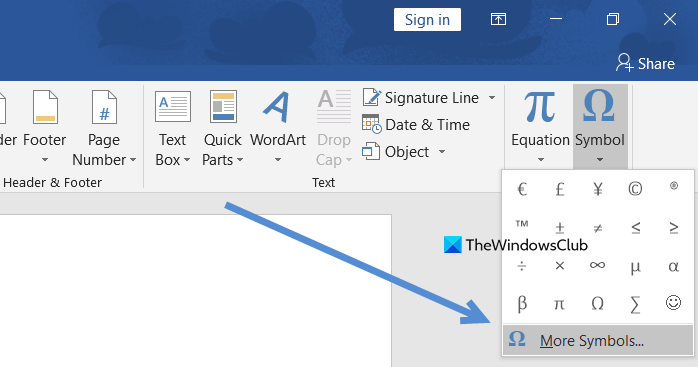
To insert an em dash directly, go to the Insert tab, click Symbol > More Symbols, locate the em dash in the General Punctuation subset, and click Insert.
5] Reset Word’s Keyboard Shortcuts
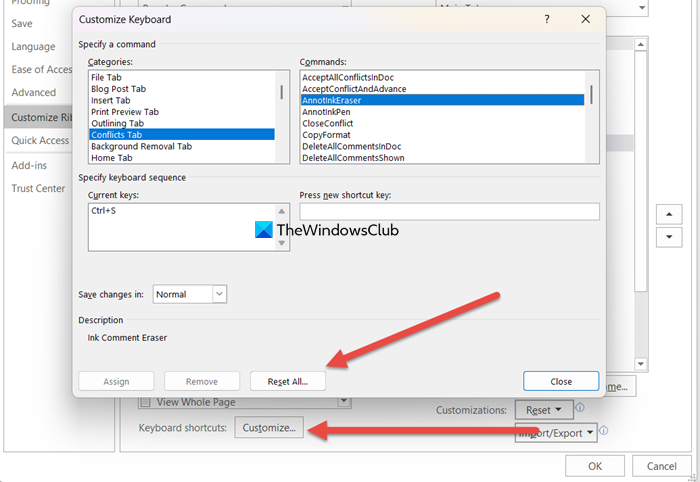
In this solution, we will clear any corrupted, conflicting, or incorrectly modified keyboard settings that are preventing the standard shortcut from functioning. Resetting to the default configuration removes these errors and restores all of Word’s original keyboard commands, including the one for the em dash. You can follow the steps mentioned below to do the same.
- In Word, go to File > Options > Customize Ribbon.
- Go to Customize… button next to Keyboard shortcuts.
- In the Customize Keyboard window, click on Reset All button.
- Confirm the reset.
This will restore all Word shortcuts to their original settings. If you made any configuration to Word, make sure to take a note of it before commiting this method.
Hopefully, with these solutions, your issue will be resolved.
Read: Windows 11 Keyboard shortcuts you should know
How to enable em dash in Word?
You can enable an em dash in Microsoft Word using a few simple methods. The easiest way is to let Word create it for you automatically by typing two hyphens between words without spaces. For more control, you can use the keyboard shortcut Alt+Ctrl+minus sign (using the minus on the numeric keypad) or the universal Windows code Alt+0151 on the numeric keypad. If those don’t work, you can always insert it manually from the Insert tab by selecting Symbol > More Symbols and choosing the em dash.
Also Read: Keyboard Shortcuts not working in Excel or Word.
