
More than half the games are facing crashing issues, and DOOM Eternal is not left behind. The game is crashing and the gamers want to know how they can resolve the issue. If DOOM Eternal freezing, stuttering or crashing on startup is what you want to fix then this article. We will explore why the game is crashing and what you can do to get it back on track.
Why is DOOM Eternal crashing on startup on my computer?
A game would crash on your system if its requirements do not match your configuration. You can check the system requirements for DOOM Eternal to see if it’s compatible with your system. Other than that, the game can crash because of corrupted system files. If that’s the case, you can refer to the solutions mentioned here to resolve the issue. You should also ensure that your Graphics Drivers are up to date; otherwise, any graphics-intensive game may crash on your system.
DOOM Eternal crashing on Startup after Loading on PC
If DOOM Eternal keeps freezing, stuttering or crashing on startup then start the troubleshooting process by checking for updates. If that didn’t work then check the fixes mentioned below.
- Update your graphics drivers
- Disable unnecessary programs
- Verify the integrity of game files
- Run the game as administrator.
Fix DOOM Eternal Crashing, Freezing, or Stuttering on PC issues
1] Update your Graphics Driver
Graphics drivers can be the reason why the video game is crashing on startup. More than 50% of game crashes are due to outdated graphics drivers. Hence, it is always recommended to update the Graphics driver periodically. If you haven’t done it yet, then update your Graphics driver and see if the issue persists.
2] Disable unnecessary programs
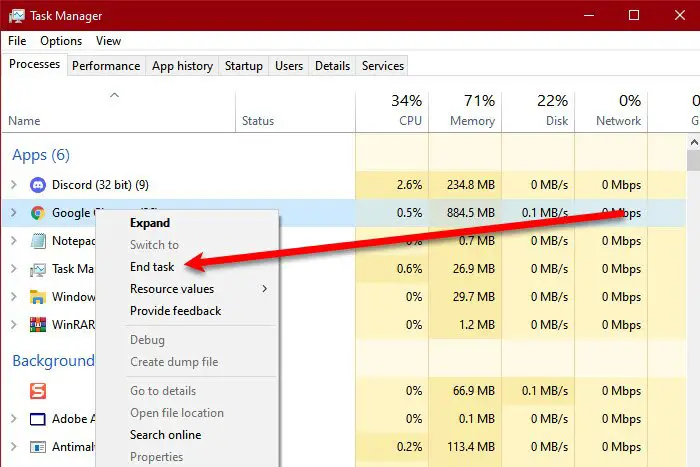
The problem may arise if you are playing DOOM Eternal and background programs simultaneously. So, to avoid such situations, you can disable unnecessary programs. To achieve the same goal, follow these steps.
- Press Win+X at the same time.
- Now go to Task Manager and click it.
- Press on the Process tab, and right-click on the program that may hinder the performance.
- Now click on End Task.
It is essential to ensure that you do not terminate the programs necessary for your computer’s proper functioning.
3] Verify the integrity of game files
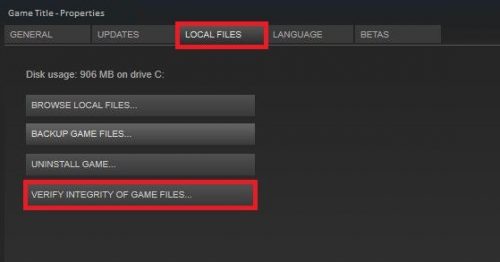
Another reason your game may crash on startup is due to corrupted game files. It may be corrupted or missing. So you can verify the integrity of game files by following the given steps.
- Launch Steam and go to Library.
- Right-click on DOOM Eternal and click on Properties.
- In the Local Files tab, select VERIFY INTEGRITY OF GAME FILES.
Wait for the procedure to take place. Quit Steam and then again launch DOOM Eternal. Hopefully, it won’t crash again at startup. However, if that doesn’t work, try the next fix.
4] Run the game as an administrator
A general fix for any game-crashing issue is to run the game as an administrator. A short and simple task that can save your time. The steps are mentioned below.
- Right-click on the .exe file of DOOM Eternal. And then navigate to Properties.
- Click on Properties, under the Compatibility tab, click on Run this program as an administrator.
- Now, click on Apply>OK.
Relaunch the game and check if it still crashes on startup. Fingers crossed, this won’t be the reason for your complaint anymore.
DOOM Eternal System Requirements
Your computer should meet the following system requirements to play DOOM Eternal.
- OS: Windows 7 or above 64-bit
- CPU: Intel Core i5 @ 3.3 GHz or better, or AMD Ryzen 3 @ 3.1 GHz or better
- CPU SPEED: Info
- RAM: 8 GB
- GPU: NVIDIA GeForce GTX 1050Ti (4GB), GTX 1060 (3GB), GTX 1650 (4GB) or AMD Radeon R9 280(3GB), AMD Radeon R9 290 (4GB), RX 470 (4GB)
- PIXEL SHADER: 5.1
- VERTEX SHADER: 5.1
- STORAGE SPACE: 50 GB
- DEDICATED VIDEO RAM: 3 GB
That’s it!
Read Next: Fix Icarus keeps crashing or lagging on Windows PC.
