
This post features different solutions if GIF is not working on Discord. Discord is a popular instant messaging and digital distribution platform. You can use it to make voice/video calls, create text messages, and send files in private chats. You can even use GIFs to make the conversation more interesting. But after downloading the latest Discord patch update, users have reported that GIFs are not working for them.
Why do my GIFs not work on Discord?
GIF not working on Discord isn’t a specific device issue, i.e., it occurs on Android, iOS, and Windows. But for all the devices, the reasons are typical. If you cannot send GIFs on Discord, it is likely that you have a weak internet connection. The issue will also occur due to temporary bugs and system file corruption.
On Discord, you can send a GIF with a maximum size of 8 MB. If your GIF size limit is exceeded, you will face the problem in question. These were all the common reasons behind the problem. Now, let’s check out how to eliminate them.
Discord GIFs not working or are broken
Below are the steps you can try if a GIF is not working on Discord.
- Restart Discord
- Check internet connection
- Clear Discord cache
- Change Discord settings
- Turn off Reduced Motion
- Configure the Text and Images settings
- Reinstall Discord
- Use Discord Web
Now, let’s check out all the solutions in detail.
1] Restart Discord
The first thing you can try is to restart Discord. The problem may be due to a temporary glitch in the application, and the best thing you can do is restart the application. So, restart Discord and check if it fixes the problem. If yes, you are good to go. But if the problem persists, try the next solution on the list.
2] Check the internet connection
For many users, the problem has occurred due to a weak internet connection. Communication platforms like Discord require you to be connected to a strong and stable internet connection to run without any issue. If this isn’t the case, you will always be surrounded by different issues.
Visit any internet speed-checking website and check your bandwidth. If you are getting a comparatively lower bandwidth, contact the ISP, and ask them to resolve the problem.
See: Discord Screen Share Audio not working
3] Clear Discord cache
The problem in question can occur due to corrupted Discord cache files. Like any other application, Discord stores cache data to provide a faster, smoother user experience. But this data can get corrupted over time due to unavoidable reasons. If this is the case with you as well, you will face different issues, including the one you’re currently facing. Below are the steps to clear Discord cache data.
- To begin with, open the Task Manager and close Discord from the background.
- Close all other Discord-related applications running in the background.
- Open the Run dialogue box by pressing the Windows + R shortcut key.
- In this space provided, type %AppData% and click on OK.
- Open the Discord folder.
- Double-click on Cache to open the folder.
- Select everything inside, then right-click and choose Delete.
That’s it. Now reboot your Windows PC and open Discord. Try sending a GIF and check if the problem is fixed. If not, try the next solution on the list.
See: Can’t install Discord, Installation has failed
4] Change Discord settings
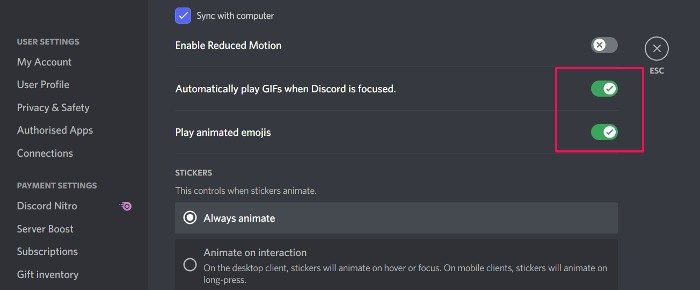
The next thing you can try is to change the Discord settings. Below are the changes you need to make.
- Open Discord on your Windows PC.
- Click the gear icon in the bottom-left corner of the screen.
- Under App Settings, click on the Accessibility option.
- Enable the toggle present next to Automatically play GIFs when Discord is focused, and Play animated emojis.
That’s it. Relaunch Discord and check for the problem.
Read: Fix Discord Mic not working in Windows
5] Turn off Reduced Motion
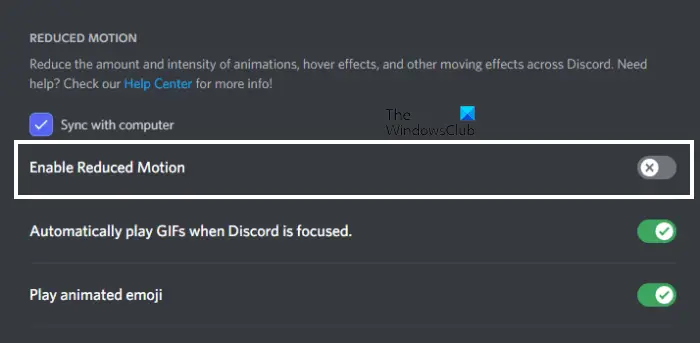
The Reduced Motion feature in Discord limits the number and intensity of animations. You might be experiencing this issue because of this feature. Check if Reduced Motion is turned on or not. If it is turned on, turn it off. The following steps will help you with that:
- Open Discord.
- Click on the gear-shaped icon at the bottom to open Discord Settings.
- Select Accessibility from the left side.
- Scroll down and locate REDUCED MOTION. Turn off the switch next to the Enable Reduced Motion option.
After turning Reduced Motion off, close Discord completely and launch it again. Now, see if the issue persists. To close Discord completely, click your System Tray and right-click the Discord icon. Select Quit Discord.
6] Configure the Text and Images settings
Check and configure the Text and Images settings in Discord. Go through the following instructions:
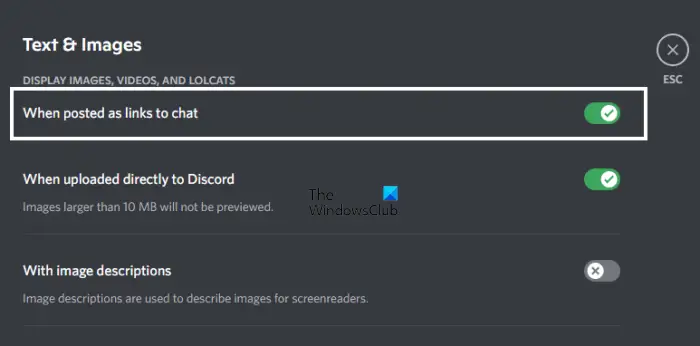
- Open Discord Settings.
- Select the Text and Images from the left side.
- The “When posted as links to chat” option should be enabled. If not, turn it on.
If this does not work, enable all the options in this menu. Restart Discord after doing that. This should help.
7] Reinstall Discord
If none of the steps were helpful, you could go through the reinstallation process. There can be an issue with the installation file causing the problem. The best thing you can do in this situation is to reinstall the application.
8] Use Discord Web
In the worst case, if reinstalling Discord was not helpful either, it is likely an application issue. In this case, you can use Discord web until the developers fix the problem.
How do you get GIFs to work on Discord?
If GIFs are not working in Discord, check your Discord settings. If everything is fine, the issue might be occurring due to the corrupted Discord cache. If this is the case, clearing the Discord cache will help. We have listed some working solutions to fix this problem in this article.
Why is Discord stuck on starting?
If Discord is stuck on the starting screen, the problem is likely caused by corrupt, damaged, or missing files. You will have to restore the files to fix the problem. To find out how to do it, you can check out our dedicated guide on Discord app won’t open.
Read Next: Can’t unmute Discord browser on Windows PC.
