
When you’re busy finding your favorite game and happen to find it, you see a description page alongside it. The page details the game’s contents and includes a trailer. It contains extracts from the game, often used for advanced publicity. The problem with it is that some of them automatically start playing at the top. There isn’t any sound from the video, and you can click to pause it. However, if you find this feature annoying or unnecessary, you can turn it off. Here’s a tutorial showing you how to disable Xbox One video autoplay in Microsoft Store.
Disable Xbox One video autoplay in Microsoft Store
If you would like to disable Xbox Store Autoplay Videos on the Xbox One, do the following.
Visit the Xbox One Home menu.
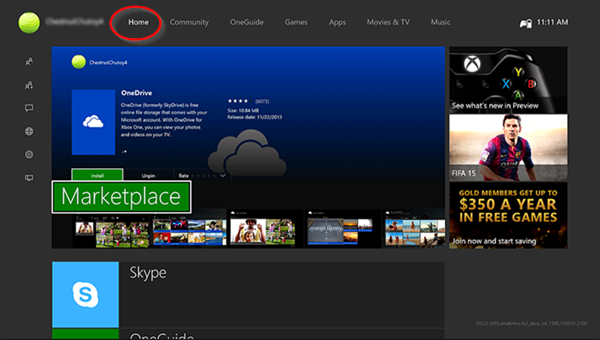
Now, press R(Right Trigger)+B four times.
Select Deals or open any other store category., hit the 3 dots button visible just adjacent to the ‘Search’ bar.
From the menu that appears, select Settings.
Find the option labeled ‘Play videos automatically’ and toggle it off.
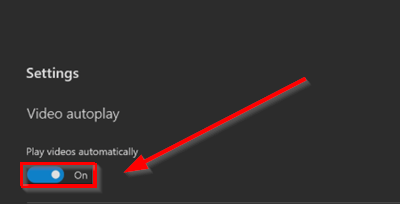
When done, you’ll observe just the artwork of a game in the background of its Store page instead of the autoplay in function. This means high-resolution banners will replace low-quality compressed videos, thereby enabling smoother and sharper Microsoft Store navigation.
At any point, if you feel like undoing the changes made earlier, follow the above steps, and toggle the switch to the ‘On’ position.
On a side note, if you have been a Microsoft observer for quite some time, you might have noticed that, just like Windows, the Microsoft Store has evolved significantly over the years. As such, new updates to the store have brought automatic video playback across store listings. Although it adds a dynamic finish to browsing, it can be bothersome. So, disabling them appears as the only viable solution.
If you would like to adjust Xbox gaming console settings to get the best visuals out of your Xbox One, see our earlier tutorial – Best Graphics & Visual settings for Xbox One.
How do I fix my Xbox One from turning on by itself?
If your Xbox One console keeps turning on by itself, clean its capacitive touch power button. The capacitive power button is touch-sensitive. It might be that the accumulated dust particles are causing this issue. In addition, you should disable instant-on mode.
Why is my Xbox One overheating?
The main cause of the Xbox One overheating is dust accumulation. Too much accumulated dust or debris clogs the vents, preventing the console from cooling properly. Another cause is room temperature. If your room temperature is already high, it will also cause Xbxo One heating issues.
