
When you create a new account in Windows, it presents options related to privacy. For example, you will see options to enable or disable features such as Speech recognition, Location service, Find my device, Inking & typing, and others. If you often need to create a test account in Windows, and you do not want to give this option, you can disable Privacy Settings Experience at sign-in in Windows 11/10 using this simple trick.

You can use the Registry Editor as well as the Group Policy Editor to accomplish this. Additionally, you must log in as Administrator before proceeding with these steps. It is also recommended to create a backup of Registry files or create a system restore point before making any changes.
Disable Privacy Settings Experience at sign-in in Windows 11/10
To disable the Privacy Settings Experience at sign-in in Windows 11/10, follow these steps.
Using Registry Editor
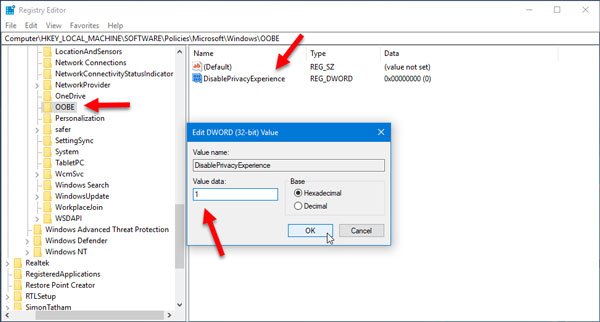
Open Registry Editor by pressing Win + R buttons together and navigate to this path;
HKEY_LOCAL_MACHINE\SOFTWARE\Policies\Microsoft\Windows\OOBE
If you cannot find the OOBE value at the mentioned path, you need to create it. For that, right-click on the Windows key and select New > Key. Name it as OOBE.
Right-click on the OOBE value, select New > DWORD (32-bit) Value and name it as DisablePrivacyExperience.
Double-click on DisablePrivacyExperience and set the value as 1.
Using Group Policy Editor
To disable Privacy Settings Experience on user logon in Windows 10 using Group Policy Editor, you can follow these steps
Open Group Policy Editor. For that, press Win + R, type gpedit.msc and hit the Enter button. Next, navigate to this path:
Computer Configuration > Administrative Templates > Windows Components > OOBE
On your right-hand side, you should find a setting called Don’t launch privacy settings experience on user logon. Double-click on it and select Enabled.
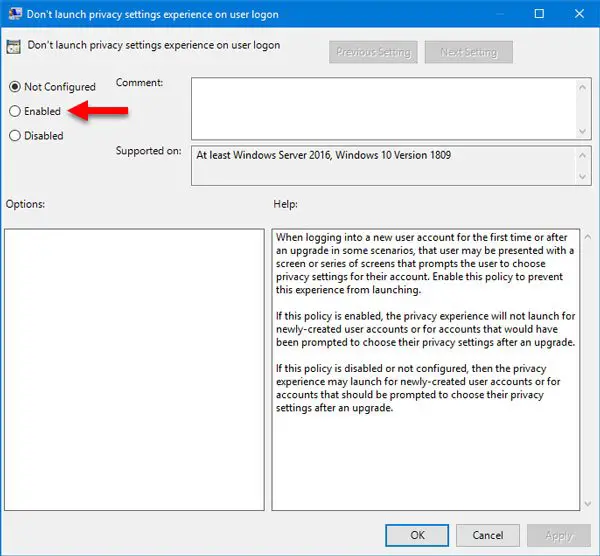
Don’t forget to hit the Apply and OK buttons.
That’s all!
I hope this simple trick will work for you.
How do I disable the Windows Welcome Experience screen in Windows 11?
To turn off Windows Welcome Experience for all users in Windows 11, open the Settings app, navigate to “System,” then “Notifications.” Under “Notifications & actions,” uncheck the option for “Show me the Windows welcome experience,” ensuring you won’t see it on future updates or installations.
How to disable Windows 11 The Sign-in option is disabled because of failed Sign-in attempts or repeated shutdowns?
To workaround The sign-in option is disabled because of failed sign-in attempts or repeated shutdowns, go to Windows Settings > Accounts > Sign-in options. Disable the toggle for For improved security, only allow Windows Hello sign-in. This will allow you to set up additional methods, such as a password or PIN.
