
If you are looking to turn off or disable your Mic or Microphone in Windows 11/10, then this post will show you how to do it easily. Many people these days prefer to disable the Mic and the Webcam for privacy and security reasons, since they can be hacked and hackers could hear everything you say or see everything you do on your laptop.
How to Disable or Turn off Microphone in Windows 11/10
To disable the microphone in Windows 11 or Windows 10, you need to open Device Manager or Settings.
1] Mute the mic using Device Manager
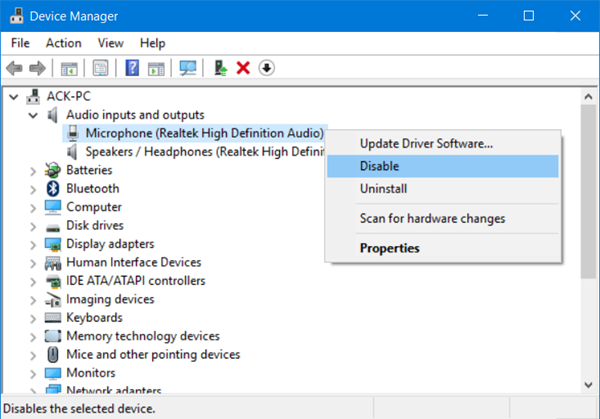
- Right-click on the Start Button to open the WinX Menu.
- Here select Device Manager. This interface lets you easily manage your devices and the device drivers.
- Now expand the Audio inputs and outputs section
- You will see your Microphone listed there.
- Right-click on it and select Disable.
When you do that, you will see a dialog box stating:
Disabling this device will cause it to stop functioning. Do you really want to disable it?
Click on Yes, and your computer’s Mic will be disabled.
To enable it back, follow the same procedure, and select Enable.
2] Via Windows Settings
Windows 11
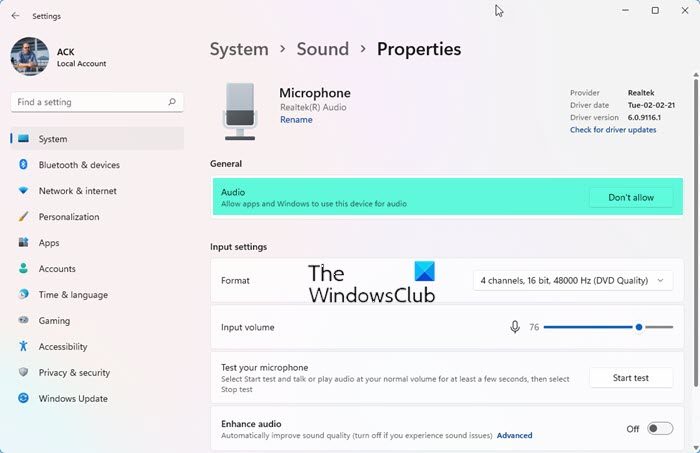
- Open Settings
- Click on System
- Select Sound
- Under Input, click on Microphone
- Click on the Don’t allow button against Audio.
Windows 10
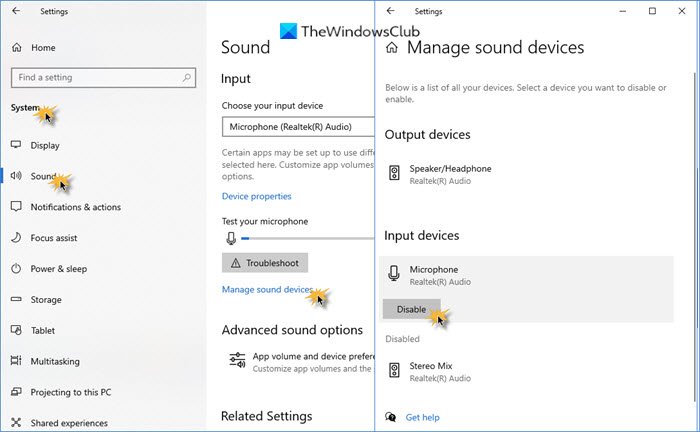
- Open Settings
- Click on System
- Select Sound section
- Under Input, click on Manage sound devices
- Select Microphone
- Click on the Disable button.
These days, using Remote Access Technology (RAT), hackers can compromise your system and watch you, monitor your activities, and even record your actions, using your own webcam or microphone!
TIP: MicSwitch lets you mute the Microphone with a shortcut in Windows 11/10.
If you are someone who never uses the mic or webcam and fears being watched or heard, you may want to disable the webcam and mic. You can, of course, always enable it again anytime in the future, should the need arise.
Can I completely disable the microphone in Windows 11?
Yes, you can disable it system-wide. Open Device Manager, expand Audio inputs and outputs, right-click your microphone and select Disable device. No app or process can access the microphone then.
How do I disable microphone access for specific apps in Windows 11?
Press Windows + I to open Settings. Go to Privacy & Security > App permissions > Microphone and toggle Microphone access to On. Now scroll down to see individual apps and turn off access for apps you don’t want using the microphone. This lets you keep the microphone active but restricts usage to trusted apps.
