
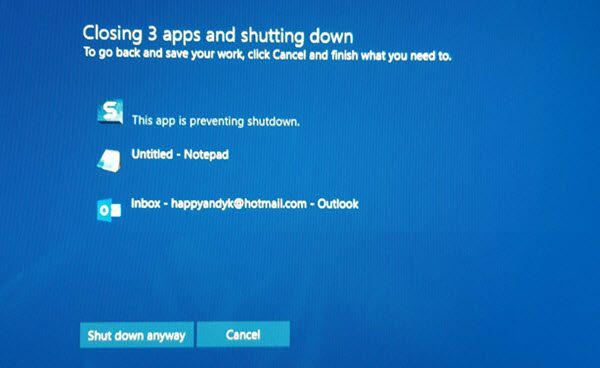
When you have open running programs, and you click on Shutdown or Restart you will see a screen with message Closing apps and shutting down/restarting, This app is preventing shutdown/restart. The exact message will read something like this-
Closing apps and shutting down/restarting
To go back and save your work, click Cancel and finish what you need to.
This app is preventing shutdown.
The options are Shut down anyway and Cancel.
Here’s how to disable this shutdown message and have your Windows computer shut down right away without it.
Disable This app is preventing shutdown message in Windows 11
This screen appears only at a particular time. Let’s assume you were working in the Paint app and opened an image. Now your system wants you to save the image if you have made any change. In case you didn’t save the image and tried to shut down the PC without even closing Paint, this warning message would appear.
The same thing can happen with any other app whenever you need to save something but don’t. It can happen with Notepad, Photoshop, or any other program.
This warning screen appears because your system asks you to save the changes you made in your file, and you haven’t closed the open app. Windows doesn’t close all open apps automatically, by default.
What you can do is:
- Click on Shutdown anyway
- Click on Cancel and then close the specified apps manually
- Make use of the Task Manager to end processes.
If needed, you can open Event Logs > Windows Logs > Application > Application events. Now under the General tab, look for The following application attempted to veto the shutdown. You will see the apps that stopped the shutdown.
Disable This app is preventing shutdown warning message using Registry Editor
You can skip this warning message using Registry Editor. As mentioned earlier, you need to create a key in the Registry Editor. However, before getting started, you should create a backup of Registry files or create a system restore point.
Enable or Disable AutoEndTasks during Shutdown
Open Registry Editor. For that, press Win + R, type regedit and hit the Enter button.
Now navigate to this path:
Computer\HKEY_USERS\.DEFAULT\Control Panel\Desktop
After selecting Desktop, right-click on the right-hand side > New > String Value.
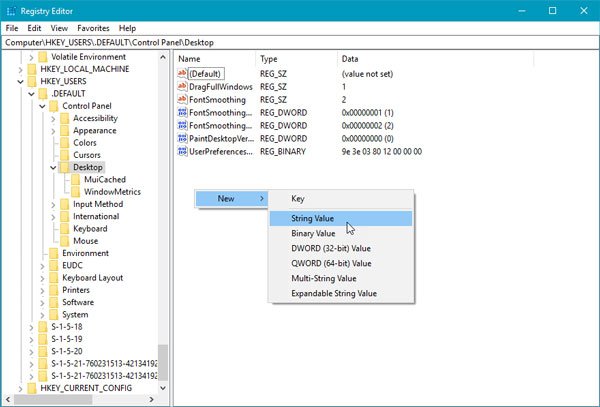
Create a string value and name it as AutoEndTasks. Now double-click on this and set the value to 1.
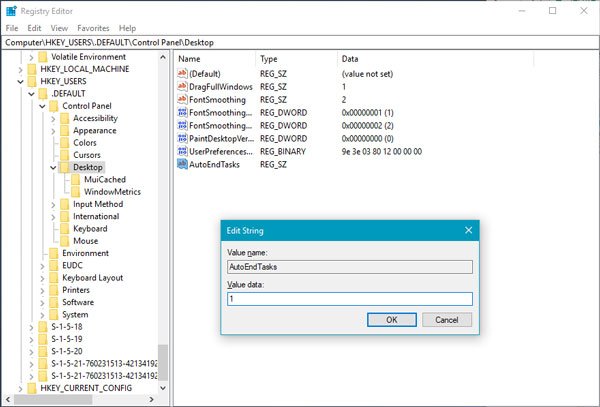
This string value will automatically close all open apps when you try to shut down or restart your system, and you will not see any shutdown message.
You could also:
Navigate to the following key:
HKEY_LOCAL_MACHINE/SYSTEM/CurrentControlSet/Control
Click on the “Control” Folder.
Select “WaitToKillServiceTimeout”. Right-click on it and select Modify. The default value is 20000. Setting it to a lower 4 digit value, (say 5000) will make your PC shutdown faster, but you could end up losing data, so use this tweak judiciously. Remember, Windows does not, in any case, recognize a 3-digit numeral here.
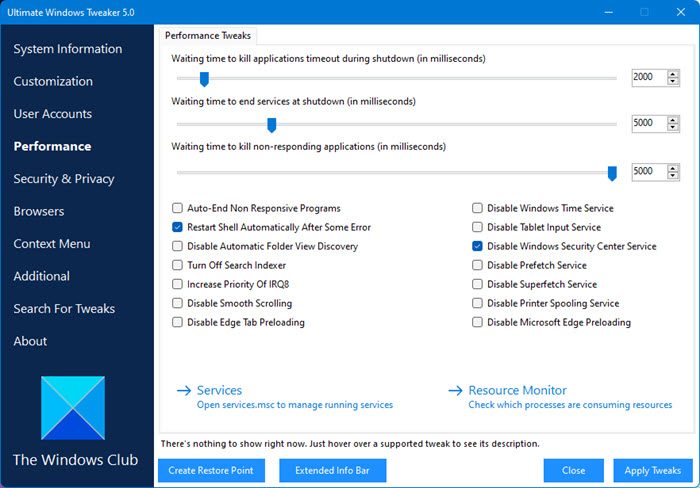
If you want a quick way, you can use our Ultimate Windows Tweaker to change this setting easily.
I hope this helps!
TIP: You can also stop Windows from opening programs after a restart.
