
In this post, we will show you how to create a Table of Contents with or without page numbers in Word in Windows 11/10. Adding a Table of Contents (TOC) is a common practice when working with long or structured documents. It’s a small section that appears at the beginning of a document, guiding users on what topics are covered and where to find them.

Interestingly, Word lets you customize a Table of Contents the way you want. You can include page numbers for easy navigation or create a cleaner version without them. In this post, I’ll walk you through both methods step by step.
Create Table of Contents with page numbers in Word
To create a Table of Contents with page numbers in Word, follow these steps:
Open your Word document and place the cursor where you want the TOC to appear (usually at the beginning of the document, right after the cover page).
Go to the References tab on the Ribbon. In the Table of Contents group, click on Table of Contents. Choose one of the Automatic Table options from the drop‑down menu.
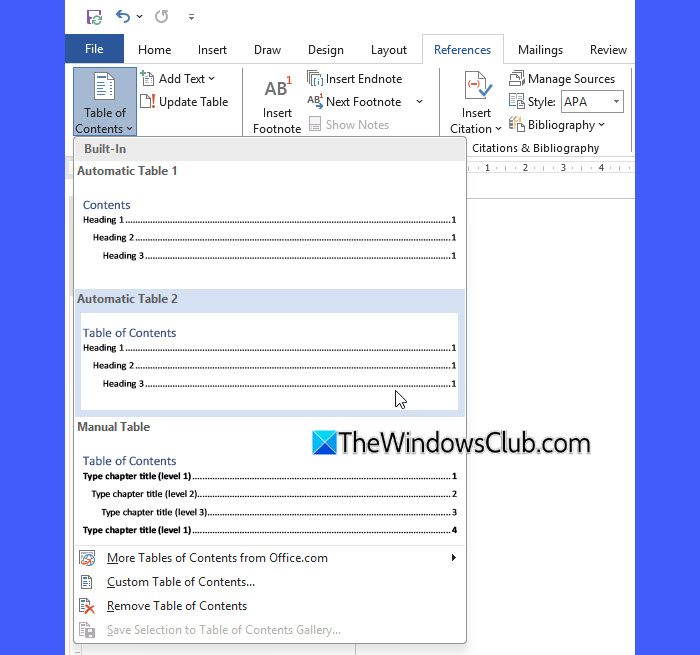
Word will instantly insert a TOC with page numbers on the right, showing where each section begins.
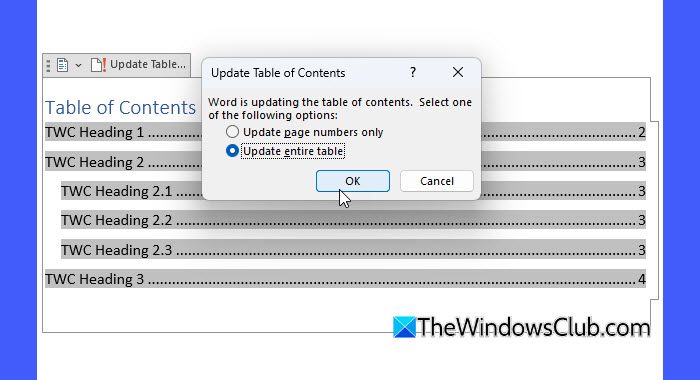
If you make changes in the document later, click inside the TOC, and then click the Update Table option that appears on top. This will refresh the TOC with the latest headings and page numbers.
Fix missing entries in the Table of Contents
Sometimes, your Table of Contents may not display all the headings you expect to see. If you notice missing entries in the TOC, go through the content and identify titles and subtitles where correct Heading styles (Heading 1, Heading 2, etc.) are not applied. Apply the styles and update the TOC to reflect changes.
Create Table of Contents without page numbers in Word
To create a Table of Contents without page numbers in Word, follow these steps:
Open the Word document. Place your cursor at the position where you want the Table of Contents to appear. Go to the References tab on the Ribbon.
In the Table of Contents group, click Table of Contents, and from the drop‑down list, select Custom Table of Contents.
Uncheck the ‘Show page numbers‘ option in the dialog box that appears.
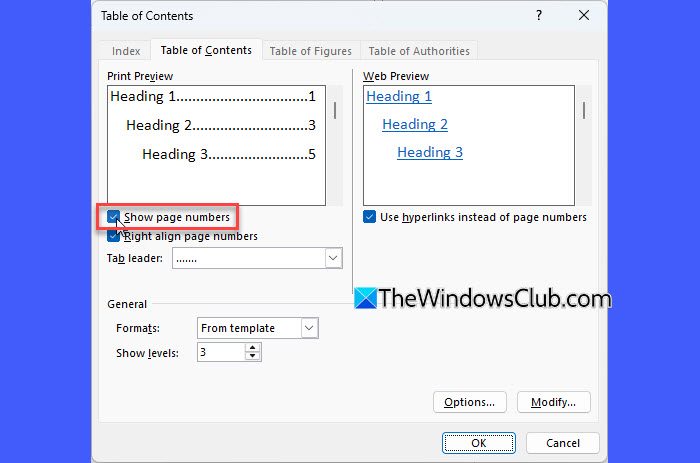
Click OK, and Word will insert a Table of Contents that lists your headings without any page numbers.

If you make changes later, right-click the TOC entry and select Update Field.
Include Heading 4 or Custom Styles in the Table of Contents
By default, Word only includes Heading 1, Heading 2, and Heading 3 in the Table of Contents. If you’ve used Heading 4 (or any other custom style) for additional sections, they won’t appear unless you manually assign them a TOC level. Here’s how to do it:
Go to the References tab and click Table of Contents. Select Custom Table of Contents from the drop-down list. In the dialog box, click the Options button.
Locate Heading 4 (or your custom style name) in the list that appears. In the box next to it, enter 4 (or the appropriate TOC level).
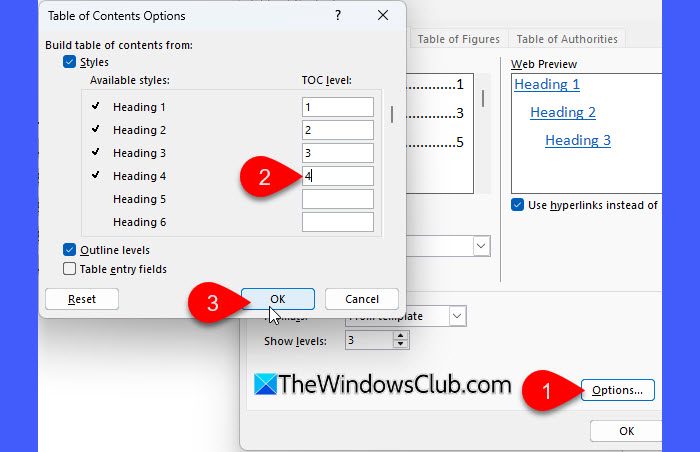
Click OK, then click OK again in the main dialog box. Word will now include the Heading 4 entries in your Table of Contents.
Remove Page Numbers for Specific TOC Entries
By default, if you uncheck the ‘Show page numbers‘ option in Word’s Table of Contents settings, it removes page numbers for the entire TOC. But if you want to hide the page number for just one specific entry or heading level (like the annotation level), you’ll need to use TC (Table of Contents) field codes.
A TC field is a manual way to mark specific text to appear in the Table of Contents, giving you control over what appears and how.
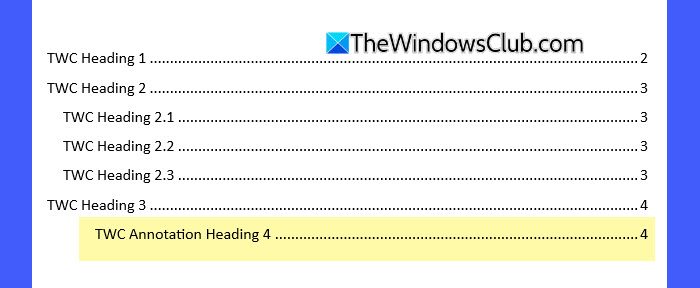
Suppose in the above TOC, we want to hide the page number for “TWC Annotation Heading 4”, but keep page numbers for all other entries. So we’ll follow these steps:
Select “TWC Annotation Heading 4” in the document. In the Home tab, change the style from Heading 4 to Normal.
When you use a Heading style, Word automatically includes it in the Table of Contents based on TOC options (including its page number). By changing the style to Normal, you prevent Word from auto-including it in the TOC.
Next, go to File > More > Options. This opens the Word Options dialog box. From the list on the left, select the Display tab. Check the box for Show all formatting marks under Always show these formatting marks on the screen section. Click OK to apply changes.
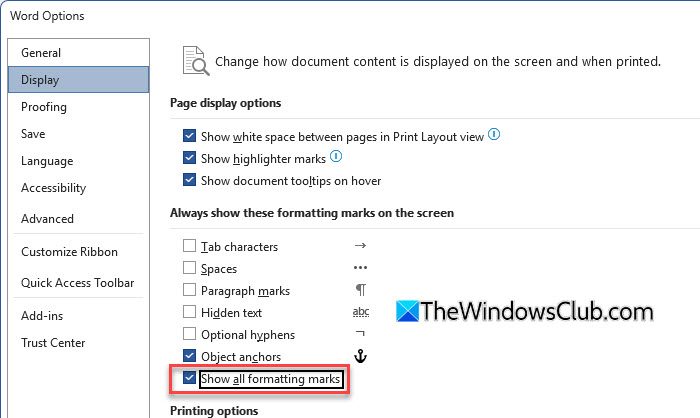
You’ll now see paragraph symbols (¶) and other hidden formatting marks. Click at the beginning of “TWC Annotation Heading 4” and press Ctrl + F9. You’ll see curly braces.
Inside the braces, type:
TC “TWC Annotation Heading 4” \l 4 \n
where,
- \l 4 means TOC Level 4
- \n means “suppress page number”
This ensures the entry appears only through the TC field in the Table of Contents, with no page number next to it.

Next, go back to File > Options > Display and uncheck Show all formatting marks. Then select your existing TOC and delete it.
Once this is done, go to References > Table of Contents > Custom Table of Contents. Click Options, and make sure the Table entry fields option is checked. Click OK to insert the new TOC.
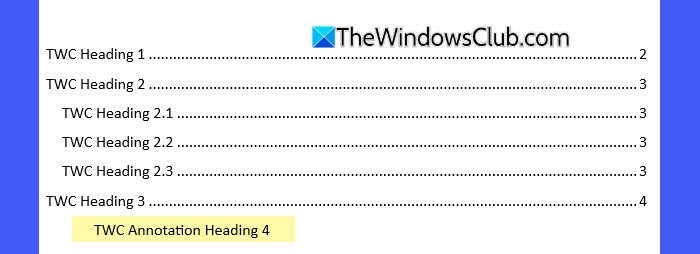
Now the TOC will include “TWC Annotation Heading 4” at level 4 without a page number, while preserving page numbers for all other entries.
I hope you find this useful.
Read: Microsoft Word keeps crashing or freezing on Windows.
How to create a table of contents in Word with page numbers?
To create a Table of Contents in Word with page numbers, place your cursor where you want the TOC to appear, then go to the References tab and click Table of Contents. Choose an automatic style, and Word will generate a TOC based on your heading styles (page numbers will appear next to each entry).
How do I remove page numbers from a table of contents in Word?
To remove page numbers from the entire Table of Contents, go to References > Table of Contents > Custom Table of Contents. In the dialog box, uncheck the “Show page numbers” option and click OK. If you only want to remove the page number for a specific entry or heading level, you’ll need to use a TC field with the \n switch to suppress it.
Read Next: How to insert a Text field in Microsoft Word.
