
Struggling to find the perfect background music for your YouTube videos without worrying about copyright claims? You are not alone. With Suno AI, you can now create custom, royalty-free music in minutes using nothing but text prompts. In this article, we will see how to create Royalty-Free Background music for YouTube videos with Suno.

As a YouTuber, you already know the struggle around copyright. You use music, your video goes live, and six months later someone claims copyright on it because you used music you thought was copyright-free. If this is something you deal with repeatedly or want copyright-free music you truly own, using Suno AI can be a good option.
Create Royalty-Free Background Music for YouTube Videos with Suno AI
Suno AI is an artificial intelligence music generator that creates original songs and instrumental tracks based on your text descriptions. Think of it as ChatGPT for music. You simply type what kind of track you want, and Suno generates it from scratch. It understands genres, moods, instruments, and tempos. The best part is that if you are on a paid plan, you own the full commercial rights to the music you create, making it completely safe for monetized YouTube channels.
To create royalty-free background music for YouTube videos with Suno, follow the steps mentioned below.
- Pick a plan for yourself
- Set up your Project for Instrumental Music
- Write effective prompts
- Generate and select your type
- Download and edit
Let us talk about them in detail.
1] Pick a plan for yourself
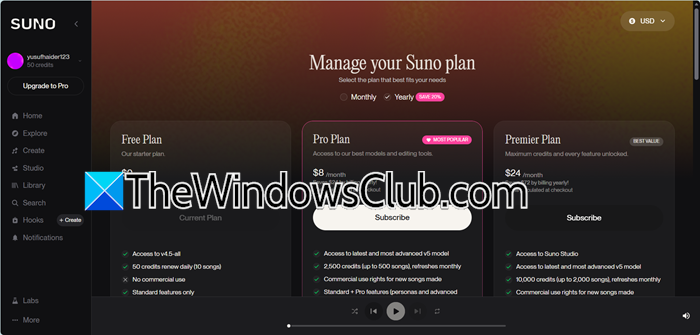
Before you create music, it’s crucial to pick the correct plan. This is important because the free version does not give you commercial rights.
The free plan gives you 50 free credits daily. You can experiment and practice here, but the music is for personal use only, and you will not be able to monetize YouTube videos with free-plan tracks.
If you go with the Pro Plan, which is $8 a month, you get 2500 credits monthly, full commercial ownership of your music, and the ability to download high-quality WAV files.
In Premier Plan ($24/month), you get 10,000 monthly credits and additional features.
For now, let’s go with the Pro Plan.
2] Set Up your Project for Instrumental Music
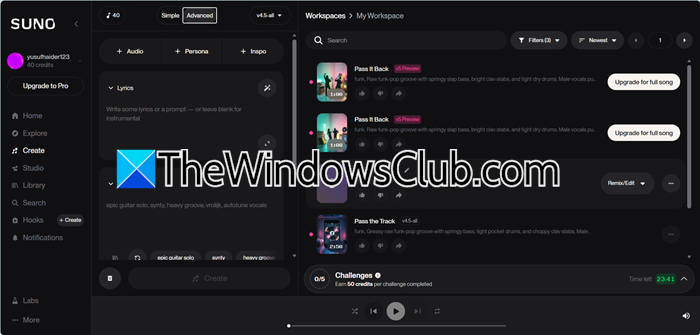
Once you log in to your account, enter a prompt and click on the Create button. Upon doing so, you will see the following options.
- Simple: A single box for quick generation.
- Advanced: More controls for advanced users.
For YouTube background music, you almost always want instrumental tracks. In Simple Mode, look for the Instrumental toggle switch and turn it on. If you are using Advanced Mode, simply leave the lyrics box empty.
3] Write effective prompts
The quality of your music depends entirely on your prompt. Do not just type happy music. Be specific. Include the genre, mood, tempo, and instruments you want.
It is crucial to make your prompt right. “Relaxing background music” is an example of a weak prompt; therefore, try “90 BPM lo-fi hip hop instrumental, warm piano chords, soft vinyl crackle, chill and study mood, no drums” instead.
4] Generate and select your type
Type your prompt into the box and hit Create. Suno will generate two versions of your song in about 30 seconds. Listen to both carefully. Does the track match the mood you wanted? Is the pacing right for your video? If neither works, tweak your prompt and try again. You can generate unlimited variations until you find the perfect one.
5] Download and edit
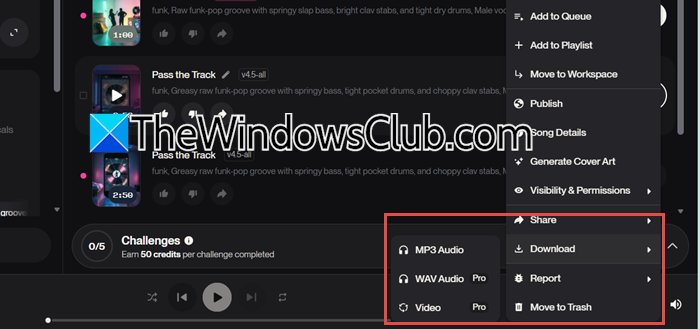
Once you find the perfect track, click the three dots menu on the track and select Download. As a Pro user, download the WAV format for the best audio quality. This file is now yours to use commercially.
Once you have downloaded the high-quality WAV file from Suno, simply import it into your video editing software like Premiere Pro, DaVinci Resolve, or CapCut. When editing, remember to lower the volume so the music supports your voiceover instead of overpowering it, and use fade-in and fade-out effects for smooth transitions. If the track is longer than your video, feel free to cut it down to fit your desired length. Since you created this track on a paid Suno plan, you can monetize the video without worrying about copyright claims, and you do not need to credit anyone.
With the help of this post, you will hopefully be able to find good music for your YouTube videos.
Read: How to use Suno AI to create Songs free
Can I use Suno AI music for YouTube videos?
You can use Suno AI music for YouTube videos, but it depends on your subscription plan. If you are a free user, you can only use the music for non-commercial purposes, which means you cannot make money from your videos. If you subscribe to a Pro or Premier plan, you can use the music for commercial purposes and make money from your YouTube videos without Suno taking a share of your earnings. Since each track is created from scratch and is original, there is a lower risk of getting hit with Content ID claims compared to using popular stock library tracks.
Can music generated with Suno AI be monetized on YouTube without copyright issues?
Yes, you can usually monetize Suno AI music on YouTube, especially with a paid plan, but it depends on their current licensing terms. Always check the latest policy before publishing. It’s also smart to keep your prompts and downloads as proof of creation and avoid redistributing the track as standalone music unless allowed.
How can you make AI-generated music sound less generic and more unique?
To avoid generic results, write more detailed prompts that include instruments, mood, and structure. You can also generate multiple versions and combine them using tools like Adobe Premiere Pro or Audacity. Adding subtle effects or ambient layers in editing helps create a more original sound.
Read: Best AI tools for Audio Editing
Can Suno music be monetized on YouTube?
Yes, Suno music can be monetized on YouTube if created with a Pro or Premier plan, which provides full commercial rights. Tracks from the free plan are for personal use only and cannot generate ad revenue. Also, your video must demonstrate originality and creativity to qualify for monetization; simply uploading a track with a static image may not comply with YouTube’s policies.
Also Read: FineVoice AI: Powerful AI voice cloning and voice generator tool.
