
The Outlook desktop software in Windows comes with a lot of new and advanced features and functions. You can create an email message, an appointment, a contact, and a task in Outlook. In this post, however, we shall see how to write or create and write a new email message in Outlook, and also learn about the features and functions it has to offer.
How to compose an Email in Outlook
Open the Outlook app from the Start menu or search for it in the search box.

The Outlook app will open and you will see Ribbon above which will consist of a variety of functions and features. To create a new email message, click on ‘New Email’ from the ‘Home’ tab.
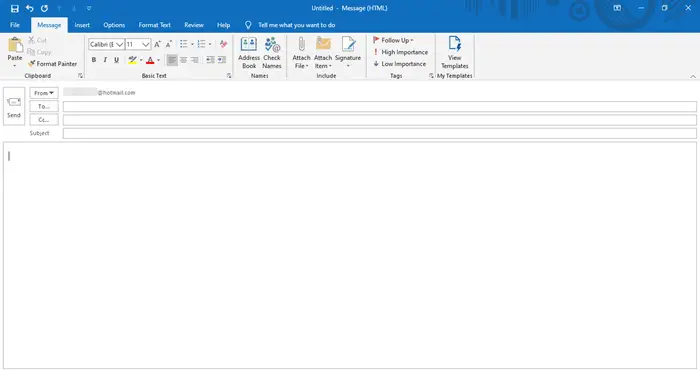
A new message window will open like this. At the top, you will see the menu consisting of different tabs such as File, Message, Insert, Options, Format Text, Review, and Help.
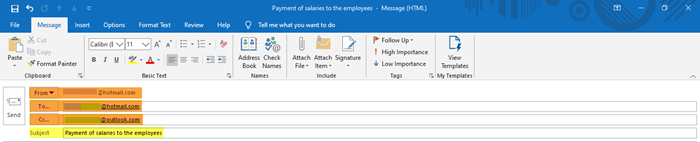
Fill in the appropriate email addresses in the ‘From’, ‘To’, and ‘Cc’ sections. Also, fill the subject matter of the email message in the ‘Subject’ section.
Next, write the body of the email in the space below, and let’s see how we can edit and customize it using Outlook features.
Features in the ‘Message’ tab

- In the Message tab, you will see a variety of commands segregated in different sections such as Clipboard, Basic Text, Names, Include, Tags, and My Templates.
- Under Clipboard, you can cut, copy, and paste content, and use the Format Painter feature. Format Painter allows you to apply the look and style of one selected item to another.
- Basic Text includes features to change the font style, size, and color. It gives you options to make your text bold, italicized, or underlined. You can choose alignment for the content – left, center, or right; and increase or decrease indent, which is the space from the margin. You can also create bulleted or numbered lists to improve the visual presentation of your content.
- Under Names, you can check and open the saved names and email addresses in the list.
- The Include category helps you attach a file, business card, calendar, your email signatures, or any other Outlook item.
- Under Tags, you can add different tags to the email messages to set it based on high priority, low priority, and follow up.
- My Templates shows you available templates and lets you create new ones you can add to your message. Text and images can be included in the templates.
Features in the ‘Insert’ tab

- The Insert tab shows different categories called Include, Tables, Illustrations, Links, Text, and Symbols.
- Under Include, you can insert or attach a file, business card, calendar, signature, and other such Outlook items.
- You can draw or insert a table with the required number of rows and columns. This can help you to organize the information and display it in a presentable manner. This feature also allows you to insert a Microsoft Excel Worksheet in to the message.
- The Illustrations section will help you add or insert pictures, shapes, icons, different 3D models, charts, SmartArt Graphic, or even a screenshot!
- You can add a hyperlink or a bookmark under Links.
- The Text section includes settings related to the text, text styles and Word-Art.
- You can also insert an equation, a symbol, or a horizontal line from the Symbols section.
Features in the ‘Options’ tab

- In the Options tab, you can see different sections such as Themes, Show Fields, Encrypt, Tracking, and More Options.
- In the Themes section, you can choose a theme, fonts, colors, and effects for your document to achieve the look you want. The Page Color of the document can also be changed here.
- The Show Fields section allows you to add ‘Bcc’. The recipients in Bcc field will receive the email message, but they will not be visible to the other recipients.
- You can Encrypt and set permission on the message in order to restrict other people from forwarding it.
- The commands under Tracking allow you to track the status of the message, whether it is received or read by the receiver. You can also add Voting buttons here to your message.
- Under More Options, you will find additional settings to where or in which folder you choose to save your sent items. You will also find options to disable saving sent items and other settings.
Features in the ‘Format Text’ tab

- In the Format Text tab, there are a variety of settings related to the font, font styles and so under various sections such as Clipboard, Format, Font, Paragraph, Styles, Editing, and Zoom.
- Clipboard includes functions related to copy, cut, paste, and format painter.
- The Format settings allow you to format the message as HTML, plain text, or rich text.
- The Font category includes features to change the font type, size, and color. You can also change the text’s case, make it bold, italicize it, or underline it.
- The settings under Paragraph help you adjust the line and paragraph spacing, align the content, increase or decrease indent, etc. You can create a numbered list, a bulleted list, as well as a multilevel list. You can also add or remove borders and change the shading of the selected content.
- Styles allow you to change the set of styles, fonts, colors, paragraph spacing used in the document. You can choose from the available options of styles here; and create a new style for the document.
- Editing settings help you to find and replace text using advanced search options.
- Lastly, you can Zoom in or out into the desired percentage.
Features in the ‘Review’ tab

- In the Review tab, you will find settings related to Proofing, Speech, Accessibility, Insights, and Language.
- Under Proofing, you will see three important features – Grammar & Spelling, Thesaurus, and Word Count. These help you identify typos or grammatical errors, identical words or synonyms, and word count.
- The Read-Aloud feature under Speech reads the text aloud, highlighting it as it reads.
- Accessibility feature checks for issues and helps make the document more accessible to the users.
- Smart Lookup under Insights helps you gain more related information about the content from other online sources.
- Lastly, Language settings enable you to translate the content in a different language and choose other language preferences.
Features in the ‘Help’ tab

- As in the image, you can see Help and Tools sections under the Help tab.
- Here, you will find the buttons to contact a Microsoft agent, give feedback, get help using Microsoft Office, and more.
Features in the ‘File’ tab
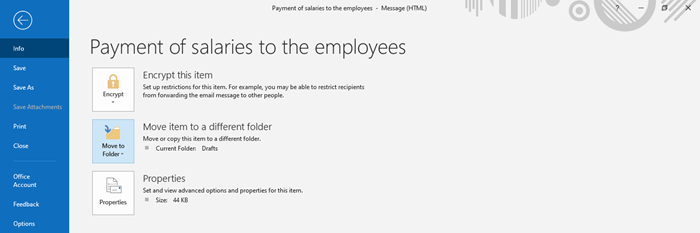
- File tab includes settings to save the file, print the file, and such other more Outlook options.
This covers all features in the Outlook app, and you can create a new email and customize it as you want using these features.
