
In this article, we will discuss three methods to connect Claude AI with Microsoft Excel for automated data analysis. We are going to use Claude to analyze spreadsheet data, generate formulas, and summarize trends directly within your workflow.
Connect Claude AI to Excel for Automated Data Analysis
Before installing, confirm you meet the following requirements.
- Subscription Requirements: A Claude Pro, Max, Team, or Enterprise plan.
- Supported Excel Versions: Excel on the web, Windows (Microsoft 365 subscription, build 16.0.13127.20296 or later), Mac (version 16.46 or later, build 21011600 or later), or iPad (version 2.51 or later)
To connect Claude AI to Excel, you need to follow one of the methods mentioned below.
- For Individual Users
- For Admins
Let us talk about them in detail.
1] For Individual Users

This method is for users installing the add-in on their own device. You can follow the steps mentioned below to do the same.
- Open a web browser and navigate to the Claude for Excel listing on the Microsoft Marketplace (marketplace.microsoft.com).
- On the listing page, click the Get it now button. You may be prompted to sign in to your Microsoft account.
- Launch Microsoft Excel on your device.
- The method to activate varies by platform:
- On Mac: Go to the Tools menu and select Add-ins.
- On Windows: Go to the Home tab and click Add-ins.
- Locate the Claude add-in in your list of available add-ins and click to activate it. The Claude sidebar will open in your Excel window.
- In the sidebar, click the Sign in button and enter your Claude account credentials. Once authenticated, the add-in is ready to use.
Finally, you will be able to access Claude on Excel.
2] For Admins
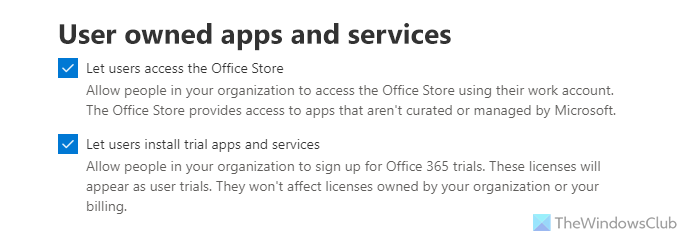
If you have access to the Microsoft 365 Admin Center, and want to deploy the add-in to multiple users in an organization, go through the steps mentioned below.
- Go to the Microsoft 365 Admin Center.
- Navigate to Settings > Org Settings > User owner apps and services.
- Ensure the toggle for Let users access the Office Store is turned on. (Note: If this is disabled, admin-deployed add-ins may not appear. In that case, use the manifest file method below.)
- In the Admin Center, go to Settings > Integrated apps > Add-ins.
- Click Deploy Add-in or Get Apps.
- Search for Claude by Anthropic for Excel in Microsoft AppSource.
- Select the add-in and follow the prompts to deploy it to your entire organization or specific users.
- After deployment, team members should open Excel. They can activate the add-in from Tools > Add-ins (Mac) or Home > Add-ins (Windows) and sign in with their Claude credentials.
Finally, try out Claude in Excel.
How to automate Data Analysis
Once connected, you can use the following features to automate your analysis workflow.
- Use cell-level citations: Ask questions about your data. Claude will highlight the relevant cells and provide clickable links to navigate to them directly. You do not need to search manually.
- Track changes: Ask Claude to update numbers or fix errors. It will highlight every cell it modifies and add explanatory comments. Review changes before accepting them.
- Update inputs safely: Change an assumption or input value. Claude will automatically maintain all formula dependencies and relationships. You do not need to trace dependent cells manually.
- Work across tabs: Ask questions that reference multiple sheets. Claude can read and analyze data across the entire workbook without you switching tabs.
- Apply formatting directly: Ask Claude to sort data, filter tables, modify pivot tables, or apply conditional formatting. The add-in uses Excel’s native controls to make these changes.
Read: How to use COPILOT function in Excel?
Use Claude for Excel
Once installed and signed in, you can use the sidebar to interact with your spreadsheet.
Understanding Models:
- “What assumptions drive the revenue forecast in Q3?”
- “Explain how the WACC calculation flows through the DCF model.”
Updating Assumptions:
- “Increase growth rate by 2% and show the impact on terminal value.”
Building and Filling Templates:
- “Build a three-statement model for a SaaS company.”
- “Fill this DCF template with data from the uploaded 10-K.”
Debugging Errors:
- “Why is this NPV calculation returning #VALUE?”
- “Find all circular references in this workbook.”
Editing and Formatting:
- “Sort this table by revenue, descending.”
- “Add a conditional format that highlights cells below the target threshold in red.”
- “Set up a dropdown for the status column with options: Active, Pending, Closed.”
- “Toggle off gridlines and set the print area to A1:F20.”
That’s it!
Read: How to convert PDF to Excel free using Copilot AI?
Can Claude.ai analyze Excel data?
Yes, but only through the official Claude for Excel add-in. Claude cannot directly analyze Excel files through the web interface. You must install the add-in from the Microsoft Marketplace and sign in with a paid Claude account (Pro, Max, Team, or Enterprise) to work with spreadsheet data.
Read: How to install Claude AI code in VS Code
How to use AI for Excel data analysis?
Install an AI add-in like Claude for Excel or OpenAI’s Excel connector from the Microsoft Office Store. Once installed and signed in, you can type natural language prompts in the sidebar to generate formulas, summarize data, debug errors, and apply formatting without writing manual code.
Also Read: Top 5 Best AI tools for Excel.
