
Are you receiving an error message that says This computer does not have enough space for temporary files? It happens when you don’t have enough space on your drive where you are installing a Windows Feature Upgrade or downloading a Windows Update on your Windows 11 or Windows 10 computer. This post will guide you through fixing the problem.
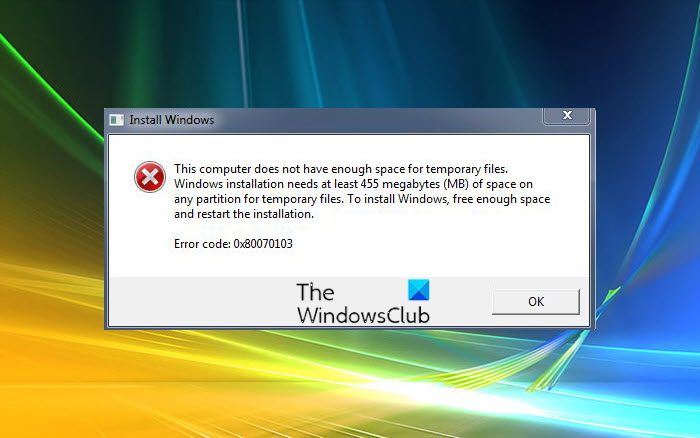
Why does this error This computer does not have enough space for temporary files occur?
Temporary files exist only while they are in use and are stored in a temporary folder. The temporary folder is not deleted when your computer is restarted; instead, it is removed by the program that creates it or by the OS itself. Such Temporary files get created when installing a Windows Update or software.
Error 0x80070103, This computer does not have enough space for temporary files
To resolve this issue, you need to create enough space for temporary files. use the following methods:
- Run Storage Sense
- Find Large Files & Apps
- Increase Disk Space
- Relocate App to a different location
You may need admin permission for some of these.
1] Run Storage Sense
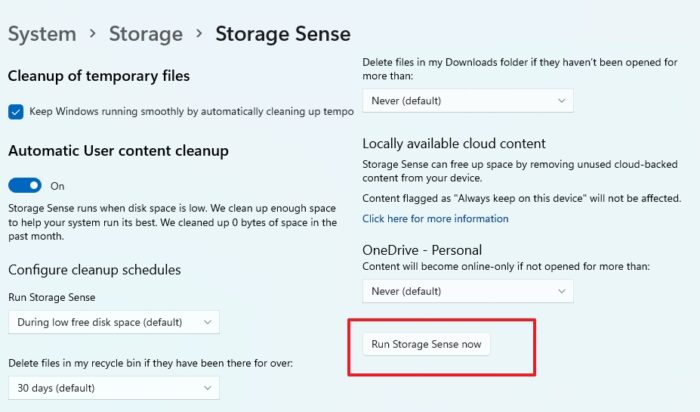
Storage Sense is a feature in Windows 11 that automatically manages storage intelligently. It can monitor your storage usage and warn you when storage is full. You can also configure it to easily empty the Recycle Bin and the Downloads folder.
- Open Windows Settings (Win + I)
- Navigate to System > Storage > Storage Sense
- Turn on Automatic User content cleanup toggle
- Select what you want to clean up and then click on the Run Storage Sense now button
It will delete files from most locations, especially the temporary folder available in the Windows folder.
Read: Deleted files from Hard Drive, but it is still full
2] Find Large Files & Apps (Cleanup Recommendation)
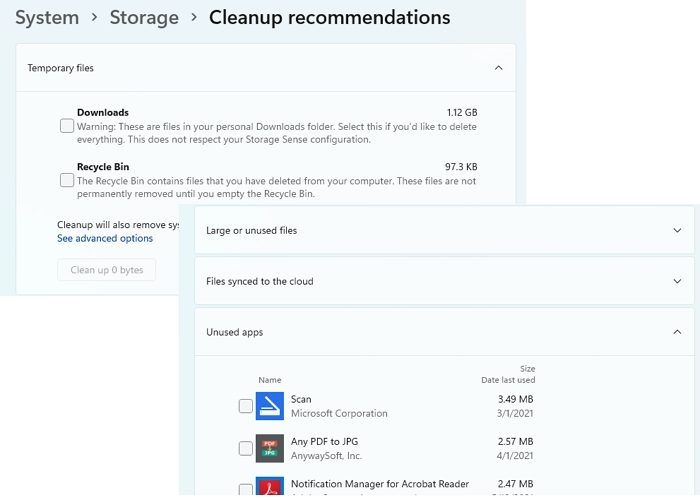
Locating large files has always been a problem in Windows, but it is straightforward to find with the Cleanup Recommendation feature.
- Go to Windows Settings > System > Storage
- Click on the Cleanup recommendations
- There are four options here—Temporary files, Large or unused files, Files synced to the cloud, and new apps
- Check each of them, and then remove what is not required.
You will be surprised to find the number of unused apps on your PC and files
3] Extend Partition
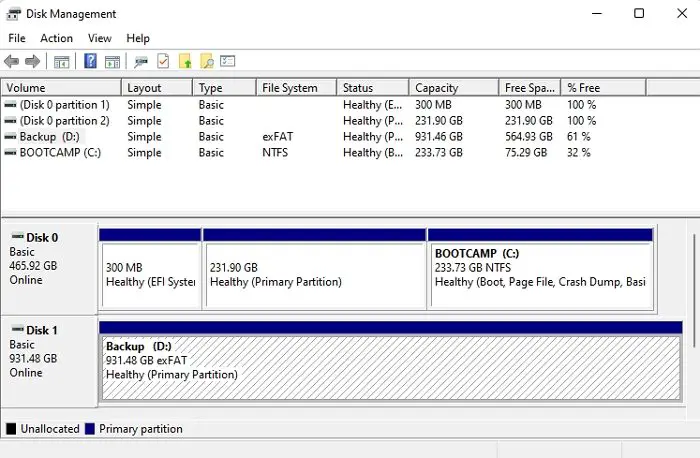
If none of these work, the next suggestion is to increase the size of the primary partition. However, there are two things you should know. First, you need to have space next to the partition, and it will take time depending on the software you use.
- Open Run Prompt using Win + R
- Type diskmgmt.msc and press Shift + Enter to launch it
- First, make sure there is unallocated space on the drive. If not, you will have to create it by deleting the existing one.
- Please right-click on the System Drive or C Drive and choose to extend it
- You need to also ensure that the partition is marked as Active
- Wait for the process to complete, and make sure not to use the PC.
Follow our extensive guide on how you can extend the Partition to increase the Disk Space. You can also use third-party partition manager software to speed up the process.
TIP: Use Command-line version of Disk Cleanup Utility to clean more
4] Relocate App to a different location
If it’s an app or software installation issue, you can choose to install it in a different location. Most desktop software allows you to change the installation path before installing. On the other hand, Windows settings will aallow you to move some of the apps to a different partition.
Is it OK to delete files from the Downloads Folder?
It is safe to delete whatever you downloaded there unless you are storing important files in the Downloads folder. However, it’s good not to keep essential files and move them to a safe location.
Can I add more storage to my PC?
You can always add more storage space based on your PC configuration, but adding more storage to the existing drive will have limitations. So if you’re going to add more space to the system drive, you can either change the drive and migrate to it or use disk management to extend the system drive.
