
Encountering an incorrect password error when trying to use the Command Prompt from Windows Recovery or Repair Mode is a common and frustrating roadblock. You’re absolutely certain of your password, yet the system refuses to accept it. This typically happens because the Command Prompt in this isolated environment isn’t communicating with the same security subsystem as your normal desktop. In this post, we will see what you can do if the Command Prompt says Password is incorrect in the Repair Mode.
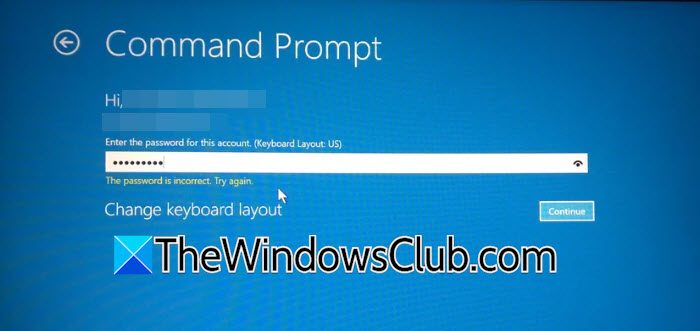
Command Prompt says Password is incorrect in Repair Mode in Windows 11/10
This problem mainly happens because the security setup in offline repair mode does not match your Windows installation. When you start recovery, the system uses a basic version of Windows. If it tries to check your password against the local user accounts database (the SAM file) on your installed Windows system, it might not work. This can happen due to driver problems, corruption, or because the built-in Administrator account is usually disabled during a normal boot and may not be activated correctly here. In short, the repair environment is not properly passing your login information to the security system of your main Windows installation.
If the Command Prompt says Password is incorrect in Recovery or Repair Mode in Windows 11/10, follow these solutions to resolve the issue.
- Use the built-in administrator account
- Bypass with Installation Media and make registry changes
- Reset your User Password via Registry
Let us talk about them in detail.
1] Use the built-in administrator account
The hidden Administrator account is often unpassword-protected by default in the repair environment, especially if your main Windows installation was upgraded from an older version. It bypasses your personal account credentials entirely.
If you have enabled an administrator account, follow the steps below.
- On the recovery mode screen where you select a user account to log into Command Prompt, look for an account literally named “Administrator.” It may not be visible by default.
- If you see it, select it, then leave the password field blank. Press Enter.
- If you don’t see it, try manually typing “Administrator” in the username field (if the field is editable) and leave the password blank.
Finally, check if your issue is resolved.
2] Bypass with Installation Media and make registry changes
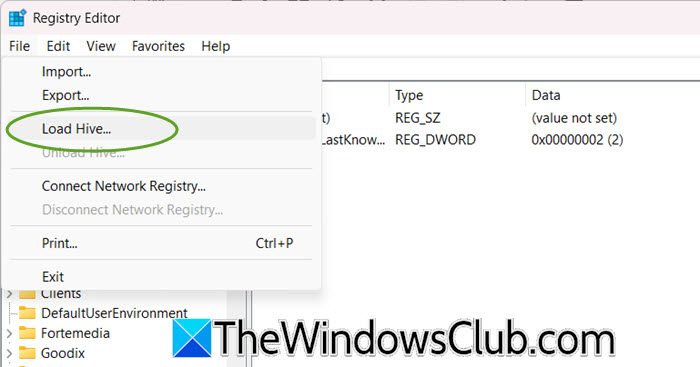
In this method, we will use Windows Setup media to launch a Command Prompt with full system privileges, then directly enables the built-in Administrator account within your offline Windows Registry, guaranteeing access.
Follow the steps mentioned below to do the same.
- Boot your PC from a Windows Installation USB/DVD.
- On the language selection screen, hit Shift + F10 to open a Command Prompt.
- Type regedit and press Enter to open the Registry Editor.
- Select HKEY_LOCAL_MACHINE. Go to File > Load Hive. Navigate to C:\Windows\System32\config\ (C: may be a different letter in this environment) and select the SAM file.
- When prompted, give the loaded hive a simple name, like Temp.
- Navigate to
HKEY_LOCAL_MACHINE\Temp\SAM\Domains\Account\Users\000001F4 - Double-click the F value on the right pane. Change the very first value in the first row from 11 to 10.
- Click OK.
- Go back to the left pane, select the Temp hive you loaded. Go to File > Unload Hive. Click Yes.
- Close all windows, reboot, and remove the installation media. You should now be able to log in with the “Administrator” account (no password).
Hopefully, you can now log in to your computer.
3] Reset your User Password via Registry
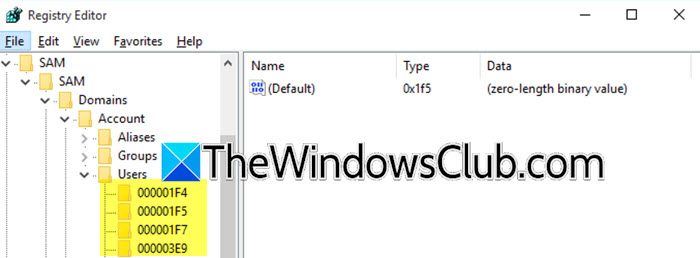
Similar to Solution 2, this directly edits the SAM hive of your installed Windows to clear or change the password hash for your specific user account, removing the incorrect password error at its source.
First you need to follow the steps mentioned in the second solution to load SAM hive into the Registry Editor as Temp. Then, follow the steps mentioned below.
- Navigate to
HKEY_LOCAL_MACHINE\Temp\SAM\Domains\Account\Users. Under the Users key, you will see folders with long hex numbers (like 000001F4, 000003E9, etc.). - Open each folder and look at the V value’s binary data in the right pane. Scroll through the data until you find your username in plain text within the hex block. Note the folder name (e.g., 000003E9) associated with your username.
- Select the folder corresponding to your account (e.g., 000003E9). In the right pane, right-click on the F value and choose Delete. Confirm the deletion.
- Immediately go to
HKEY_LOCAL_MACHINE\Temp\SAM\Domains\Account\Users\Names\[YourUsername]. The (Default) value here will point to the same hex folder number (e.g., 0x3E9). Right-click on the (Default) value and choose Modify. Change the value data to 0. - Click OK.
- Go to File > Unload Hive for the Temp hive. Reboot. You should now be able to log into your account with a blank password. Set a new password immediately in Windows Settings.
Hopefully, with these solutions, your issue should be resolved.
Also Read: Windows Safe Mode says Password is incorrect
Why does it say Incorrect password even though it’s correct?
The error occurs because the Command Prompt in the offline Repair Mode environment cannot properly communicate with or validate your credentials against the security database of your main Windows installation. It’s often due to driver issues, corruption in the recovery environment, or because it’s trying to authenticate against a different user account (such as the disabled built-in Administrator) rather than your actual user profile, creating a mismatch even with the correct password.
Read: That password is incorrect error during Windows sign in
How to open CMD in Repair mode?
You can open Command Prompt in Repair Mode by booting from Windows Installation Media, selecting your language, and clicking Repair your computer instead of Install now, then navigating to Troubleshoot > Advanced Options > Command Prompt. Alternatively, if you can reach the Windows sign-in screen, restart while holding the Shift key to access the recovery environment, or trigger Automatic Repair by interrupting the boot process three times in a row.
