
If you want to open and use Command Palette in Windows Terminal on a Windows 11/10 computer, then this post will be helpful. Earlier, this feature was present in Windows Terminal Preview, but now you can use Windows Terminal along with the Command Palette feature in its stable version. This Command Palette feature lets you access and run actions or commands inside Windows Terminal.
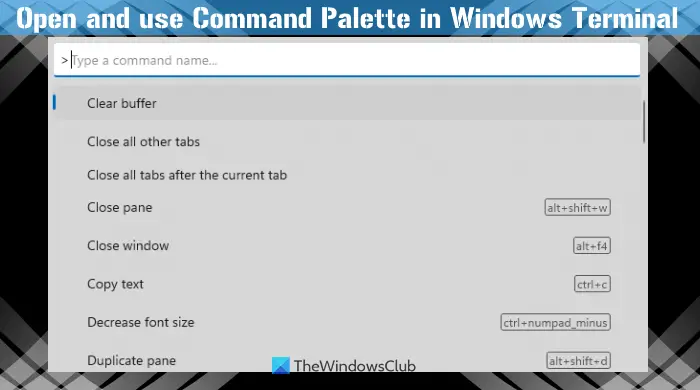
You can use Command Palette to duplicate a tab, open the default settings file, increase the font size, move a tab backward, open Settings, close all other tabs, toggle fullscreen, duplicate pane, etc. You can access and use more than 100 actions from the Command Palette. Before you can try this feature, make sure you are using the updated version of Windows Terminal.
How to open Command Palette in Windows Terminal
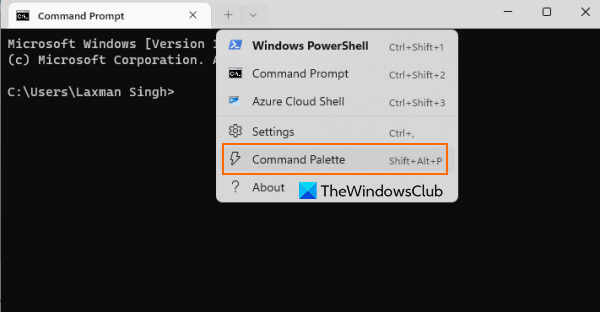
There are two ways to open Command Palette:
- The quickest way to open Command Palette is by pressing the Ctrl+Shift+P hotkey. This is the default hotkey which you can change anytime
- You can also click on the drop-down icon next to Open a new tab icon (plus icon), and select the Command Palette option, as visible in the image above.
Change hotkey to open Command Palette
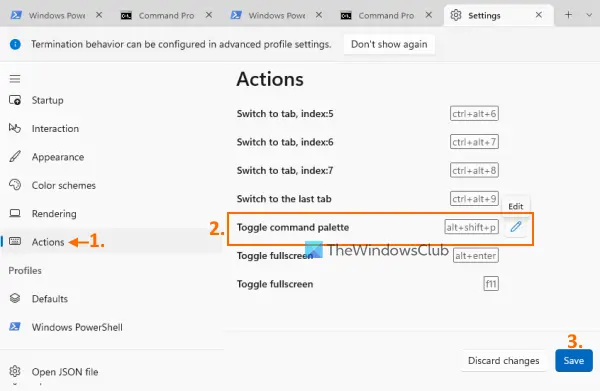
If you don’t want to use the default hotkey, then follow these steps to set a custom hotkey for Command Palette:
- Press Ctrl+, to open the Settings tab
- Click on the Actions available on the left section
- Scroll down the list of available actions to access the Toggle command palette action
- Click on the Edit icon for that action
- Enter a hotkey combination in the available box using the accepted modifiers like ctrl+, alt+, shift+, etc.
- Press the Accept button (blue tick)
- Press the Save button.
How to use Command Palette in Windows Terminal
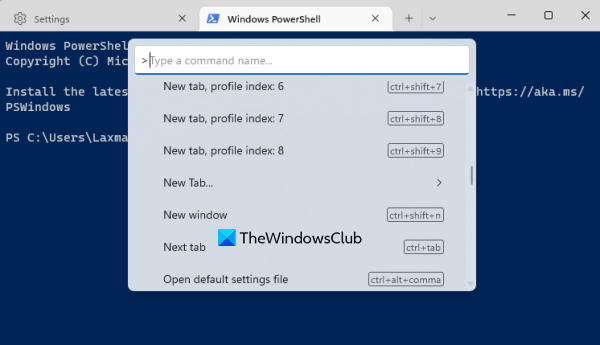
Once you open the Command Palette, it’s ready to serve you. This feature works similarly to some application launcher software. You will be provided with a search bar or text box where you can type a command name or some letters and matching commands/actions will be visible to you in its panel.
Alternatively, you can scroll down the Command Palette panel to see the list of all available actions. For some actions, the associated hotkey will also be visible in its panel. Once you have accessed an action, press the Enter key, and it will trigger that action.
Related: Windows Terminal Tips and Tricks to make you work like a Pro.
Use Command Palette with Command-line mode
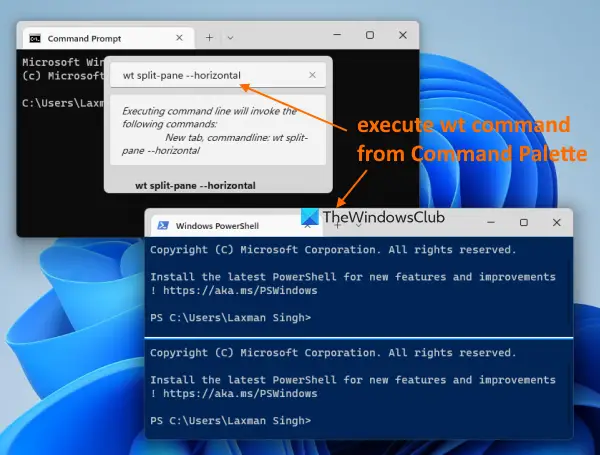
Command Palette feature also supports command-line mode that lets you enter or run a wt command, which is a very useful feature.
For doing this, remove > from the search bar or text box of Command Palette and type wt with a command and a parameter associated with that command. For example, if you want to create a new split window pane horizontally with a default profile, then the command would be:
wt split-pane –horizontal
Similarly, you can run other supported wt commands from the Command Palette. You can find more information about using command line arguments in Windows Terminal including commands (like Focus-tab command, Split-pane command, New-tab command, and more), paraments, description, etc., from docs.microsoft.com.
How do I access the Command Palette?
To access the Command Palette in Windows Terminal, use the default hotkey (Ctrl+Shift+P) or click the Command Palette option in the Windows Terminal drop-down menu. You can also change the default hotkey for opening the Command Palette.
How do I open a Command window from the Terminal?
There are multiple ways to open a Command Prompt window using Windows Terminal. For example, you can:
- Use the default Ctrl+Shift+2 hotkey. This will work only when this key binding is present in Windows Terminal
- Use the drop-down icon present next to the + icon on the top part of Windows Terminal and select the Command Prompt option.
Hope this helps.
Read next: How to reset Windows Terminal settings to default.
