
We copy a lot of data on our Windows computers. Did it ever happen to you that you wanted to access something you had copied earlier? A well-defined category of software is available to perform such tasks. And the category is clipboard manager software. In this post, we’ve covered a free and, more importantly, a useful clipboard manager called ClipboardFusion. It is a free clipboard manager for Windows 11/10 that can maintain history, remove text formatting, run powerful macros, replace clipboard text, and more!
ClipboardFusion review
The tool is offered in both free and premium variants, and this post will focus on the free features only. The free variant only lacks a few features, such as automatic triggers and sync across computers. These features are not particularly important for a normal user, and the free variant is sufficient.
ClipboardFusion integrates seamlessly with Windows, and it begins recording your clipboard history immediately after installation. A system tray icon is always available, which makes the tool even more accessible and useful. You can right-click on the system tray icon and open the actual clipboard manager.
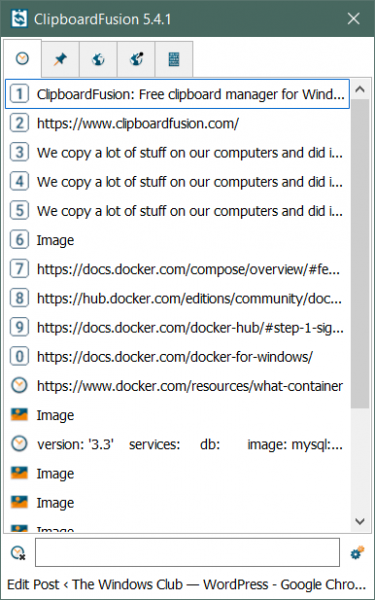
Once opened, you can view all the items that you copied in the past. You can view them, view their timestamps, copy them again and do a lot more. There is also an option available that allows you to search through your clipboard history. Search is a very important aspect here. Because if you are looking for something you copied quite some time ago, the search will only help.
Another important and useful feature is the bookmarks. You can right-click any item in your history and select the Pin option to bookmark it. Bookmarked items are available under a separate tab and can also be searched or cleared from there.
If you think history is getting cluttered, you can remove all the items at once. Or you can manually right-click any item and remove it from the history.
ClipboardFusion not only stores the clipboard history of text items, but it also maintains a history of copied images. So, if you copied a photo at some point and forgot to paste it, you can retrieve it using this tool.
The tool is quite customizable. There are a ton of settings available that you can tweak and personalize this tool. If you go to settings, then under Clipboard Manager you can find a few settings to change the behavior of the main window. You can enable settings such as keep Clipboard Manager open even after losing focus. Or you can select the default tab that opens with the main window.
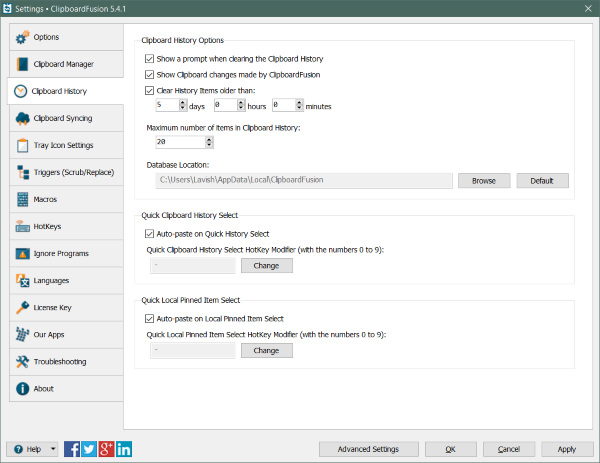
Moving on to Clipboard History, here you can decide the duration after which the tool should clear the history. Alternatively, you can also configure a maximum number of items that should be in the clipboard at any instance.
The Tray Icon Settings lets you configure the system tray icon. You can use the dark icon to complement your dark Windows theme. You can also configure the notification settings. The program sends a notification whenever you copy something or perform an action related to the tool. You can disable these notifications if you would like. Also, you can configure what happens when you click the system tray icon. By default, it is set to Toggle the Trigger Command on/off, and can be easily customized.
ClipboardFusion is a great free Clipboard Manager. It quietly sits in the system tray and performs its task. You can always return to the tool whenever you need to find something you copied earlier. The free variant gives you more than enough features and you can download it from here. It is also available on the Microsoft Store as a UWP app.
