
Personalization options are among the best in Windows 11/10. You get a lot of options to make your computer screen look exactly the way you’d have it. In Windows 11/10, you can customize the way how Start, taskbar, action center and title bar are colored or made transparent. You can choose to show your accent color on Start, the taskbar, and the Action Center as well, but it all comes as a package. You either color them all or all of them stay default (grayish transparent). In this guide, we’ll show you how to change the Taskbar color without showing the same color on Start or Action Center.
Change Taskbar color without changing Start color in Windows 11/10
Personalization options in Windows can be taken to the next level if you are familiar with the Registry Editor’s workings.
Follow the below steps to put on the accent color just on the taskbar while keeping the Start and Action Center at their default color tone.
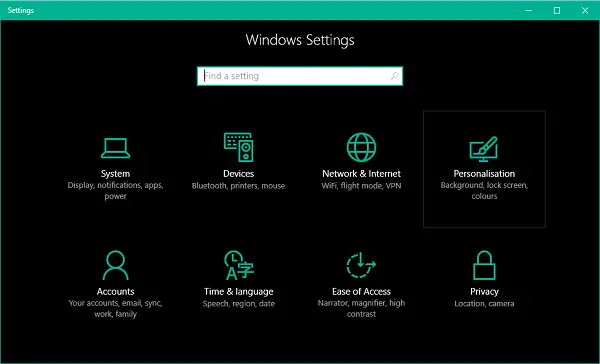
1. Open Settings app (Windows Key + I) and select Personalization.
2. Navigate to Colors on the left side pan and scroll down to the toggle switch named Show color on Start, taskbar and Action center. Turn it on.
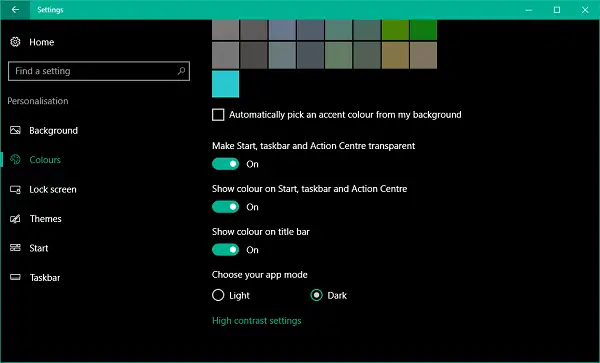
Now that you’ve turned on the settings for applying the accent color on basic Windows desktop elements, it can be manipulated using the Registry Editor.
3. Create a system restore point first and then press Windows Key + R on your keyboard to launch Run prompt. Type regedit.exe and hit Enter to open Registry Editor.
4. Navigate to the key below on the left side pane of the Registry Editor.
HKEY_CURRENT_USER\SOFTWARE\Microsoft\Windows\CurrentVersion\Themes\Personalize
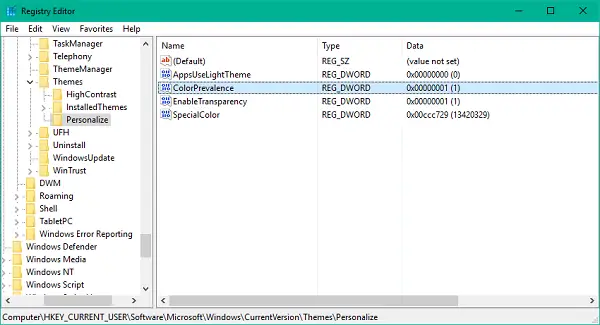
5. Now, on the right side window, double-click and open ColorPrevalence key.
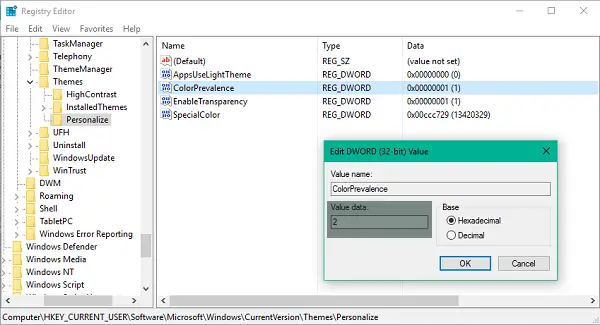
6. Change its value to 2 and click OK to save the settings.
7. Close the Registry editor. Now, you can see that Start and Action Center have retained their default dark transparent look, and the accent color you selected is applied to the taskbar.
That is it!
The only thing you need to be careful about is not to turn off the toggle switch Show color on Start, taskbar and Action centre. If you accidentally or intentionally turn it off, you’d need to follow the above steps again as the ColorPrevalence key gets reset to its default value.
