
In this post, we will show you how to change the position of On-screen Indicators in Windows 11. When we change the volume, brightness, activate Airplane mode using a Function key (Fn) or an associated key, or switch to virtual desktops, an on-screen indicator or flyout related to that keyboard action appears on our desktop screen. By default, the on-screen indicators or flyouts are visible on the bottom-middle or bottom-center part of the screen. Now, we can change this behavior and make on-screen indicators appear on the Top left and Top center (including the default position), as visible in the image below.
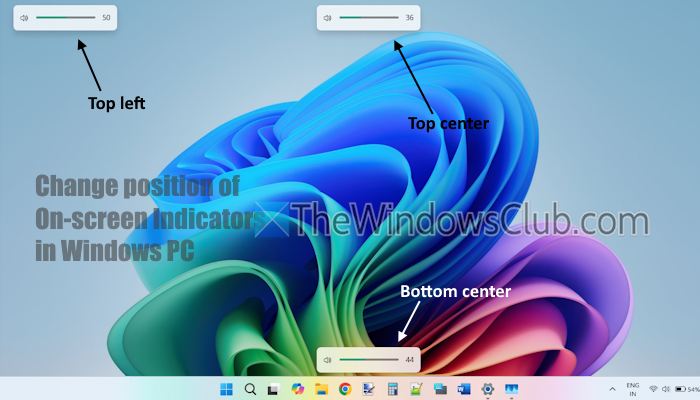
How to change position of On-screen Indicators in Windows 11
You can change the position of on-screen Indicators on a Windows 11 PC using the following options:
- Change the position of the On-screen Indicators using the Settings app
- Change the position of the On-screen Indicators using the Registry Editor.
Let’s check these options.
1] Change the position of the On-screen Indicators using the Settings app
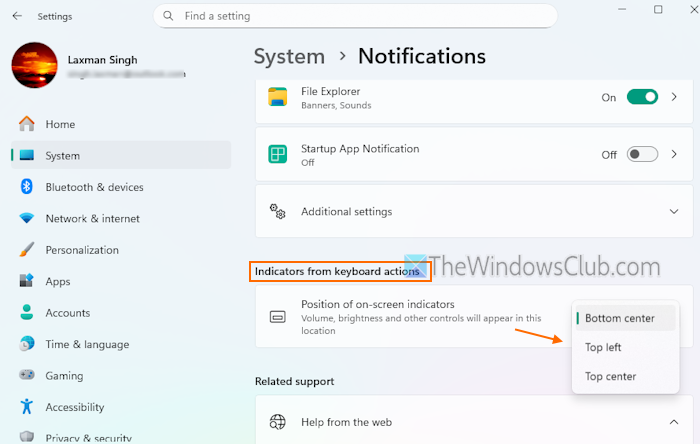
Here are the steps:
- Open the Windows 11 Settings app. You can use the Win+I hotkey or another option you prefer
- Select the System category
- Access the Notifications page
- Scroll down to access the Indicators from keyboard actions section
- Open the drop-down menu for the Position of on-screen indicators
- Select an option- Top center, Top left, or Bottom center (default).
Now you will see brightness or volume flyouts and other on-screen indicators at the location you set.
Related: Add Scroll, Num, Caps Lock, etc. Key Indicator in the Taskbar or the Screen in Windows
2] Change the position of the On-screen Indicators using the Registry Editor
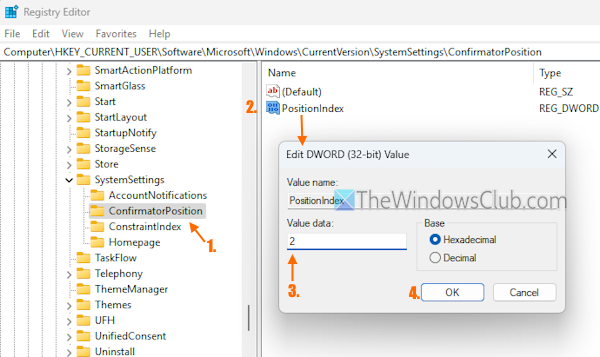
This method overrides the option you’ve set using the Settings app. For example, if you’ve set the position of on-screen indicators to Top left using the Settings app, you can change it to Top center using the Registry tweak. Before proceeding, it is recommended that you back up the Windows Registry. Now, follow these steps to change the position of on-screen indicators using the Registry Editor in Windows 11:
- In the Run Command box (Win+R), type regedit in the text field, and hit Enter. This will open the Registry Editor window
- Jump to the SystemSettings Registry key. Here is the path:
HKEY_CURRENT_USER\Software\Microsoft\Windows\CurrentVersion\SystemSettings
- Right-click on SystemSettings > New > Key
- Rename the new key to ConfirmatorPosition. If this key is already present, no need to create a new one
- On the right section, create a new DWORD (32-bit) Value
- Rename it to PositionIndex
- Double-click on the PositionIndex key, and a small box will open where you can edit its Value data
- In the Value data field, add 1 for Bottom center (default), 2 for Top left position, or 3 for Top center position
- Press OK to save the changes.
This feature is being rolled out to all.
How do I change the position of my monitor display?
If you have connected multiple displays to your Windows 11 device, you can rearrange them easily to change or adjust their positions. For this, open the Settings app of Windows 11. Access System > Display. In Display settings, select a display and drag it to a position you prefer. Do this for other displays, check the layout, and press the Apply button. The Display settings also let you change primary and secondary monitors and help to identify a display when arranging them.
How do I change the position of notifications on Windows?
We can change the position of on-screen indicators on Windows 11/10, but Windows doesn’t come with a native feature to change the position of notifications. However, you can easily manage notifications on Windows 11/10. You can set apps and other senders to send notifications, clear all notifications in one go, decrease or increase notification display time, adjust notification settings for a particular app, set priority notifications, and more.
Read next: How to enable Hidden Camera Privacy Indicator in Windows PC.
