
This post will show you how to rearrange, reorganize and change the order of email accounts in Outlook (new) app and Mail app in Windows 11/10.
How to change order of email accounts in Outlook (new) app
To change the order of email accounts in the new Outlook app, all you need to do is click on the account name from the left section, hold, and drag it onto the order you want it to be, once you are there,, drop the account. That’s it; you have changed the order of your email accounts.
Change order of email accounts in Windows Mail app
One feature some users miss in the Windows Mail app is the ability for them to rearrange email accounts. It is possible to do this in the Mail app, but the task is not straightforward, so keep that in mind before moving forward.
Until the folks at Microsoft release an update with the Rearrange feature, there is only one way to do this.
Delete all emails and them again in the right order
Yes, you’ve read correctly. This is the only way to rearrange email accounts, which is a bit disappointing. However, it will not take too long to accomplish, so keep reading in order to learn more.
- Open Windows Mail app
- Select Account Settings
- Delete account from the device
- Add the email account again.
Select Account Settings
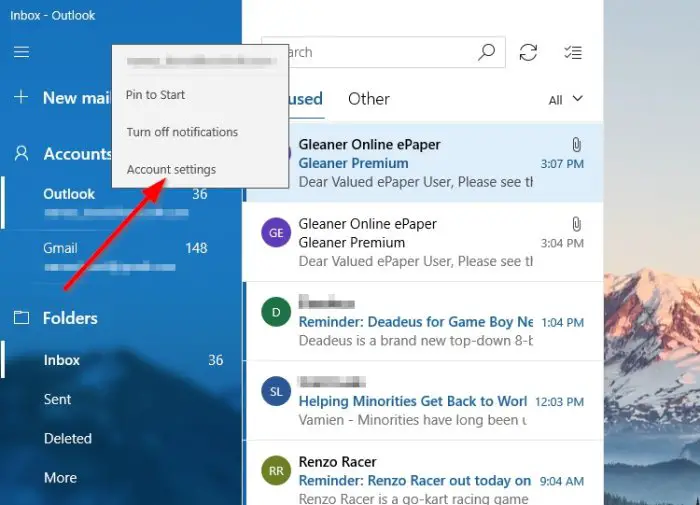
The first thing you want to get done in this situation is to fire up the Mail app, then right-click on one of the email accounts located on the left side and select Account Settings.
Alternatively, you can click on Accounts from the left that sits above the list of email accounts. A new section will appear called Managed Accounts. Click on the email account to continue the process.
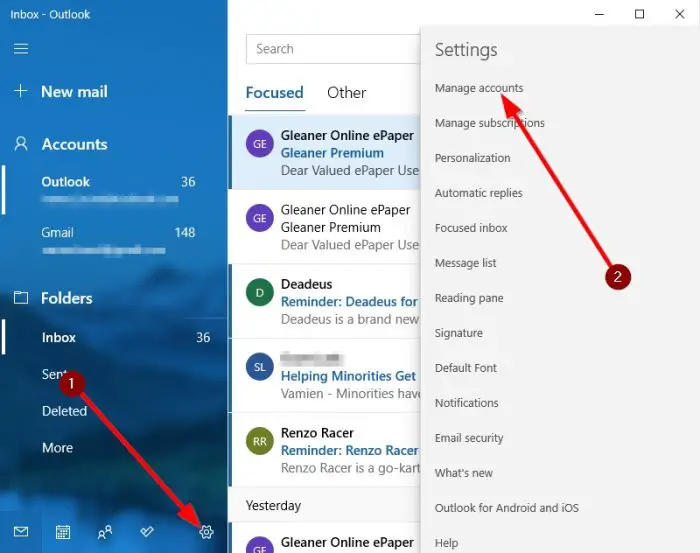
We suggest deleting all accounts instead of the one you want at the top of the list in order to make the task easier.
Delete account from the device
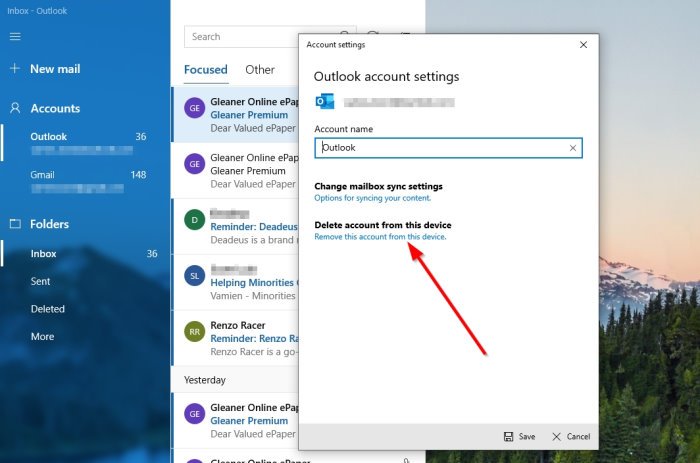
The next step to take here is to click on Delete account from this device. When you do this, all data linked with the email account will be permanently removed.
Add email accounts again
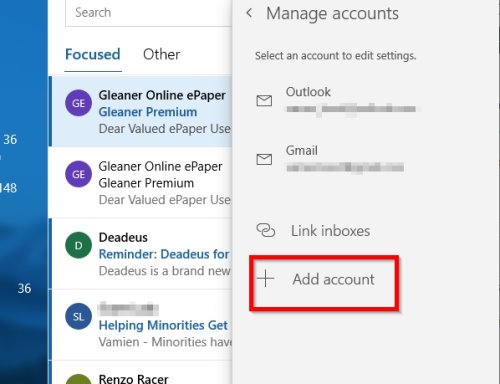
You must re-add your email addresses in the correct order after deleting them to rearrange them correctly.
To add a new account, click on the Settings icon in the Mail app. From there, select Manage Accounts > Add Account. From there, you can choose any of the available options to add your preferred email account to the Mail app.
We agree that rearranging email accounts in this way can take some time to complete, but there are no other options available at this time.
Now read: How to change Email Signature in new Outlook app of Windows 11.
