
A lot of World of Warcraft gamers are unable to update their game. Every attempt they make fails with the following error message-
Something went wrong with the file. We’re not sure what caused it, so please try again or click the code below for more information. Sorry about that! More help: BLZBNTAGT00000840
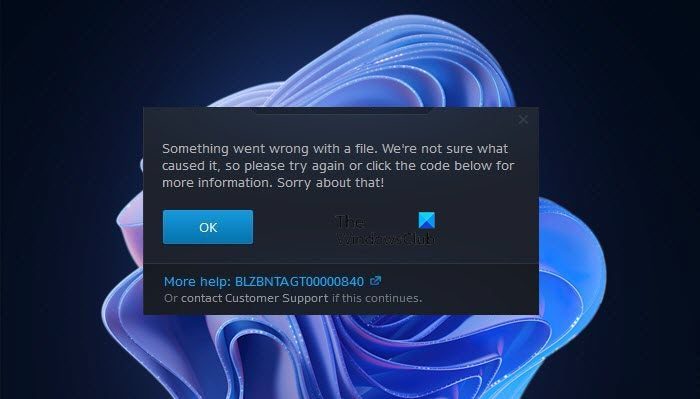
In this article, we are going to see what’s causing the error and what you can do to fix it. So, if you are seeing Can’t Update World of Warcraft Error BLZBNTAGT00000840, then read on.
Why is WoW not updating?
It would be not easy to pinpoint the exact reason World of Warcraft is not updating. The most basic reason is a server issue. If there is something with the server, if it’s down or under maintenance, then the only thing you can do is wait.
Sometimes, the issue can also arise due to slow Internet speed. You need to keep your bandwidth in check in order to update. Otherwise, it will not even connect to the server, let alone download an update from it. Not only that, there are other network-related issues, such as glitchy services and a configured VPN. All of them will be discussed later in this article.
You should also make sure you open the game file with administrative privileges. Otherwise, it won’t be able to get the required resources, hence, will fail to update the game.
There are some other issues as well, such as conflicting programs and services that we are going to talk about in this article. So, let us hop into it and resolve World or Warcraft Error BLZBNTAGT00000840.
Can’t Update World of Warcraft Error BLZBNTAGT00000840 on Windows PC
If can’t update World of Warcraft and are seeing error BLZBNTAGT00000840, then you should start troubleshooting by restarting your computer. This is a great way to resolve some of the most common issues in Windows PC. If restarting doesn’t work, then use the solutions mentioned in this article to resolve the issue.
- Check WOW Server
- Open Battle.Net as an admin
- Repair the game
- Disable VPN or Proxy
- Disable Firewall or Whitelist the app
- Reinstall Battle.Net or WoW
Let us talk about them in detail.
1] Check WOW and Battle.Net Server
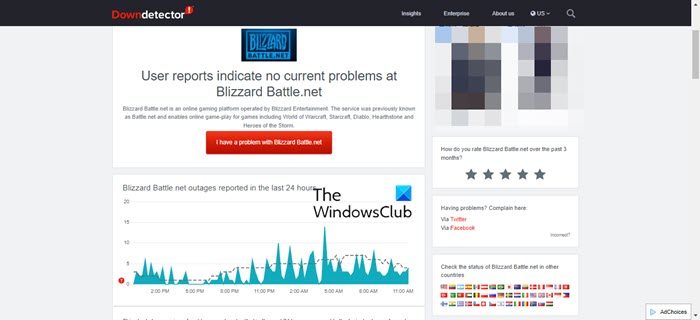
You should start by checking the server status of World of Warcraft and Battle.Net. For that, you can use one of the mentioned services or go to twitter.com/blizzardcs to check if users are complaining and if you conclude that the server is down, then the only thing you can do is wait for the engineers to get it back on track. The service can be under maintenance, or there can be a problem. Whatever the case may be, the situation is out of your control. So, wait, and your issue will be resolved.
2] Open Battle.Net as an admin
Battle.Net sometimes requires administrative privileges to run on Windows computers. You can right-click on the app and select Run as administrator. But this is a bit tiring as every time you need to open the app, you have to follow this two-step procedure. That’s why we brought to you a way by which you can always open Battle.Net with the required privileges. Follow the given steps to do the same.
- Right-click on Battle.Net shortcut.
- Select Properties.
- Go to the Compatibility tab, tick Run this program as an administrator.
- Click Apply > Ok.
Finally, restart the computer and check if the issue persists.
3] Repair the game
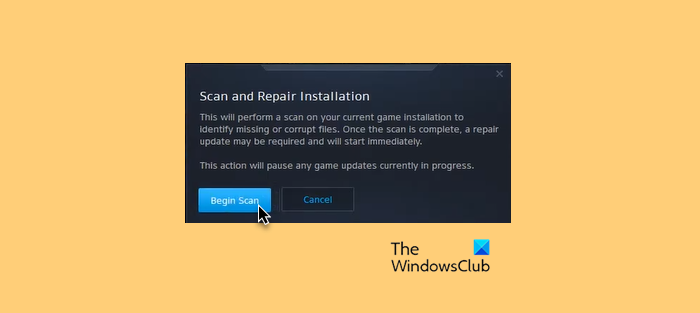
If you are seeing this error because of corrupted game files then you are lucky. A lot worse could have happened to your game. However, there is a way to resolve it, that’s via the Battle.Net app. Follow the given steps to do the same.
- Open Battle.Net.
- Go to your game library.
- Right-click on World of Warcraft and select Scan and Repair.
- Click Begin Scan.
Wait for the process to complete, restart your computer, and check if the issue persists.
4] Disable VPN or Proxy
If you are connected to a VPN or a Proxy server then you should immediately disable it as your computer is not able to connect to the WOW server. This happens because your system can’t determine which server to connect to. Hence, you should disable such services and try again.
5] Disable the Firewall or whitelist the app
If you have a third-party antivirus or have configured Windows Firewall, it may be blocking your game from updating. If you have a third-party antivirus installed, disable it and then try updating your game. In case you are using Windows Firewall, try allowing the game through it and see if that works. Keep in mind that if you disable security, you are putting your computer at risk of being hit by viruses and malware.
Antivirus is not the only service that can interfere with your program. Some other apps can do the same. So, troubleshoot in Clean Boot to know the culprit. Then, you can remove it and resolve the issue.
6] Reinstall Battle.Net and WoW
If nothing works, then your last resort is to reinstall some programs. You should start by reinstalling Battle.Net, most of the time, it will resolve the issue. But if it doesn’t, then you need to reinstall World of Warcraft. So, go ahead and uninstall the program, then reinstall it and see if that works.
Hopefully, you can resolve the issue using the provided solutions.
How do I fix error code BLZBNTAGT00000BB8?
You may see the error code BLZBNTAGT00000BB8 due to different causes, like corrupted game files, your antivirus interfering with the game, internet issues, bad DNS cache, etc. First, disable your antivirus temporarily and see if it helps. If this works, you have to allow the Battle.net exe in Windows Defender or your third-party antivirus. Other things that you can try are clearing the DNS cache, connecting your system with an Ethernet cable, disabling proxy or VPN, etc.
Also Check:
