
In this article, we will talk about the solutions to fix the installation problem with Valorant game. Some users face the issue that they can’t install Valorant on their Windows 11/10 computers. There could be many reasons for this problem. For example, there might be permission issues with the game, or your antivirus tool might be blocking the Valorant program from installing on your computer. Below, we have outlined some solutions that you can try to resolve this issue.
Can’t install Valorant on Windows PC
The following solutions might help you solve this problem:
- Run Valorant setup as an administrator
- Move the installation file from Downloads to another location
- Disable your Antivirus software temporarily
- Run Valorant using Compatibility mode.
Let’s see how to perform these troubleshooting methods.
1] Run Valorant as an administrator
As mentioned above, you might be unable to install Valorant on your Windows 11/10 computer due to permission issues. So, try to run Valorant setup as an administrator and see if it begins the installation process or not.
To run Valorant as an administrator, simply right-click on its installation file and select the Run as administrator option. Click Yes in the UAC prompt and complete the installation process.
2] Move the installation file from Downloads to another location
Most users keep the default location for saving the downloaded file(s), which is the Downloads folder. If you have downloaded the Valorant game in that folder and running its installation file from that folder is giving you the installation error, then you should move the game’s installation file to another location.
Some users have reported that they were able to install Valorant after moving its installation file to the Desktop or to the Program Files folder in the C directory. So, try this solution, and see if it works.
3] Disable your Antivirus temporarily
Sometimes, Antivirus programs generate false-positive flags for genuine files. Such types of flags can be ignored. It’s possible that your Antivirus is blocking Valorant from installing on your system. So, temporarily disable Microsoft Defender Antivirus or any other third-party antivirus software that you are using and then try to install the Valorant game.
You can also disable Windows Firewall and then begin the installation process for Valorant. This might fix the issue.
Don’t forget to turn on your antivirus program again once the game is installed successfully.
4] Run Valorant using Compatibility mode
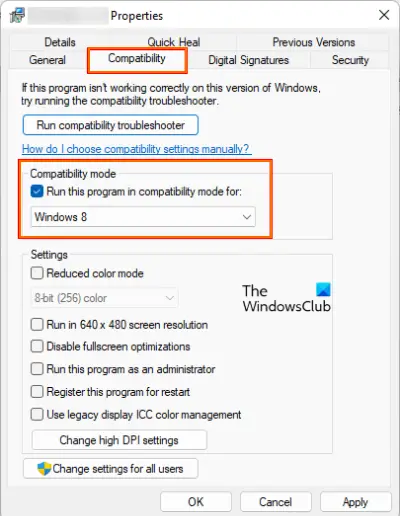
You can also try running the Valorant installer using the Compatibility setting. The steps for the same are listed below:
- Right-click on the Valorant installation file
- Select Properties option.
- Click on the Compatibility tab
- Under the Compatibility mode section, click on the checkbox available for Run this program in Compatibility mode for option
- Select the previous version of Windows from the drop-down menu
- Click on the Apply button
- Press the OK button.
Now, close the Valorant properties box and run the installer file. This might work.
You can also try running the Program Compatibility Troubleshooter on your Windows 11/10 computer to fix this problem.
Hope it is helpful.
How do you fix Valorant failed to launch?
If Valorant failed to launch on your Windows 11/10 computer, the first thing that you should do is restart your computer. Sometimes, issues are resolved by simply restarting the computer. If this does not work, there may be other causes of the issue, such as an outdated graphics driver or a bug in the Valorant launcher. So, update your graphics driver and run Valorant as an administrator. If nothing works, you can try a clean install of the Valorant game.
What to do if Valorant is not installing?
Several troubleshooting steps are mentioned in this article to resolve this issue on a Windows PC. For example, you can run the setup file with administrator privileges first. Then, you can move the installation file from the Downloads folder to another location and try reinstalling it. Next, you can temporarily disable the antivirus program and check if it is blocking the file.
Read next:
