
Are you trying to add a new team member to Microsoft Bookings, but wait, their name is not appearing in the list? This is surely frustrating, as such a simple task gets complicated. However, the good thing is that it can be quickly fixed with a few simple tweaks. In this article, we will see what you can do if you can’t add new members to MS Bookings.
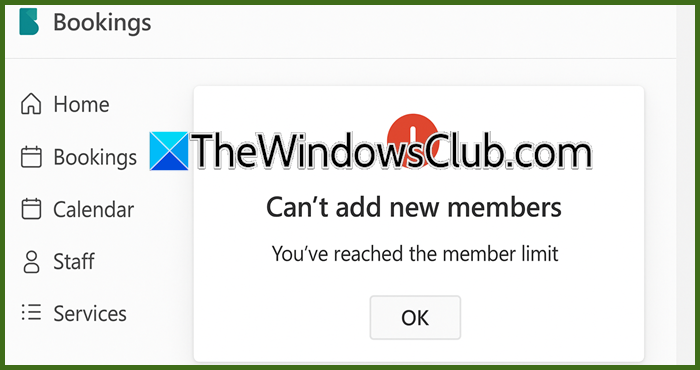
Fix Can’t add new members to MS Bookings
If you cannot add new members to Microsoft Bookings, execute the solutions given below.
- Add the user correctly in Bookings
- Verify the user’s license and mailbox type
- Clear the browser cache and try a different browser
- Check Microsoft 365 Service Health
- Contact Microsoft Support
Let’s get started with this troubleshooting guide.
1] Add the user correctly in Bookings
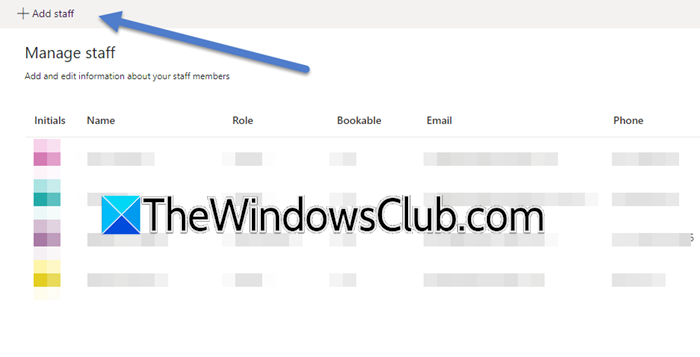
Before proceeding with troubleshooting solutions, let’s first verify that the user has been added correctly in the Bookings app. Often, the issue is not a technical issue but a simple oversight in the setup process. The process differs for internal and external team members. Follow the steps mentioned below.
- Navigate to the Microsoft 365 launcher, select and open Bookings from the list. If it is not available there, use All Apps to find it.
- A list of booking calendars will open on the screen. Select the one to which you want to add the new member, and click on the Staff tab.
- On the Staff page, select the +Add Staff button from the top-right corner.
For Internal Users (within your organization):
- In the “Add people” search box, start typing the person’s name. Their name should appear in a drop-down list for you to select. Selecting them will auto-populate their details.
- Set their role, and then navigate to the Services section.
- Under the Services section, ensure that the checkbox for Let this staff member be booked is checked, and click the Save button to finalise adding the user.
For External Users (outside your organization):
- You cannot search for them by name. Instead, you must manually type their full email address into the “Add people” field.
- The system will automatically assign them the Guest role, which cannot be changed. They will receive email notifications, but cannot manage their free/busy information in your Bookings calendar.
- Set their role (other than “Guest,” if applicable), ensure Let this staff member be booked is checked, and click Save.
If the user still does not appear in the search result after completing the process, see the next solution.
2] Verify the user’s license and mailbox type
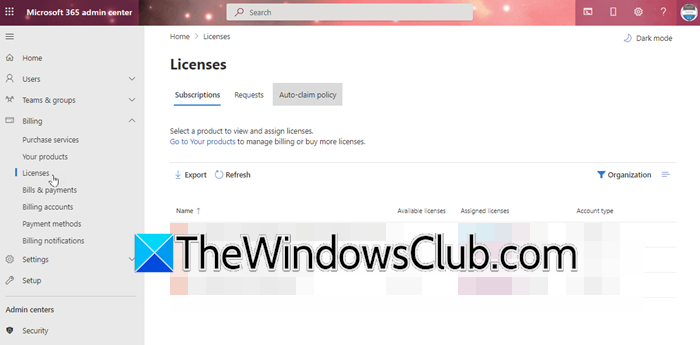
For internal staff members within your organization, an incorrect license can sometimes prevent them from appearing in the directory search. A Microsoft 365 admin must verify the user’s license and mailbox type to diagnose and resolve the issue.
- Go to the Microsoft Admin page, log in with the admin account, and expand the Users menu.
- Select Active users, and then find and click the name of the user to open their account details.
- Click on the Licenses tab, and check if the user is assigned a license. While staff members being added to Bookings do not need a license themselves, the admin creating and managing the Bookings calendar does.
- If no license is assigned, or the wrong one is, click on the Manage Product license, and select Assign more or change the assignment to a product that includes Bookings.
- Switch on the toggle for the specific license and click Save Changes.
- Next, go to the Mail tab, and ensure that User Mailbox is visible for the Mailbox type.
After assigning the correct license and confirming the user has a User Mailbox, wait for some time for the changes to fully propagate across the Microsoft 365 system. If the issue persists, see the next solution.
3] Clear the browser cache and try a different browser
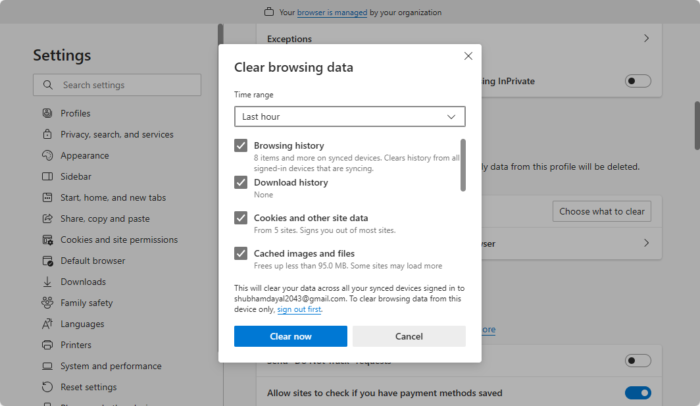
The problem can be due to the local browser. Cached credentials and corrupted site data can prevent the Bookings feature from connecting properly to the Microsoft 365 directory. Follow the steps mentioned below to rule out the browser as the cause of the problem.
- Launch the browser, go to Settings, and click on the Privacy and Security tab.
- Click on the Delete browsing data option, and select the checkboxes for Cached images and files and Cookies and other site data.
- Set the time range to All Time, and click the Clear data button.
Once done, close the browser, sign back into Microsoft 365, and test the Bookings feature. If the issue persists, try using a different browser or check if it works in Incognito/ InPrivate Window mode. See the next solution if you are unable to add members.
4] Check Microsoft 365 Service Health
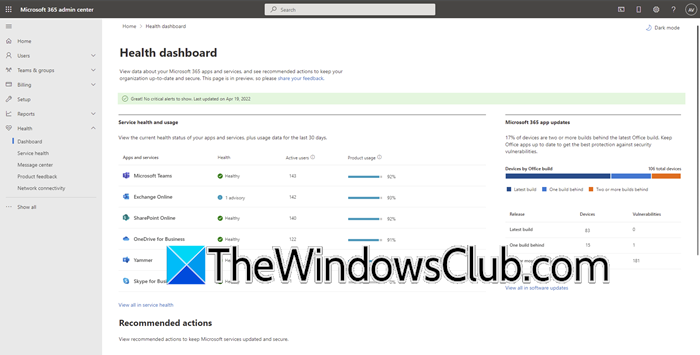
If Bookings was working before and has suddenly stopped, or if staff availability isn’t showing correctly, there might be a temporary service issue with Microsoft 365.
As a Microsoft 365 admin, go to the Admin Center and navigate to the Health > Service health page.
Check if there are any active advisories or incidents related to Microsoft Bookings, Exchange Online, or Microsoft Graph.
If an issue is reported, you will need to wait for Microsoft to resolve it. A known community fix for some unexplained Booking issues is for an admin to turn the Bookings app off for the organization and then turn it back on again in the admin settings.
Members will get email notifications, but they will have to manually add the appointments to their own schedules.
Read: How to customize and publish a Microsoft Bookings page?
5] Contact Microsoft Support
If all solutions are exhausted and the problem persists, it’s time to seek help from Microsoft Support (support.microsoft.com). To contact them, users can sign in to the Microsoft 365 account, navigate to the Support section, and file a support ticket. The Microsoft support engineer will reach out to you with a solution as soon as they identify the issue.
That’s it!
Read: How to manage Microsoft Bookings from your mobile device
Why is my Microsoft Bookings not working?
There isn’t a single reason, but rather various reasons why Microsoft Bookings is not working. It varies from service-wide outages to individual configuration errors. The first troubleshooting step should be to check the service health of Microsoft 365, as Bookings relies on several underlying services, including Exchange Online and MS Graph.
Read: Microsoft Bookings will let your customers book business appointments
How do I add multiple attendees to Microsoft Bookings?
To add multiple attendees, open the Bookings settings, navigate to the Attendees section, and find the Default number of attendees option. Here, increase the number to the desired amount. This way, any new booking made for the service will automatically include fields for the customer to provide the names and email addresses of all additional attendees. When the appointment is confirmed, the invitation will be sent to every listed attendee.
Also Read: Fix Microsoft Bookings not working.
