
Windows 11/10 computers come with support for a range of peripherals. This includes a long list of printers. However, some users have reported encountering a glitch on their Windows computer, where they receive a prompt to save the PDF, Word, etc., file when attempting to print it. This is an unusual glitch on some Windows computers that is caused by various reasons. This includes malfunctioning drivers, incorrect printer configuration, and more.
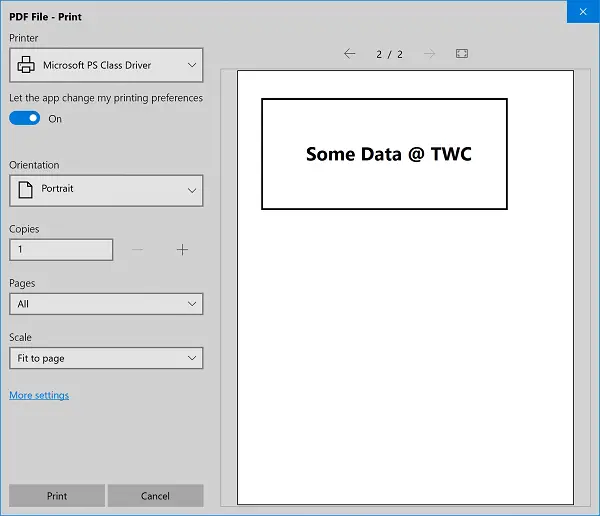
Cannot print a file; It opens as ‘Save as’ instead
The following methods may help you fix the issue where you Cannot print a file and when you try to print PDF, Word or other files, you get the”Save as” prompt instead on Windows 11/10.
- Set the Default Printer
- Run the Printer Troubleshooter
- Install the latest drivers for your printer.
1] Set the Default Printer
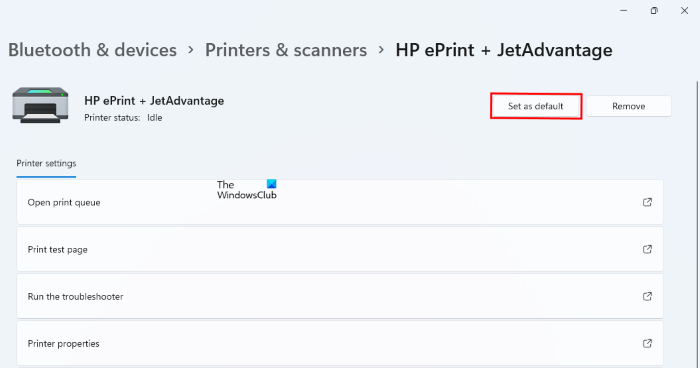
To set the default printer in Windows 11:
- Press Win + I keys to launch the Settings app.
- In the Settings app, select Bluetooth & Devices from the left side.
- Now, click on the Printers & Scanners tab on the right side.
- On the Printers & Scanners page, you will see a list of all the printers added to your computer. Select the printer that you want to set as the default and click on the Set as default button.
If you have a Print-to-file utility set as your default printer, like say, Microsoft Print to PDF, change it and ensure that you set the default to a real printer.
Also, when printing, if you see a Print to file option in the print dialog box, make sure that it’s unchecked.
2] Run the Printer Troubleshooter
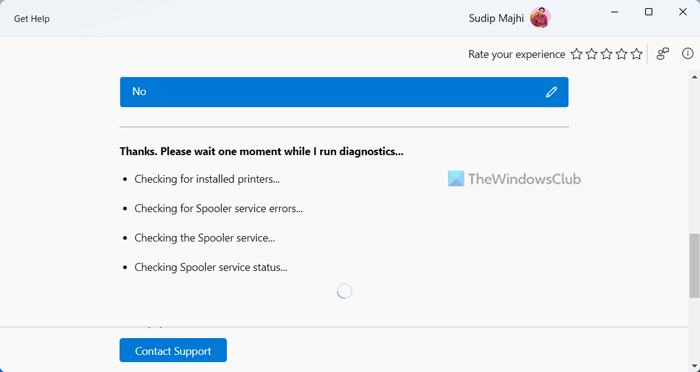
Open the Windows Settings app.
Navigate to Update & Security > Troubleshoot.
Run the Printer troubleshooter.
Following the on-screen instructions, and it will automatically detect and fix issues related to printers.
3] Install the latest drivers for your printer
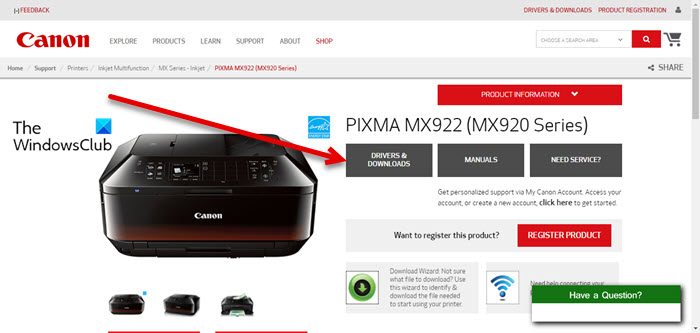
The corruption or incompatibility of drivers can also cause issues like this.
To fix this, make sure you download the latest Printer drivers for your printer for its manufacturer’s website and have it installed like any other driver.
This should resolve any corruption or incompatibility issues with these drivers and the operating system.
I hope these methods helped you in fixing the issue.
Why is my computer saying Save instead of Print?
If your computer prompts you to save instead of print, it’s likely due to incorrect printer settings. Ensure the correct real default printer is selected under ‘Devices and Printers’ in Windows 11/10. Do not select ‘Microsoft Print to PDF’ or ‘Print to File’.
How to stop Save print output as Windows 11?
To stop the “Save print output as” prompt in Windows 11, open the Print dialog box and select your printer. Look for an option that says “Print to file” and ensure it is unchecked.
