
Changing the time on your Windows computer shouldn’t be an issue in most cases. But there are situations where you cannot change the time in Windows 11/10. Maybe the location services are off on your PC, policies managed by your organization don’t allow you to do it, or the Windows Time service is stopped. However, regardless of the issue, here are some common troubleshooting steps to resolve it.
Why can’t I change my date and time in Windows 11?
If you are unable to change Windows time, it could be because the system is often set to sync automatically with Internet time servers, which blocks manual edits. In some cases, administrator rights are required, so a standard user account won’t have the necessary permissions. Work or school devices may also have IT-enforced group policies that lock these settings. Additionally, the Windows Time service itself can malfunction, preventing changes from being made.
Cannot change Time in Windows 11
If you are not able to manually change the time in Windows 11/10, follow these suggestions to resolve the problem:
- Manually sync time
- Restart or enable Windows Time Service
- Change Time via Control Panel Time settings
- Use Terminal to change time
- Check Group Policy setting
- Change the Time in Clean Boot State or Safe Mode
- Run SFC and DISM scans.
Before you proceed, make sure you are logged in with an Administrator account.
1] Manually sync time
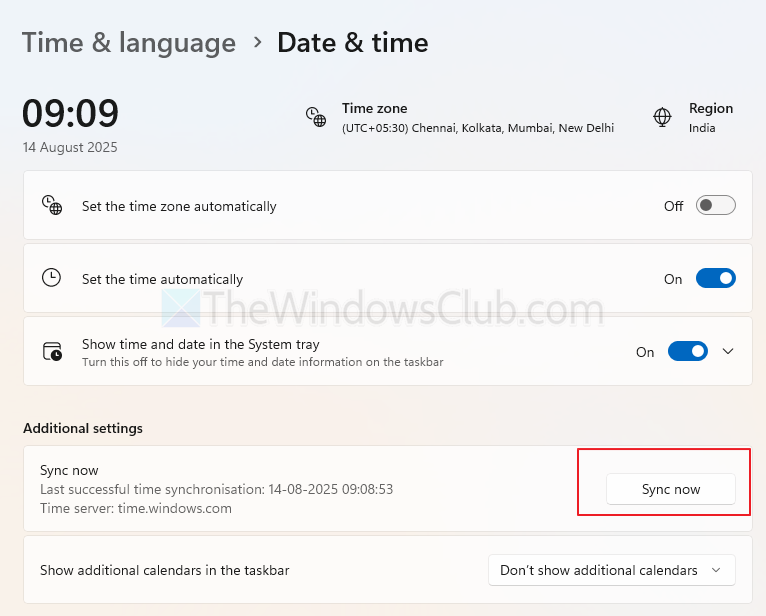
Start by disabling automatic time sync to prevent the time from being overwritten with online server data.
- Press Windows key + I to open Settings.
- Go to Time & Language > Date & Time.
- Toggle off Set time automatically.
- Click on the Sync Now button to manually sync the Time.
2] Restart or enable Windows Time Service

If the Windows Time service isn’t running or it’s disabled, you won’t be able to change the time. By starting it, you will restore time-related functions.
- Press Windows key + R to open RUN.
- Type services.msc and press Enter.
- Look for the Windows Time service, right-click on it, and select Properties.
- Then click on the Stop button > wait for a few seconds > and click on the Start button again to restart the service.
- Finally, click on Apply > OK to exit.
Read: Windows 11 Clock Time wrong
3] Change Time via Control Panel Time settings
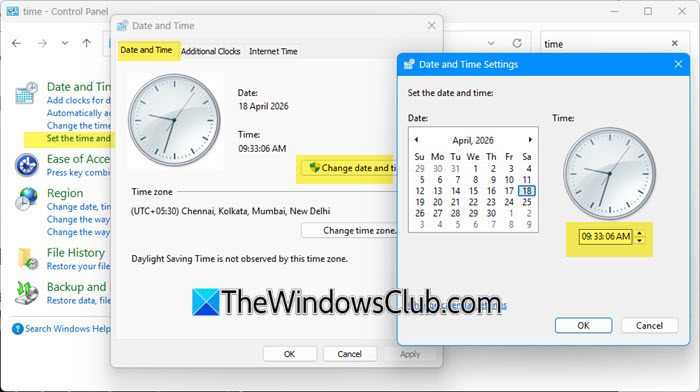
Open Control Panel > Date and Time settings > Date and Time tab > Change date and time.
Here you can manually set the time.Press OK when done and see if that works.
Read: Unable to change the time zone in Windows 11
4] Use Terminal to change time
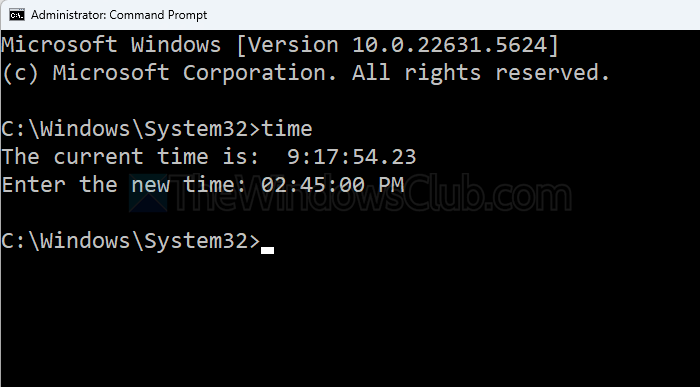
You can also use Terminal to change time, so if you are having trouble with the Settings app, the Terminal method might just work out.
- Open the command prompt with admin permission.
- Type “time” and press the Enter key. It will show the current time
- At the same time, it will prompt you to enter a new time in this format: time HH:MM:SS AM/PM, e.g., time 02:45:00 PM.
5] Check Group Policy setting
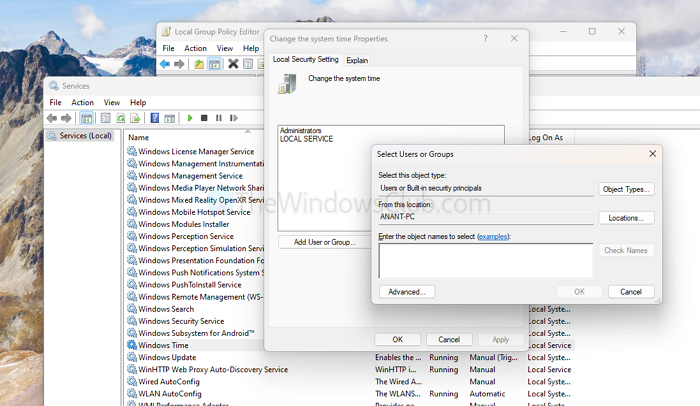
If you are using the Pro or Enterprise version of Windows, then your account may not have advanced permissions. If your account or the Administrators group isn’t included in the Change the system time policy, Windows will block you from updating the time.
- Open RUN, type gpedit.msc, and press Enter.
- Go to Computer Configuration > Windows Settings > Security Settings > Local Policies > User Rights Assignment.
- Next, double-click on Change the system time and make sure your account or the Administrators group is listed.
- If not, click Add User or Group, type your account name, and press OK.
- Try changing the time; it should work.
6] Change the Time in Clean Boot State or Safe Mode
Perform a Clean Boot or boot Windows in Safe Mode and see if you can change the time and it sticks. If it works, maybe a third-party process is interfering, and you will have to manually identify and disable it.
7] Run SFC and DISM scans
If you still cannot change the time in Windows, consider running SFC and DISM to repair system files to repair potentially corrupted system files.
Why does my Windows 11 clock keep resetting after I change it?
If your Windows 11 clock keeps reverting to the wrong time after you set it, the issue might be related to your device’s CMOS battery, which powers the system clock when your PC is turned off. A failing CMOS battery can cause the BIOS to reset, which in turn overrides your Windows time settings. Additionally, incorrect time zone settings or persistent syncing with a faulty internet time server can cause time resets. Changing the time server in Date & Time settings may help.
Can third-party software prevent me from changing the time in Windows 11?
Yes. Some security programs, VPN clients, or corporate monitoring tools enforce strict system time policies to maintain logging accuracy or comply with regulations. These applications can override or block your attempts to change the clock, even if you are an administrator. If you suspect this is the case, check the settings of any installed security or network software, or temporarily disable it.
