
PowerShell comes with a Netsecurity module that allows you to configure the Windows Firewall. You can use the function — New-NetFirewallRule — in Netsecurity to block an IP or a website using PowerShell in Windows. The feature allows you to create a new inbound or outbound firewall rule and adds the rule to the target computer.
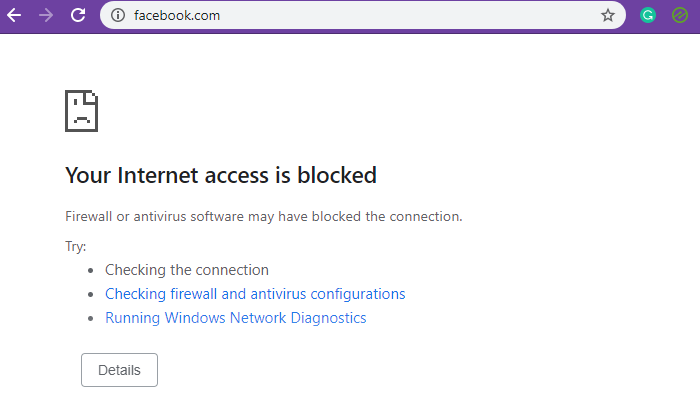
How to block an IP or a Website using PowerShell in Windows 11
While blocking IP ranges works perfectly, blocking a website or domain is tricky. That’s because multiple IPs can be associated with the domain, and while you can prevent them, the DNS resolver can resolve to a different IP each time it queries. Also, at times, the same IP address could be used by related services, and blocking that IP would block other services as well.
- Block local or internet IP addresses
- Block website or domain names
You will need admin privileges to execute these.
1] Block IP or Range using PowerShell
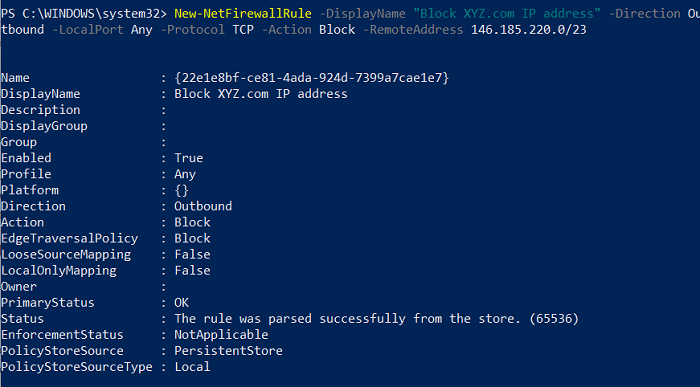
Using this command, you can use a single IP address or range of IP addresses. Execute the following command in PowerShell.
New-NetFirewallRule -DisplayName "Block XYZ.com IP address" -Direction Outbound –LocalPort Any -Protocol TCP -Action Block -RemoteAddress 146.185.220.0/23
You can replace Block XYZ.com IP address with anything you can remember or make it easy to understand whenever you look back at it. The IP address listed at the end of the RemoteAddress option is the one that will be blocked. Any website or service that resolves to that will be blocked. You can replace the RemoteAddress option with the LocalAddress option if the IP address is on the local network.
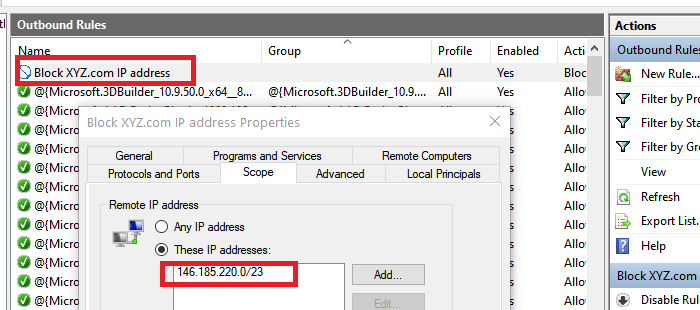
Once the execution is complete, you should receive a status message as ” The rule was parsed successfully from the store. (65536)”. Open Windows Firewall and check if the entry is available. Once confirmed, you should be able to add more using PowerShell.
2] Block Website or Domain using PowerShell
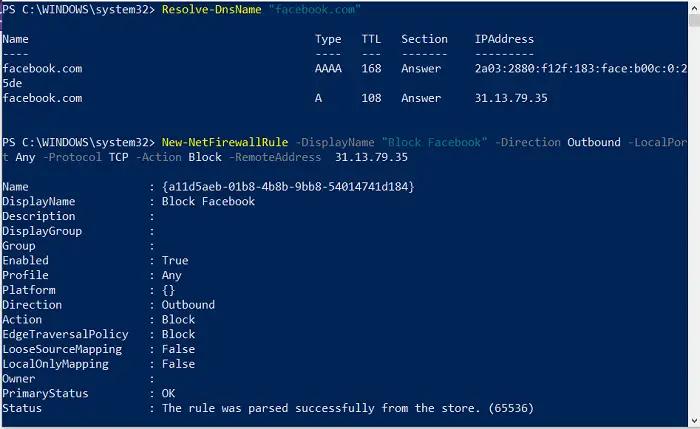
Since the function doesn’t support URL blocking, we have two choices. First is to query all possible IP of that domain, and block them. The second is to find known official IP ranges and block them. The latter has lower chances of accidentally blocking other services compared to the former. That said, if blocking a domain is essential, you can always use another software to block them.
Resolve-DnsName "facebook.com"
Note the IP address which we will use in the second method
New-NetFirewallRule -DisplayName "Block XYZ.com IP address" -Direction Outbound –LocalPort Any -Protocol TCP -Action Block -RemoteAddress 146.185.220.0/23
When I used this with YouTube, it did not work, though the direct IP was blocked. When I used it with Facebook, it worked. So if a website can be resolved using multiple IP addresses, then this method will not work.
Using PowerShell commands is straightforward. If you have ever used the command prompt, it is as good as that; I hope you were able to block an IP or a website using PowerShell in Windows successfully. Anytime you want to remove them, you can do so from Windows Firewall or use the Remove-NetFirewallRule command.
TIP: You can also use the Hosts file to block websites.
