
We are going to cover the best Productivity features in Windows 11, which is one of the hottest topics in the tech world. The latest version of Windows has a long list of productivity features. Some exclusive features include snap layout, snap groups, and a modified docking experience, among others.
According to the official statement released by the teams, Windows 11 features a reduced clutter and comes with a softening edge, as well as productivity-increasing tools.
Productivity features in Windows 11
These are the best Productivity features in Windows 11.
- Snap Layout
- Snap Groups
- Easier ways for undocking
- Microsoft Teams integration
- Windows widgets
- New Windows gestures
- Revitalized Windows Store
- Availability of Android apps
Let’s get to know them in detail.
1] Snap Layout
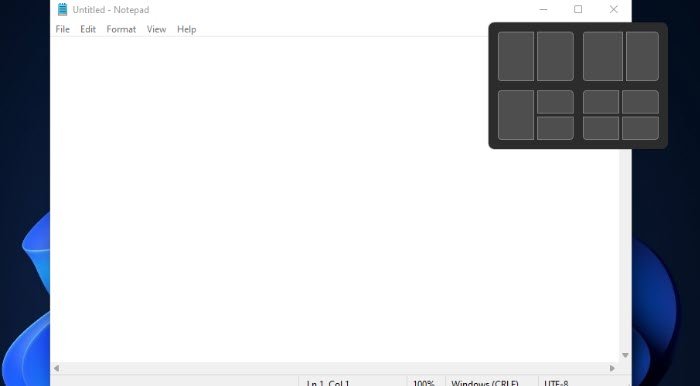
A very known utility managing tool among Windows users is FancyZones. With the help of PowerToys, one can easily snap applications to a specific section of the window. This is the best bet for large screens.
However, what changed in Windows 11 is that there is no longer a need for PowerToys to perform the same function. According to the claims by the Windows team, Windows 11 allows you to choose the layout options based on your display size. The feature would be yours the moment you select the restore icon.
Again, it has some exclusive managing features that make app managing easier. In this way, we no longer waste time on configuring all applications manually. The best part about this is that Windows will keep the Snap Layout in mind and group them accordingly.
2] Snap Groups
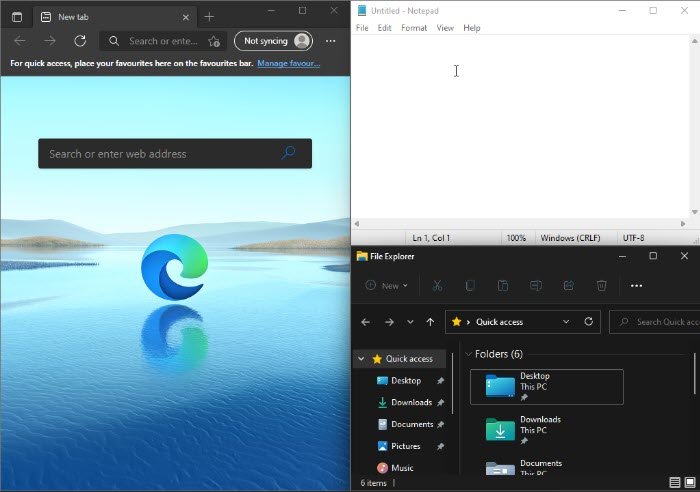
With the help of Snap Groups, you can group multiple apps in a custom layout. Let’s say that you have multiple apps working in Snap Layout, earlier, to go back and forth, you would need to click them all from the taskbar but with this new iteration of Windows, you just have to launch a program from the Snap Group.
Read: New Windows 11 Features.
3] Easier ways for undocking
You are aware of the mess that happens when we unplug external devices; all the running Windows turn into a mess on the laptop’s screen. However, the cluster will not be supported in Windows 11.
The app will be minimized in the external display of the taskbar, thus avoiding unnecessary mess. And if you want to plug it in again then these open windows will open with the same Snap Group you placed them in.
What I liked the most is that it won’t be a problem even if you decide to work on a Laptop, because all the working apps in the background will stay there.
4] Microsoft Teams integration
Another advancement that can be seen in Windows 11 is the integration of Microsoft Teams, a communication and collaboration app. No need for extra apps for calling and messaging as Microsoft Teams is a fully-fledged communication app with messaging and calling features.
5] Windows Widgets
Windows Widgets is a common feature that was first featured in Vista, enabling you to add mini-apps to the desktop screen. However, it was immediately halted when it began compromising desktop security.
Although Android and iOS have had them for a long time, Microsoft has again launched Windows Widgets options in this iteration. These widgets make working on a PC a lot easier as they allow snapshots of the schedule, email, task list, and other things.
6] Updated Windows Gestures
If you have concerns regarding touchscreen displays or two-in-one laptops then you should know that Microsoft took your concerns into consideration and launched some exclusive Windows Gestures.
This version of Windows is perfectly optimized to work with both hands and the mouse. There is no change in UI in computer mode, it stays the same in Windows 11. So, regardless of the method, you have chosen to interact with the OS, you will enjoy the experience.
However, you will be getting an easy-to-handle interface in Tablet mode as it has an altered interface. The developers kept even small things related to OS in mind to make it seamless. It has bigger touch targets and has space between icons.
It features customizable options, including Visual Cues that enable apps to be resized and made more mobile-friendly. There are other old gestures as well that make navigating the screen easier such as touchpad gestures.
There is no rocket science going on in Windows 11 to use touchscreen effortlessly. They just made small adjustments to make it work perfectly, which was a complaint that many users had with the previous version of Windows
7] Revitalized Windows Store
Windows 11 has revamped the Microsoft Store from scratch, and for some, this is a relief, as their previous Microsoft Store was plagued by numerous issues. Apart from this, you will still get the old apps of previous versions so this version is not getting you short on any feature.
Windows 11 is said to be trying hard on security; therefore, this approach ensures the PC’s safety, as these apps can be directly downloaded from the Microsoft store. No chance of malware getting to your system.
If you have a socialist view then you can rest assured that Microsoft is not cutting any pay of developers. Therefore, the prices are not too much for the software, and sometimes even lower rates are available. These changes are welcomed by most users but we will have to wait and see how good the stability of the service is.
8] Availability of Android apps
Android apps are now available on Windows, thanks to collaborations between Microsoft, Google, and Amazon. Microsoft Store access to the Amazon App Store has now made Android apps available on your desktop.
You can access over 3 million apps that are currently available on Google Play Store. There will be nothing extraordinary as these will appear the same as any other program on the PC. It will be in the Start menu and can be pinned in the Taskbar.
Again one of the features, Snap Layout can be used here for a better arrangement of the PC along with the installed programs. Intel’s Bridge Technology enables Android apps to run smoothly on Windows 11.
Now there is easy access to everything thus users live has become more advance than what it used to.
These were some of the best Productivity features that can you enjoy on your Windows 11 PC.
Related: Best Multitasking Settings to use on Windows 11.
How can I increase my Productivity on a computer?
The features mentioned earlier will surely help you be more productive, but there are also other things you can do to work efficiently. They are.
- Use Ctrl and Other Keyboard shortcuts more often: Ctrl is one of the most underutilized buttons. However, you can use it to increase your productivity. You can use, Ctrl + Backspace to remove one word instead of a single letter, Ctrl + Arrow keys, and other keyboard shortcuts such as Alt + F4 to close a window. This can increase your productivity by leaps and bound.
- Use Bigger Screen: Next up, Bigger Screen or multiple monitors are a great way to make your workspace more captivating, hence, increase your productivity.
- Delete Temporary files: You should always delete temporary files to increase the speed of your system as a sluggish computer can be a hurdle in your work.
How do I optimize Windows 11 for productivity?
To optimize Windows 11 for productivity, review the features and options mentioned above. For example, you can enable features such as Snap Layout, Snap Groups, and Widgets. Apart from that, you can use the new gestures, install and use Android apps, etc.
Is Windows 11 good for productivity?
As Microsoft has included many new features and options for users, it is now easier to use a Windows OS than it was earlier. That being said, you can certainly increase your productivity on Windows 11 without using any third-party app. You can utilize all the aforementioned options to enhance your productivity.
This is not a complete guide to increasing productivity but it can be a starting point for writers, developers, and other professionals.
