
Tags are an interesting and effective way of classifying items. Whether it is hardware or software. All you would need to do is search for items under a certain tag, and you will be able to access what you need. This concept is also applicable to files and folders in Windows computers. You can use File tagging software to tag and classify files and folders in your computer.
Best free File Tagging Software for Windows 11
The 5 best free File Tagging Software for Windows are as follows:
- Windows File Explorer
- Tabbles
- Tag Explorer
- Tagging by Connectpaste
- TagSpaces Lite
1] Windows File Explorer
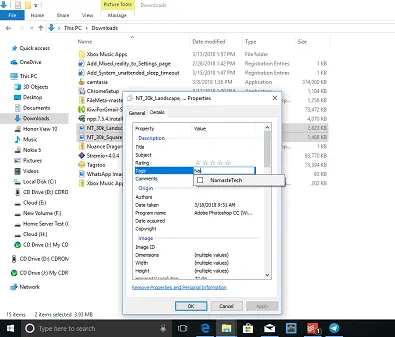
You read it right. Windows File Explorer has its own option for adding tags to files. Though it is a little cumbersome, the option is free, and you don’t need to download any software. Furthermore, the tags will work throughout File Explorer, which includes almost all files and folders in the operating system. Feel free to read more about the file tagging feature of Windows File Explorer.
2] Tabbles
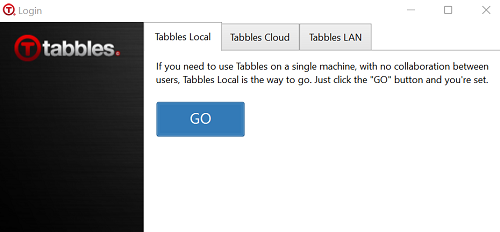
While File Explorer is readily available and free, it isn’t the best file-tagging software. This is where third-party file tagging software like Tabbles comes in to help you organize files and folders on your system. Tabbles has both free and paid versions, however, the free version allows you to manage 5000 files and set up to 15 file tagging rules which is more than sufficient. File tagging rules are what set it apart from File Explorer, since you can use auto-tagging. This saves you time and effort. The software can be downloaded from Tabbles.net.
TIP: You can rename and tag music files quickly with TagScanner.
3] Tag Explorer
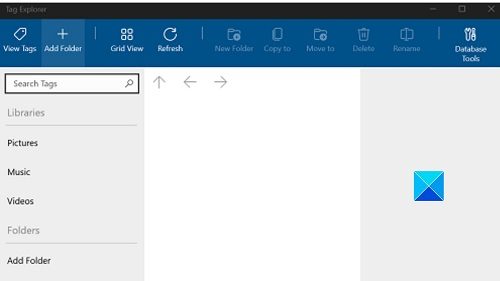
Tag Explorer is a Microsoft-approved software that works similar to Tabbles. However, the advantage is that it is free of cost, and you can tag as many files as you want to. Also, because Microsoft approves the app, you can be sure it is safe for your computer. Tag Explorer’s interface is easy to use, and you can also create folders in addition to tags. Instead, folders for Pictures, Music, and Videos are included by default. You can download the tool from apps.microsoft.com.
4] Tagging by Connectpaste
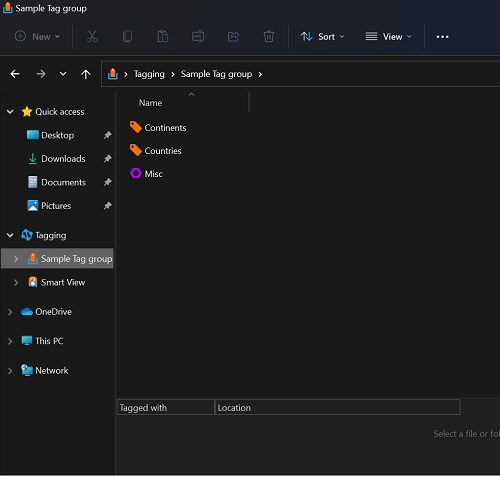
The software products mentioned above open in a separate window, and then you can arrange files. To view and access the files, you would still have to open the application. Even in File Explorer, you still have to open the window for each option. This is where Tagging by Connectpaste comes to use. It inscribes itself as a part of File Explorer. You can see it on the side of File Explorer. Using it is very convenient and you would not need to open the application. You can download the tool from tagging.connectpaste.com.
5] TagSpaces Lite
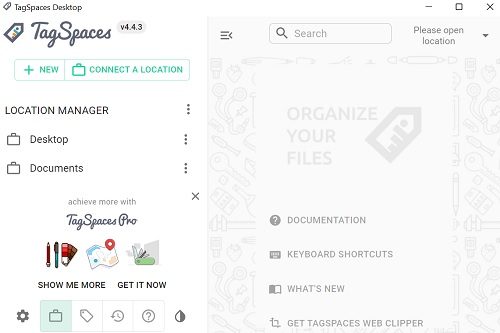
TagSpaces Lite is the free version of the popular Tag Spaces software range. I strongly recommend it because it provides extensive features like color coding, graphics interface, easy-to-use file viewers, etc. The free version lacks features like cloud connectivity, but it doesn’t really matter for a file tagging software. The product will still be better than other options on this list. You can download it from tagspaces.org.
TIP: You can also add custom tags to folders and files using Tagstoo
Please let us know if you would like to add anything in the comment section.
Can you tag PDF files?
Interestingly, you can tag PDF files easily using both Adobe Reader and the software mentioned above. However, third-party software is better because, with Adobe Reader, tags are only visible after you open the application. Not classified as folders or files.
What is tagging in software?
Whether you’re tagging applications, files, or folders, the concept remains the same. It is the process of assigning multiple entities to the same identity. This makes classifying identities easier. All you need to do is search a tag and you will get the needed information in the required order.
