
In Windows 11/10, Microsoft introduced a new Graphics settings page for Multi-GPU systems that allows you to manage the graphics performance preference of your apps. In this post, we will show you how to backup and restore GPU Preferences for apps in Windows 11/10.
Preferences may improve app performance or conserve battery life. Changes may not take effect until the next time the app is launched.
Applications are always allowed to have the ultimate choice of which GPU to use, so you may see additional applications that do not follow the preferences you set. In that case, look for a setting within the application itself to choose a preference.
Backup and restore GPU Preferences for Apps
We will be breaking this task as follows-
- Backup GPU Preferences for Apps to REG file in Registry Editor
- Restore GPU Preferences for Apps from REG file
Let’s see a description of the process in relation to both tasks.
1] Backup GPU Preferences for Apps to REG file in Registry Editor
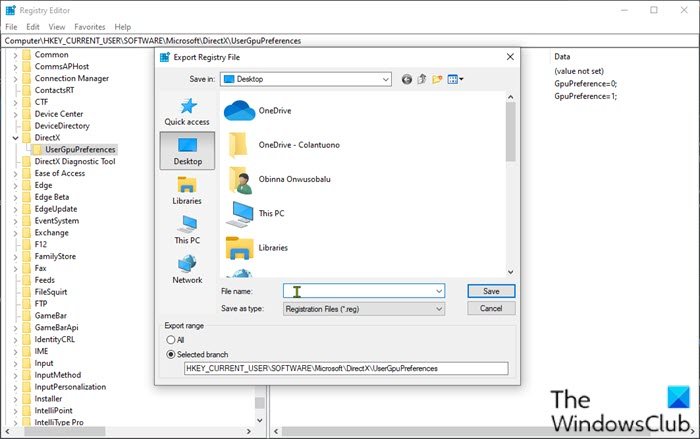
Since this is a registry operation, it is recommended that you back up the registry or create a system restore point as necessary precautionary measures. Once done, you can proceed as follows:
- Press Windows key + R to invoke the Run dialog.
- In the Run dialog box, type
regeditand hit Enter to open Registry Editor. - Navigate or jump to the registry key path below:
HKEY_CURRENT_USER\SOFTWARE\Microsoft\DirectX\UserGpuPreferences
Note: This registry key will only be available if you had made any changes to your Graphics performance preference settings.
- At the location, on the left pane, right-click the UserGpuPreferences key, and click on Export.
- Navigate to the location (preferably desktop) to save/export this .reg file.
- Type a name for this .reg file.
- Click on Save.
2] Restore GPU Preferences for Apps from REG file
To restore GPU preferences for apps from reg file, do the following:
- Navigate to the location of the exported .reg file.
- Double-click on the reg file to merge it.
- If prompted by UAC, click on Yes to approve elevation.
- Click on Yes to confirm.
- Click on OK.
That’s it on how to backup and restore GPU Preferences for Apps in Windows 11/10!
How to backup apps on Windows 11?
To backup apps on Windows 11, use the built-in Backup and Restore tool. Access it by typing ‘Control Panel’ in the search bar, then navigate to System and Security > Backup and Restore. Select “Set up backup” and follow the prompts to choose the apps and folders you want to back up.
