
Attack Surface Reduction (ASR) rules are a critical layer of defense in Microsoft Defender for Endpoint, designed to block common malware behaviors. However, IT administrators often face the frustrating scenario in which these rules are enabled but fail to trigger or block actions as expected. In this post, we will see what you can do if Attack Surface Reduction Rules are not applying or working.
How do I enable Attack Surface Reduction rules?
You can enable ASR rules using several management tools, depending on your environment. For individual devices, you can toggle them on via the Windows Security app under Virus & threat protection settings > Manage settings > Attack surface reduction rules. For enterprise deployments, they are typically configured via Group Policy (by editing the ASR GUIDs under Administrative Templates > Windows Components > Microsoft Defender Antivirus), Microsoft Intune (under Endpoint Security > Attack surface reduction), or PowerShell (using the Set-MpPreference -AttackSurfaceReductionRules_Ids cmdlet).
Attack Surface Reduction Rules not applying or working on Windows computer
ASR (Attack Surface Reduction) rules often fail to apply due to management or configuration conflicts. This usually happens when different policies, like those from Intune, Group Policy, or Microsoft 365 Defender, compete for control, or when exclusion lists are too broad. Sometimes platform versions have bugs, and the required cloud protection services may not initialize properly. This can prevent the rules from working, even if they seem enabled in the console.
If the Attack Surface Reduction Rules are not being applied or working for you, follow the solutions below.
- Check for Conflicting Policies
- Review the ASM Rule Execution List
- Verify Cloud-Delivered Protection is Enabled
- Reboot and Validate Service States
Let us talk about them in detail.
1] Check for Conflicting Policies
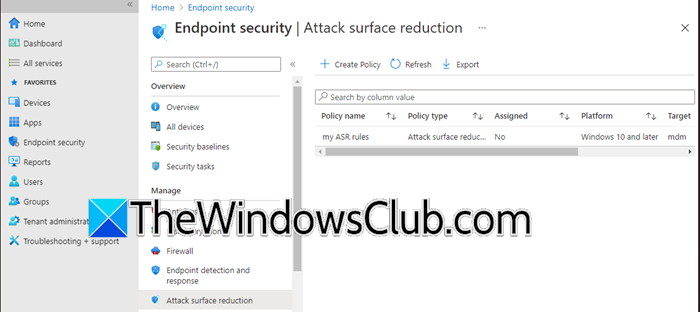
If your devices are managed by multiple sources (e.g., a leftover Local GPO and a new Intune policy), the last applied policy usually wins, or they may merge in unexpected ways. This conflict can set the rules to Not Configured or Disabled unintentionally, overriding your desired Block mode.
On an affected machine, open PowerShell as an Administrator and run the following command.
Get-MpPreference | Select-Object *asr*
This shows the currently active rules and their GUIDs/IDs.
Check the AttackSurfaceReductionRules_Ids and AttackSurfaceReductionRules_Actions to see what state is actually active.
Review your Group Policy results by running rsop.msc (Resultant Set of Policy) to see which GPO is applying the settings.
In Intune/MEM, navigate to Endpoint Security > Attack surface reduction and ensure no other profile is also assigning the same rules to the same device group.
2] Review the ASR Rule Exclusions List
ASR rules have their own specific exclusion list, separate from standard Defender Antivirus exclusions. If a process or file path is listed in the ASR exclusions, the rules will completely ignore that behavior. Often, administrators copy-paste broad exclusions (like entire drives) to fix performance issues, inadvertently disabling protection. Follow the steps mentioned below to do the same.
- On a test machine, run `Get-MpPreference | Select-Object *asr*` again and look for the AttackSurfaceReductionOnlyExclusions parameter.
- If the list is populated with paths or hashes, compare them against your current policy.
- Temporarily clear these exclusions (or comment them out in your policy) and redeploy the configuration to see if the rules start working.
- Ensure you are not excluding critical system processes that ASR is supposed to monitor (e.g., wscript.exe, rundll32.exe).
After making these changes, check if your issue persists.
3] Verify Cloud-Delivered Protection is Enabled
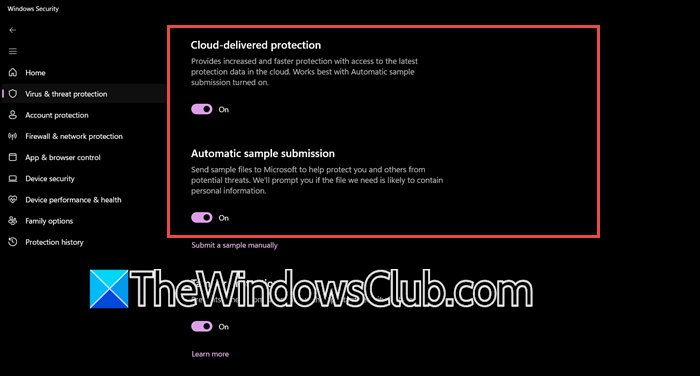
Many modern rules for automatic speech recognition (ASR) depend on a service called Cloud-Delivered Protection or MAPS, which stands for Microsoft Active Protection Service. This service helps quickly decide if a file is suspicious. If you turn off this service, the rule may not work properly or may take too long to react, making it seem like the rule isn’t functioning at all.
Follow the steps below to check the Cloud-Delivered Protection settings.
- Open the Windows Security app on the client machine.
- Go to Virus & threat protection > Virus & threat protection settings > Manage settings.
- Ensure Cloud-delivered protection and Automatic sample submission are both turned On.
- In your management console (Intune/GPO), ensure the policy Allow Cloud Protection is set to Enabled and Cloud Protection Level is set to High or at least Default.
After making these changes, ask the client whether the issue persists.
4] Reboot and Validate Service States
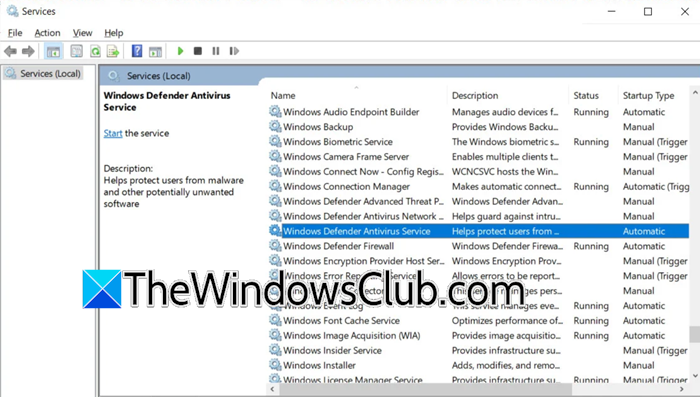
Sometimes the simplest fix is the right one. After an ASR policy is applied, certain services may need to be restarted to hook into running processes. If the Microsoft Defender Antivirus Service (WinDefend) or the Microsoft Defender Security Center Service (SecurityHealthService) is in a Stopped state, the rules will not be enforced.
Reboot the endpoint. This ensures all kernel-mode components and user-mode services are loaded fresh.
After reboot, open Services.msc and locate Microsoft Defender Antivirus Service.
Ensure its status is Running and the Startup Type is Automatic.
Generate a test alert using a known ASR test tool (like the PSH file execution test for rule BE9BA2D9-53EA-4CDC-84E5-9B1EEEE46550) to confirm functionality.
That’s it!
Read: How to clear Windows Defender Protection History in Windows 11
ASR Allow List not working? Solve the USB Printer Override Issue
This problem usually occurs because of a specific rule called Block untrusted and unsigned processes that run from USB. This rule blocks USB activity and does not follow standard antivirus exclusions. It has a unique way of handling which files are allowed. Even if you add the printer’s driver or program to your general exclusion list, this rule may still block it. This happens because the rule checks the file’s source (the USB drive) rather than the file itself.
To fix this, you need to add the specific file paths or folder locations of the printer software directly in the ASR policy settings, either in Intune or Group Policy. You cannot rely only on the main Defender antivirus exclusions. Keep in mind that any exclusion you add will apply to all ASR rules. So, be careful to specify the correct paths to avoid lowering other protections.
Also Read: Configure Windows Defender Exploit Guard in Windows 11.
