
Some users while trying to configure the printer port on their Windows 10 or Windows 11 PC may encounter the error message An error occurred during port configuration. In this post, we offer the best solutions you can try to resolve this issue.
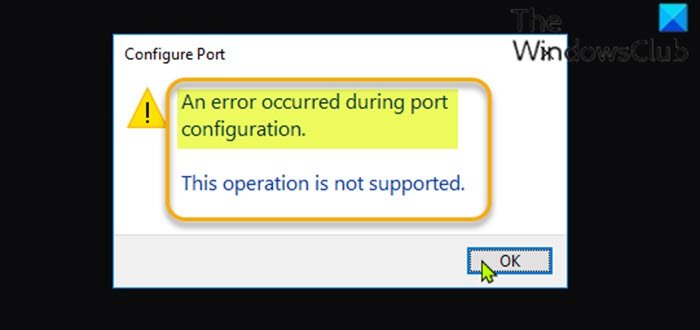
When you encounter this issue, you’ll receive the following error message;
Configure Port
An error occurred during port configuration.
This operation is not supported.
The error occurs when the Printer port is either in use or the Printer Driver installed is corrupt, or outdated.
The most likely culprits to the error include:
- Glitched printer menu.
- The printer is stuck in a limbo state.
- 3rd party firewall interference.
An error occurred during Port Configuration
If you’re facing this issue, try the recommended solutions below in any order to see if they help resolve it.
- Hard reset the printer
- Manually configure printer port
- Change account type to Administrator
- Manually flush the print queue
- Disable/uninstall any third-party security software
Let’s review the process for each listed solution.
1] Hard reset printer
This solution requires you to hard reset the printer and see if the An error occurred during port configuration issue is resolved.
Do the following:
- Get the printer into idle mode.
- Disconnect the power cord from the rear of the printer.
- Unplug the power cord from the wall outlet and wait at least 60 seconds.
- After 60 seconds have elapsed, plug the power cord back into the wall outlet and reconnect the power cord to the rear of your printer.
- Next, turn on your printer again and wait for it to enter idle mode.
Check whether the issue is resolved. Otherwise, try the next solution.
2] Manually configure printer port
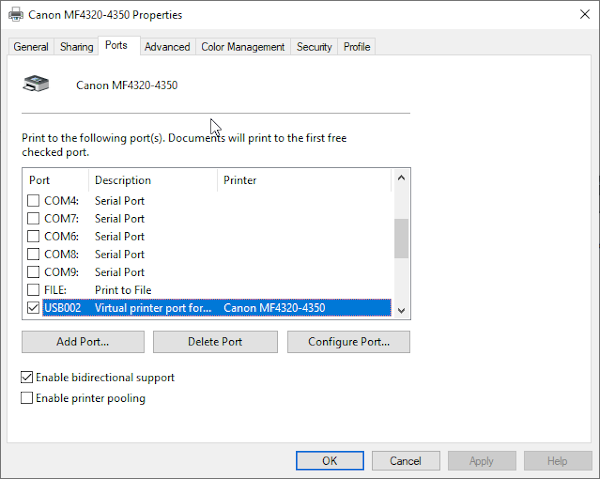
Since the automatic configuration of the printer port is not working, you can manually configure the printer port from the classic Control Panel interface. In the Ports tab, select the printer you’re having an issue with and then click the Configure Port button.
The issue should be solved now. If not, try the next solution.
3] Change account type to Administrator
In some cases, you may encounter this error if you try to configure the printing port from a non-administrative account. To resolve the issue, you need to change the standard account to an administrator account.
4] Manually flush the print queue
This solution requires you to manually flush the print queue on your Windows PC.
5] Disable/uninstall any third-party security software
Some third-party security software will not trust external devices so they will prevent new connections from being established. You’re most likely to encounter this error on printers that aren’t fully compatible with Windows 11/10.
To fix this, disable the AV software and see if the issue is resolved. If not, remove the third-party antivirus program from your PC using its dedicated AV removal tool to delete all associated files. Afterward, try the printer port configuration – the task should complete without the error.
I hope this helps!
