
In today’s computing environment, script files can be both powerful automation tools and potential security risks. Windows 11 features AppLocker, a comprehensive application control tool that allows administrators to have precise control over the software running on their systems. In this guide, we will see how you can allow or block script files with AppLocker in Windows 11.
Allow or Block Script Files with AppLocker in Windows 11
If you want to allow or block script files using AppLocker in Windows 11, follow the steps below.
- Initial Setup
- Create Rules and attach the script
Let us talk about them in detail.
1] Initial Setup
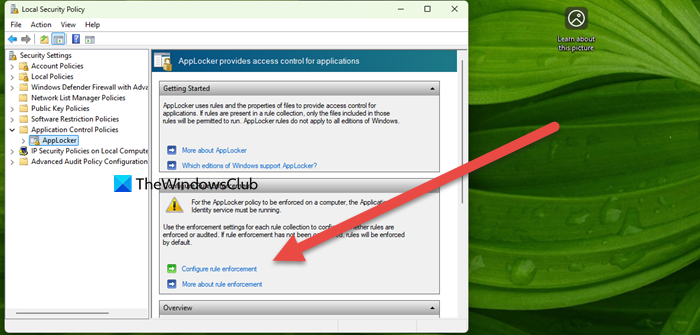
First, we will complete the initial setup and enforce the required rules. To do so, follow the steps below.
- Hit Win + R, type secpol.msc, and press Enter.
- Now, go to Application Control Policies > AppLocker.
- Click on Configure rule enforcement.
- In the Enforcement tab, under Script rules, check the box next to Configured and select Enforce rules.
- Click OK to activate script rule enforcement.
Now, move on to the next step.
2] Create Rules and attach the script
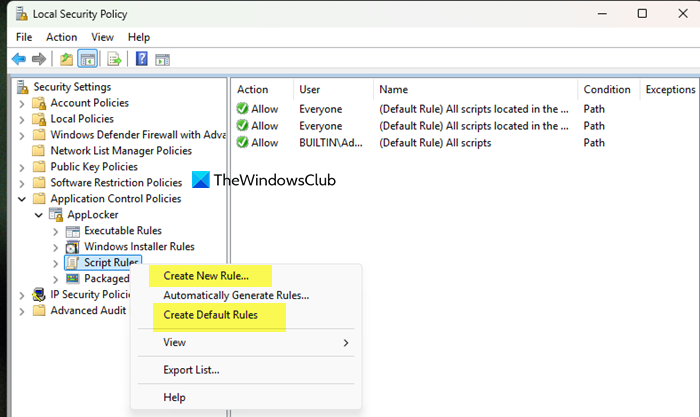
If you are setting up AppLocker for the first time, you must create the default rules to prevent system disruption. For that, right-click on Script Rules in the left pane and select Create Default Rules. This action prevents AppLocker from blocking all script files. If default rules already exist, you can skip to the next step.
You need to create custom script rules. For that, right-click on Script Rules again and select Create New Rule. Click Next on the initial screen that appears. Select either Allow or Deny (block) depending on whether you want to permit or restrict the script file(s).
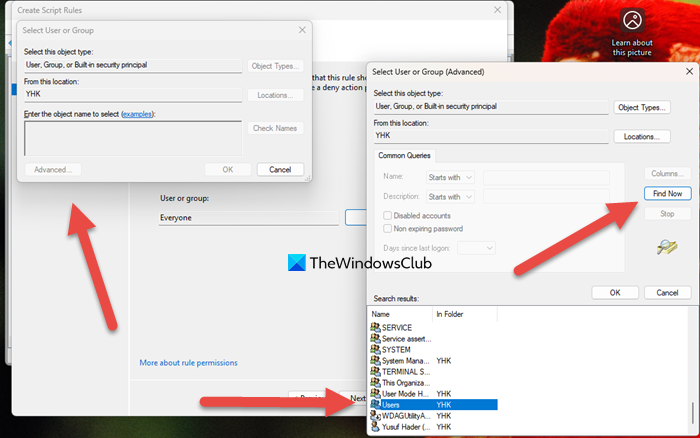
By default, rules apply to “Everyone.” To target specific users or groups:
- Click Select
- Click the Advanced button
- Click the Find Now button.
- Select your desired user or group from the list
- Click OK twice to confirm your selection
Now, click on Next.
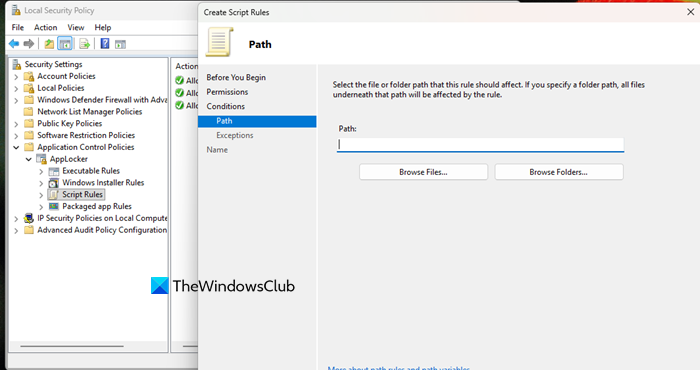
Choose Path as your condition type and click Next. Path rules are the most straightforward for script management.
To add individual scripts, click the Browse Files button. Choose your script type from the dropdown menu, then navigate to and select your file, and click Open.
To add folders or drives, click the Browse Folders button, select your desired folder or drive, and then click OK.
Once you have made your selections, click Create to implement your new rule. Your newly created rule will then appear in the Script Rules section.
Your new AppLocker rule immediately becomes active. To modify or remove a rule later, right-click it in the Script Rules list, select Delete, and confirm with Yes. AppLocker stores all script rules in the registry at:
HKEY_LOCAL_MACHINE\SOFTWARE\Policies\Microsoft\Windows\SrpV2\Script
which can be helpful for backup or deployment purposes.
Read: How to turn on or off Windows PowerShell script execution
Does Windows 11 have AppLocker?
Yes, Windows 11 does have AppLocker, but it is only available in the Pro, Enterprise, and Education editions of the operating system. It is not included in the Windows 11 Home edition. If you have a supported version, you can access and manage its settings through the Local Security Policy tool on your computer.
Does AppLocker block scripts?
Yes, AppLocker can block scripts, but only if you create a specific Deny rule for that purpose. By default, its built-in rules allow scripts to run from trusted system locations, so it doesn’t block everything automatically. You have full control to create custom rules that block specific script files or scripts from certain folders for selected users.
