
When you try to drag and drop an image from a website to your Windows desktop or File explorer, you may receive a prompt saying: Do you want to allow files from this website to be copied to your computer. This is a security measure designed to protect your computer from malicious files being intentionally dropped onto your system by websites or through accidental drag-and-drop operations.
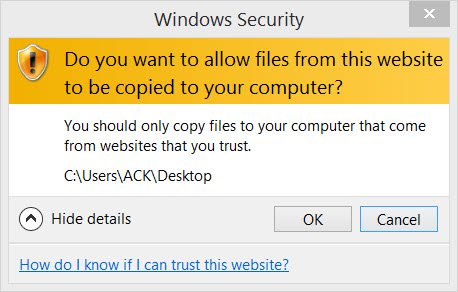
Do you want to allow files from this website to be copied to your computer
While we do not recommend that you disable this security feature, if you wish to, you can try the following methods:
1] Add the site to your Trusted Sites zone
If you do this frequently for a specific website and trust it completely, add the site to your Trusted Sites zone, by selecting this zone and clicking on the Sites button.
2] Change Internet Options
If you want to change the setting for all the sites, open Internet options > Security tab. Select Restricted sites and click on the Custom level button.
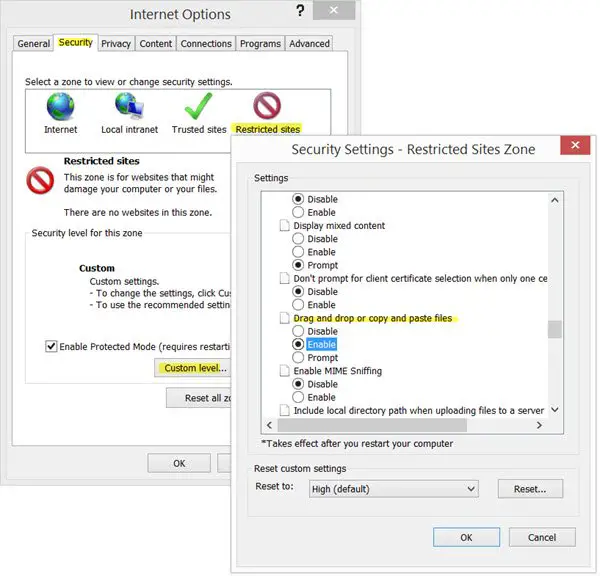 In the Security Settings for this zone, scroll down to Drag and drop and copy and paste files. The default is Prompt. Select Enable. Click OK / Apply.
This setting controls whether users can drag or copy files from Web pages within this zone. When this setting is enabled, a file, control or script can move from a zone to another zone more easily.
If you receive a message, Do you want to move or copy files from this zone, while copying files from one zone to another, change the setting for the Local Intranet zone.
See if this helps.
3] Change a registry setting
If this does not help, you may want to change a registry setting and see if that helps. To do so, Run regedit to open the Registry Editor.
But before you do this, create a system restore point first or back up the Registry.
The Internet zones are defined with the following value:
- 0 : My Computer
- 1 : Local Intranet Zone
- 2 : Trusted sites Zone
- 3 : Internet Zone 4 : Restricted Sites Zone
Now, navigate to the following key:
HKEY_CURRENT_USER\Software\Microsoft\Windows\CurrentVersion\Internet Settings\Zones\4
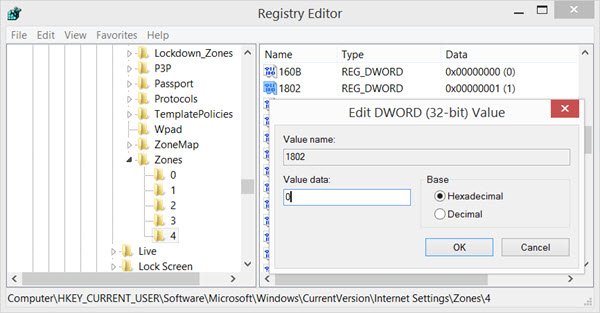
KB182569 mentions that DWORD value 1802 pertains to the Drag and drop or copy and paste files setting. A DWORD value of 0 sets the specific action as permitted, a setting of 1 causes a Prompt to appear, and a setting of 3 prohibits the specific action.
Double-click on 1802 and set its value data as 0. Restart your computer.
If this does not help, you may also change the value of 180B and see if that helps you.
Let us know if any of this worked for you.
Do you want to allow this website to access your clipboard Edge?
In Microsoft Edge, to allow a website access to your clipboard, you must grant permission when prompted. This feature enhances security by letting users control clipboard access. If you see the prompt “Do you want to allow this website to access your clipboard?” you can select “Allow” to grant access or “Block” to deny it.
What causes an open file security warning?
An open file security warning occurs when you attempt to open a file downloaded from the internet or a shared network, such as MSI, CMD, JS, or EXE files. Windows flags these files as potentially harmful. This prompts a warning to protect your computer from possible threats.
