
This tutorial shows how to add words to Voice Access vocabulary in Windows 11. That means you will be able to add your own custom words to the dictionary in Voice Access. Whether you want to add words that you dictate regularly or include words that are difficult to pronounce, you can do this in the Voice access vocabulary builder. You can insert one or more words at a time that you need improvement in the dictionary.
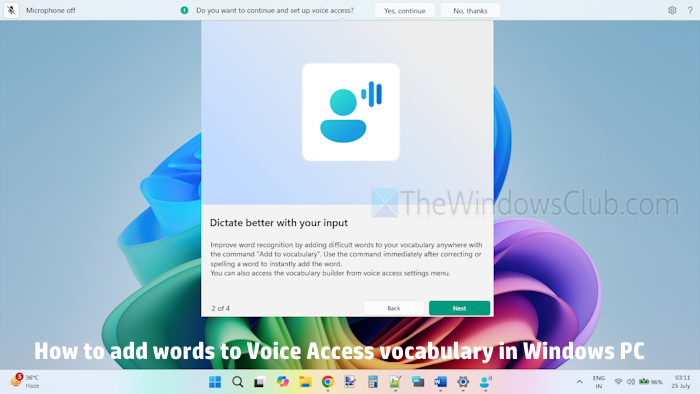
This new feature is rolling out gradually and is available in all supported languages of Voice Access, including English, Spanish, Chinese, French, and others.
How to add words to Voice Access vocabulary in Windows 11
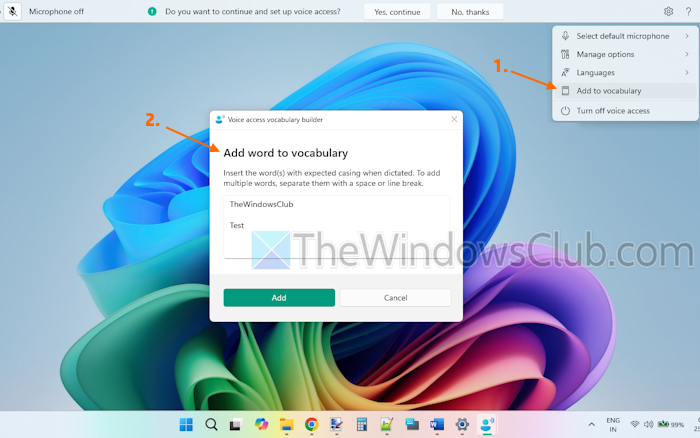
Here are the steps to add words to Voice Access vocabulary on a Windows 11 PC:
- Enable or turn on Voice Access on your Windows 11 PC. You can use the Windows logo key + Ctrl + S hotkey or enable it from the Settings app (Accessibility > Speech)
- Set up Voice Access if you haven’t already
- Use the Add to vocabulary command. You can also use this command immediately after spelling or correcting a word to add that particular word quickly
- Alternatively, you can click on the Settings icon on the top right corner of Voice Access and select the Add to vocabulary option
- The Voice access vocabulary builder box will open. Here, type or say a word that you want to add to the dictionary
- To add more words, write each word on a separate line or insert a space
- Press the Add button when you’re done.
Later, you can open the Voice access vocabulary builder anytime to add or remove words when needed.
That’s all.
Now read: How to convert Text-to-Speech in Windows PC
How do I add more text-to-speech voices to Windows 11?
To add more text-to-speech voices or narrator voices in Windows 11, open the Settings app. Navigate to Time & language > Speech. Under the Manage voices section, click on the Add voices button. In the Voice packages box, select a language, and press the Add button. This will install all the voices for that language. Along with adding legacy voices, you can also add natural voices in Narrator for text-to-speech.
How to type in Word using voice in Windows 11?
You can use the Voice typing tool in Word to enter text by speaking, which is a native feature of Windows 11. All you need is an internet connection and a working microphone. In Word, press Win+H hotkey to activate the Voice typing feature. Select the Microphone icon to start voice typing. This feature uses Microsoft’s online speech services to turn your voice into text.
Read next: Voice Access not working on Windows PC.

