
We all use archive file formats like .zip, .rar in order to employ lossless data compression. In a single archive file, we can add several files and folders and considerably reduce the package’s combined size, making it easier to send across the network. However, sometimes you don’t want to make the file accessible to the public before uploading or sending it across the network or inviting a wider audience. Adding a password to a zipped file in Windows 11/10 can save you trouble in those moments. In this post, we’ll cover how to add a password to a zipped or archived file.
How to add Password to Zip file in Windows 11
For starters, let us give some background on the encryption and password-protection methods supported by .zip files.
First is ZipCrypto which is widely used and supported by several ZIP archive software. However, it lags on the security front. Word is that it is quite weak and vulnerable to attacks like the known-plaintext attack. An efficient and more secure alternative to this is
An efficient and more secure alternative to this is AES-256 encryption which is considered among the top ciphers. Even so, AES-256 has its own drawbacks. Windows’ own native compression tool does not support it but many other well-known tools like 7-Zip, WinZip, WinRAR, etc. do support this.
So, ZipCrypto is compatible with several tools but isn’t secure, whereas AES-256 is more secure but compatible with only a few tools.
Encrypt compressed files using 7-Zip
WinZip & WinRAR are not free, and so we will show you how you can add a password to your compressed and archived files using 7-Zip, which is open source and free.
Once you have downloaded and installed 7-Zip file archiver software from its official website and install it on your computer, right-click on the file or folder you wish to compress and password-protect.
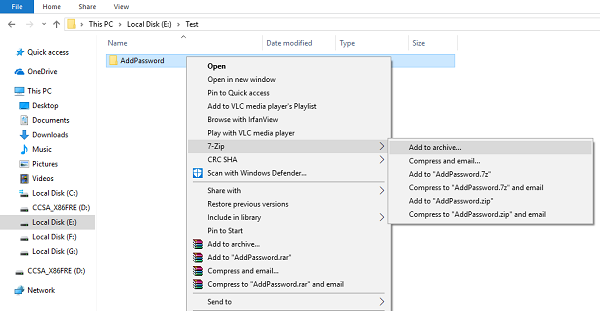
From the context menu, select 7-Zip > Add to archive.
Next, enter your password and confirm it in the Encryption section in the lower-right corner. Here, you can also select the encryption method (ZipCrypto or AES-256). You can also change the archive format (default is 7z, the native file format for 7-Zip).
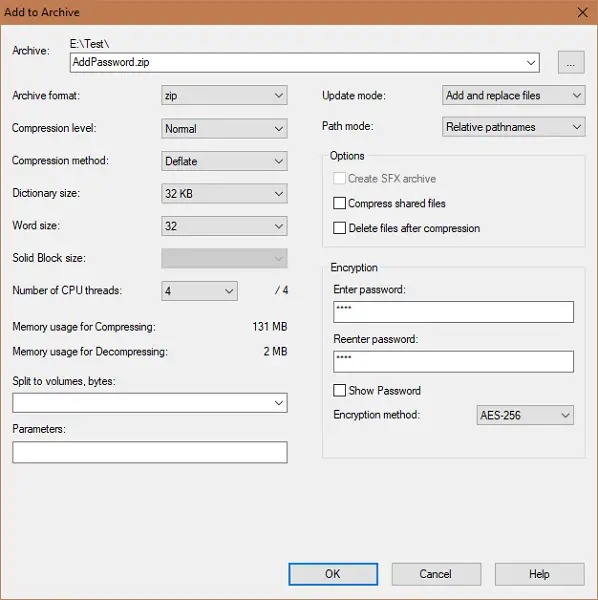
Once done, click OK to create the compressed file with the password that you’ve set.
Adding a password to a compressed file is easy, but the practical implementation of these algorithms always leaves one or another weak spot.
Hence, use secure passwords and keep the compressed file name undisclosed so you don’t give away any idea of the contents.
TIP: ZipLock lets you Compress, Backup and Password-protect ZIP files
I hope it helps!
Some of you might want to take a look at these Free File Encryption Software.
