
Videos with multiple audio and subtitle tracks have become common these days. Due to the many languages around the world, video producers are making their videos available with audio in multiple languages for easier consumption. In this guide, we show you how to add or remove multiple audio tracks in a video on a Windows 11/10 PC.
How to add or remove Multiple Audio Tracks in a Video on Windows PC
Removing multiple audio tracks from a video on a Windows PC is simple with LosslessCut, a free video tool available on GitHub. With the LosslessCut tool, you can add or remove multiple audio and subtitle tracks from a video on Windows 11/10 PC. Let’s see how to use it.
- Open LosslessCut on your Windows PC
- Import the video track
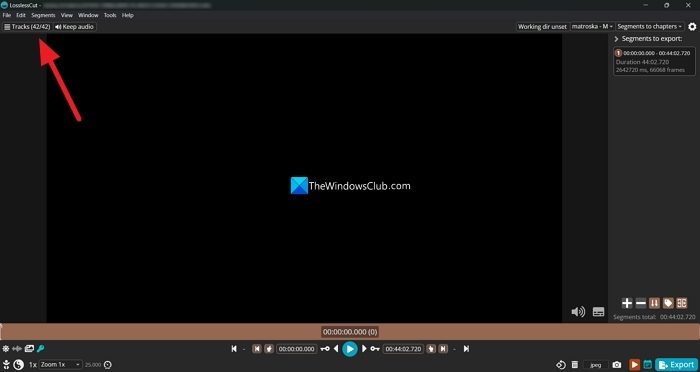
- Click on the Tracks button
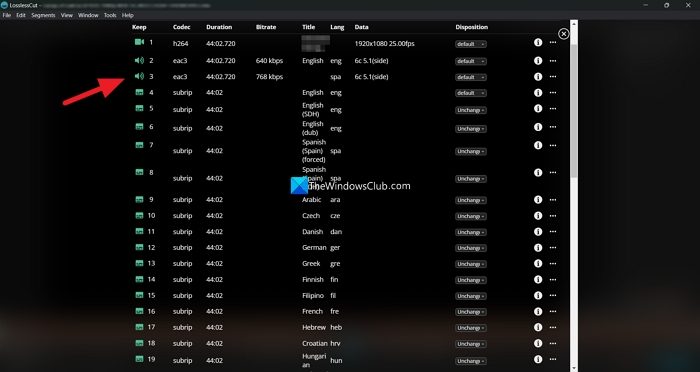
- Now, click on the Speaker button to disable the audio track
- Close the Tracks overlay and click on Export
- Choose the File name as well as the destination folder and export it
Let’s get into the details of the process.
To get started, download the Portable version of LosslessCut from GitHub. Extract the LosslessCut portable app zip file and open the LosslessCut application file. Then drag and drop the video file onto LosslessCut, or manually import it by clicking the home screen. After importing your video file, click on the Tracks button to see all the available video, audio and subtitle tracks in the file you have imported.
In the tracks overlay window, you will see all the tracks available in that video file. Click on the Speaker button to disable the audio track. Similarly, you can click the Text button to disable the subtitles or text tracks for the video.
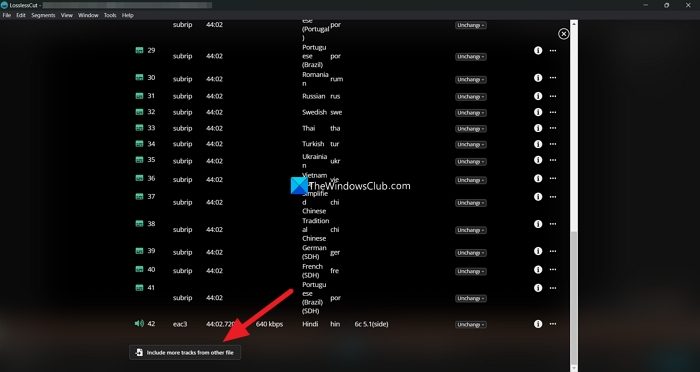
To add an audio track to the existing video file, scroll down in the Tracks window and click on Include more tracks from other file and import the file.
Once you are done with adding or removing audio or subtitle tracks to the video, close the Tracks overlay windows and check if the audio and video are perfectly in sync on the LosslessCut home screen video player. Then, click on the Export button at the bottom of the screen to save the video.
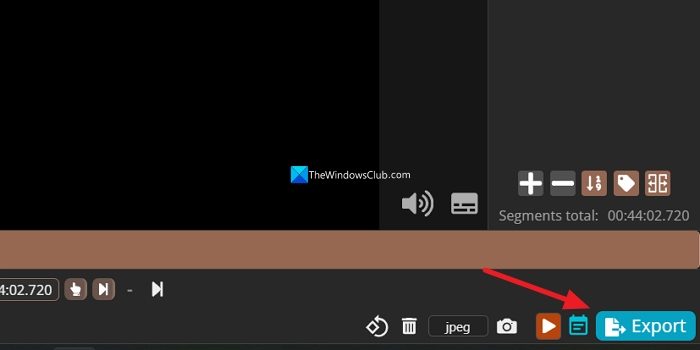
Choose the filename and destination in the Export window, then save the file. It will be saved in a few minutes, unlike professional video editors, which take hours to export a video based on your system configuration. There will be no loss in video quality. Hence, the video file size does not decrease unless you disable an audio track in the file.
Also read: How to merge Audio and Video in Windows
How do I remove multiple audio tracks from a video?
You can use free tools like MKVToolNix or LosslessCut to remove multiple audio tracks from a video. You just have to import the video track with multiple audio tracks, then disable the ones you do not need. Then, export the video with only the desired audio tracks. It is a simple process that does not need professional video editing programs.
Read: How to remove Audio from Video in Windows 11 using Clipchamp or VLC.
How do I add another audio track to a video file?
You can add another audio track to a video file on a Windows PC using VLC Media Player, Clipchamp, or other video editors. Import the audio and video files into the program, arrange them on the timeline as you want, and export them as a single video file with the audio you want to include.
Related read: How to split and merge Audio files using Audacity in Windows.
