
The Clock app in Windows 11 or the Alarms and Clocks in Windows 10 is designed to bring additional features to the default system clock. Like Windows 8/7, the new app lets you create additional clocks that show the time from around the world. Even better, users can pin any clock to the Start Menu, so they no longer have to click the default date and time menu in the bottom-right corner of the operating system to view different time zones. In this post, we will see how to add new clocks, set alarms and use the built-in Timer and Stopwatch in the Alarms and Clocks app.
How to use the Clock app in Windows 11
The Clock app in Windows 11 offers the following tabs:
- Focus sessions
- Timer
- Alarm
- Stopwatch
- World Clock.
Compared to Windows 10, the Windows 11 Clock app offers a Focus sessions tab where you can start focus sessions.
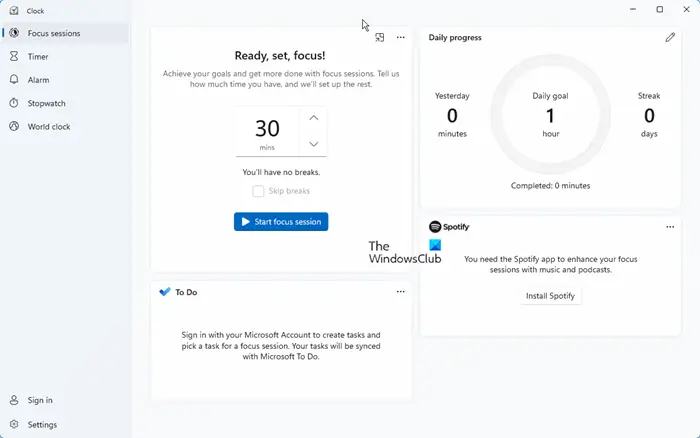
The Clock app in Windows 11 also offers the following settings:
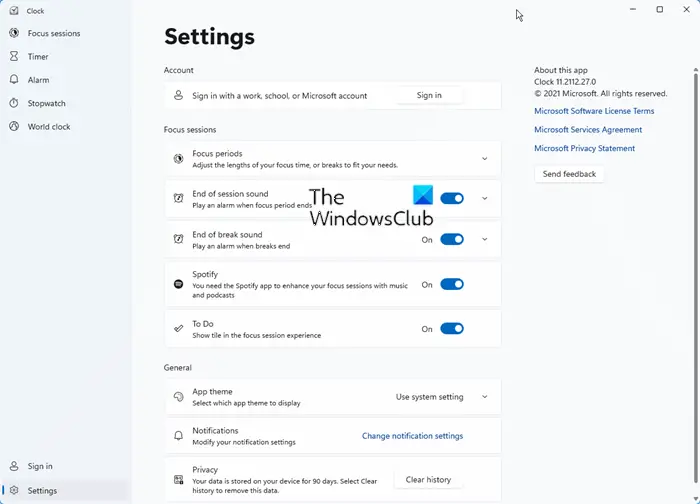
Using this app in Windows 10 or Windows 11 is quite similar and we have explained below how to use it in Windows 10.
Related: How to add Clock to Desktop in Windows 11
How to use the Alarms and Clocks app of Windows 10
Open the Start Menu and move the mouse cursor to “All Apps” and click again. Under the category “A”, the app Alarms and Clocks should be at the top. All that is required right now is to open it by yet again, clicking on it.
Once the app is opened, you will see four tabs that say, Alarm, World Clock, Time, Stopwatch.
Read: Alarms & Clock app not loading, opening or working
Add additional clocks in Windows
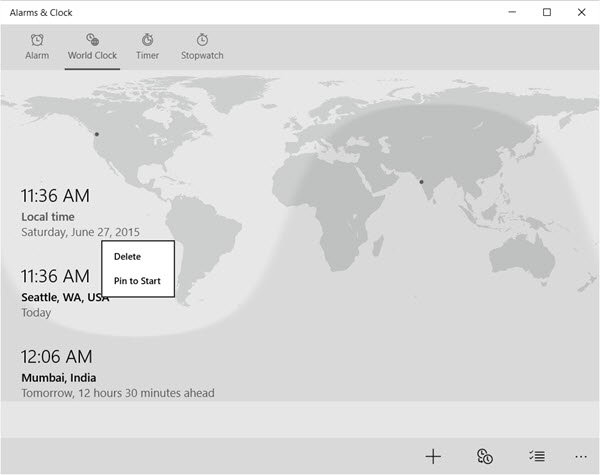
To add a new clock, click on World Clock. Once you’ve done that, click the + or New link in the bottom-right corner of the app. This lets you add new clocks from time zones around the world. Just type in the country or city and the app will automatically bring up a list to choose from.
After you choose the correct location, the new time zone will pop up on a map. For example, if you select Seattle, USA, the time will appear over that section of the map.
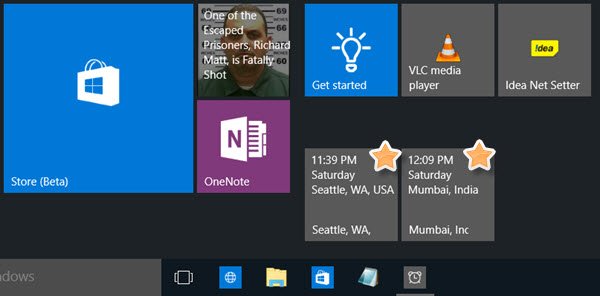
Now, if you want to view the new time zones without ever having to launch the Alarms and Clocks app again, you can simply right-click on the required timezone on the app and click, Pin to Start. This pins the new time zones to the Start Menu for easy viewing. Now you’re just a single click away from knowing the time outside your own country.
Read: Alarm clock not working in Windows even when set.
Set Alarms in Windows
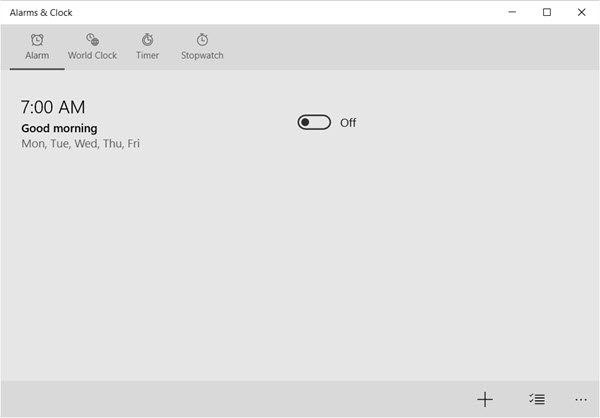
Setting the alarm in Windows is quite easy. To set an alarm, click on the Alarm tab then on the “Plus” sign at the bottom of the app. Here the user should see the option to set a new alarm. The app lets you set the tone, repeat frequency, snooze time, and name the alarm.
To activate, click or tap the Save button at the bottom.
Use Timer in Windows
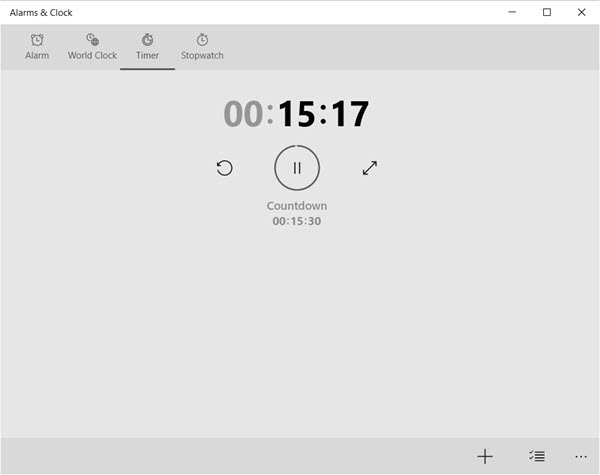
I am not sure how a timer option will be productive for desktop and laptop users, but it should be for those with small tablets.
To get it started, the procedure is similar to creating an alarm. Click the Timer tab, then click the plus sign at the bottom to start a new timer. From there, the new user can name the timer and specify the duration. Then click the Save button at the bottom.
Use Stopwatch in Windows
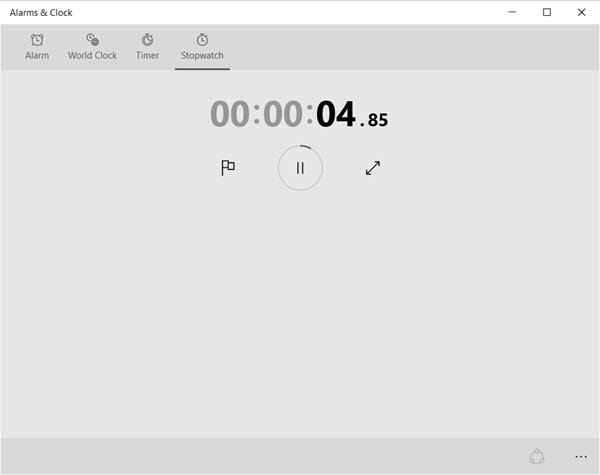
Click the Stopwatch tab and press the play (start) icon to start it. Once the Stopwatch is paused, users can share their time with friends on social networks via the share icon at the bottom.
Alarms and Clocks is an interesting, feature-rich app, and we are sure many of you will find it useful.
