
Whenever someone mentions the word ‘PRESENTATION,’ the first thing that comes to mind is Microsoft Office PowerPoint! The application includes several high-quality presentation templates to help you create unique slides. It also enriches the slide presentation experience. The latest version allows you to add 3D objects to your PowerPoint presentation in just a few steps. You don’t require any fancy extensions or plug-ins!
Add 3D Objects to PowerPoint
If you are a Windows 11/10 user, you can now easily add 3D objects to your PowerPoint presentations, Word, and Excel documents. Here’s how!
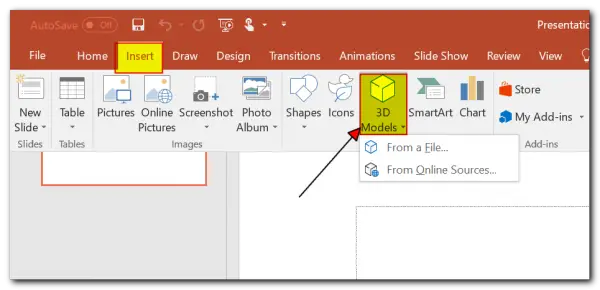
Launch the PowerPoint app. Next, from the Ribbon menu visible at the top, select the Insert tab. There, you will notice the 3D Models drop-down to either add a model you’ve created in Paint 3D or grab one from Remix3D.com, an online community and catalog of 3D content that enables mixed reality and 3D experiences for Windows.
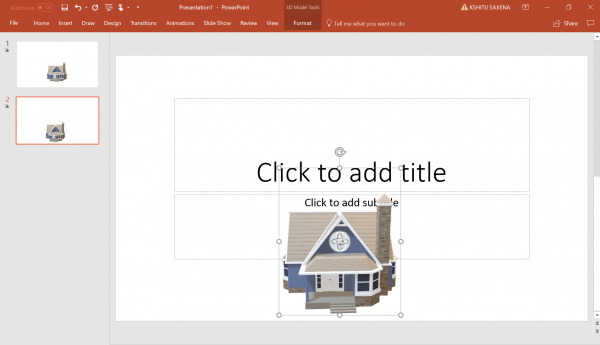
When done, drop it into a suitable location on the slide and use the controls (rotating, sizing, and positioning) to manipulate the model until it suits your requirements.
Once finished, A new contextual tab, 3D Model Tools, should appear. Here, you can use the preset 3D Model Views to select the orientation you want your audience to view. The good part is you need not go elsewhere to find different images to identify different perspectives. With 3D, you will have complete control over your presentation!
Use Morph with 3D models to create cinematic transitions between slides. Add the Morph transition to automatically animate and shift your 3D object in perspective seamlessly across all your slides. It’s a unique feature that helps PowerPoint users create smooth animations, transitions, and object movements across the slide deck.
That’s all there is to it!
This way, you can easily add 3D to your PowerPoint presentation in just a few steps.
How do you do 3D style in PowerPoint?
Once you select the picture to which you want to apply the effect, click the Picture Format tab, then under Picture styles, click Effects. Next, point to 3-D Rotation and click the effect you want to add. You also have access to Picture Border, Effects, and Layout.
What 3D files does PowerPoint support?
It supports FBX, OBJ, 3MF, PLY, STL, and GLB. You can apply effects and transitions to each object, such as Morph, Fade, Push, Wipe and Split. Also, ensure that when you insert 3D objects, there is enough spacing between them to make them easy to select for modification.
