
Just as Microsoft had disabled Games by default in the Business and Enterprise editions of Windows Vista, bowing down to pressure from Employers and the Corporates, games have been disabled in Windows 7 Professional Edition too!
Apparently, Minesweeper and games, in general, have been responsible for millions of hours of lost productivity!
Enable Games in Windows 7 Pro
To enable these missing games in Windows 7 Professional Edition and Enterprise Editions, open the Control Panel > Programs and Features. In the left side pane, click Turn Windows Features on or off. Now in the window that pops up, look for and then expand Games – and then select the games you want or select all.
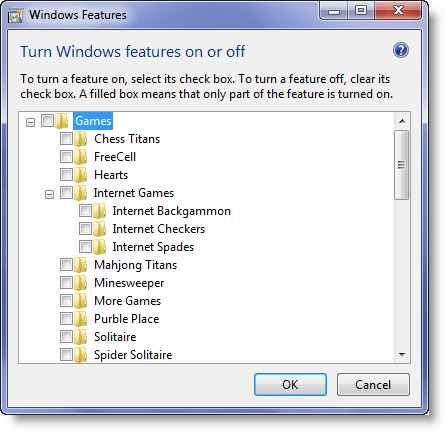
Click OK.
Turn off Default Windows 7 Games & remove them from Start Menu
Games are part of the Windows 7 operating system and are turned on by default (except in Windows 7 Pro Edition). There is no easy and safe way to completely delete or uninstall these built-in default games completely, but what you can certainly do is turn them off and remove access to them if you find them of little or no use.
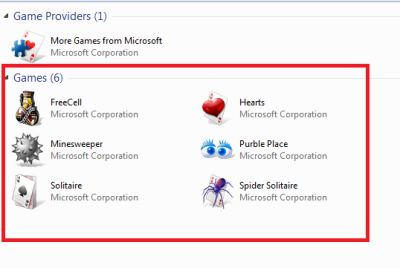
In this article, we will tell you how to turn off default Windows 7 games easily and then remove its entry from the Start menu. This is especially useful if you find that you yourself, your family members or your employees are wasting too much time playing these games.
Turn off Windows 7 Games
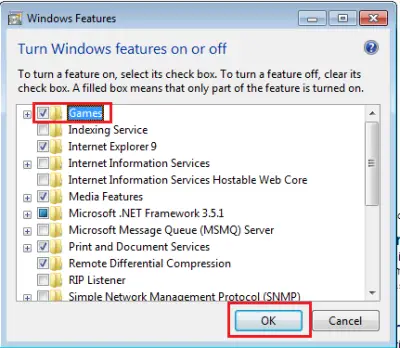
To do so, click on Start, in the search box type ‘Windows features’ and press Enter. This will open ‘Windows Features’ on your computer. The screen offers options to turn certain Windows Features on or off.
Search for the ‘Games’ entry inside the window. Uncheck the box adjacent to that folder.
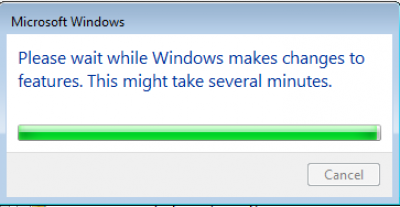
Now wait patiently for few minutes while Windows makes the necessary changes to the features.
Once the task is completed, exit and try to launch Games from the Start menu. You shouldn’t find any and you will see the message: No Games Found.
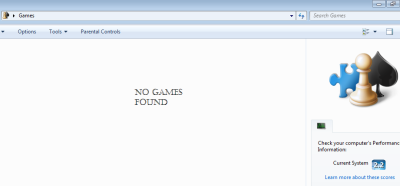
Now, we have finished the task of turning off Windows 8 games successfully, let us proceed further and see how to remove the Games entry from the Windows 7 Start menu.
Remove Games from Windows 7 start menu
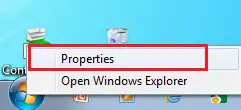
The process is simple and straightforward. Simply right-click on the ‘Start’ menu and select ‘Properties’.
Then, from the 3 tabs displayed select ‘Start Menu’.
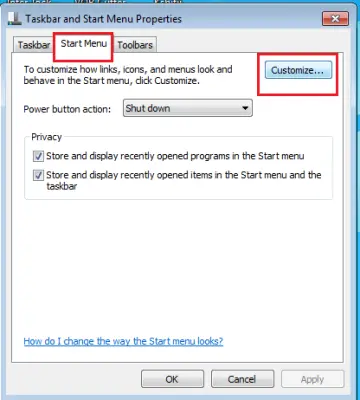
Next, click on ‘Customize’ and scroll down until you find ‘Games’ in the list. Just check the option that says ‘Don’t display this item’ and click on ‘OK’.
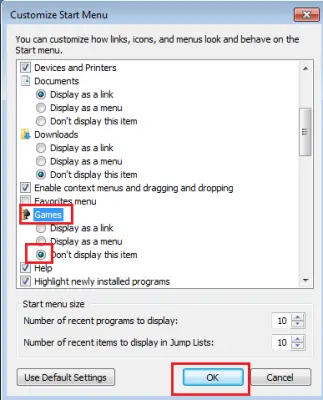
Now when you open the Start menu next time, you shouldn’t find Games being listed in the Start menu.
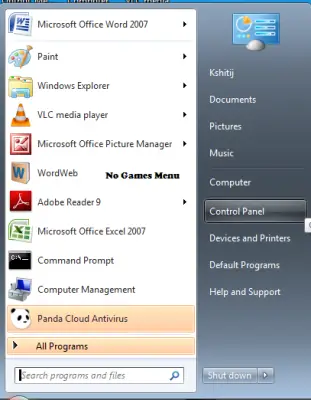
If you do not want anyone to enable the games, makes sure that you are the only user with Admin powers and all other users are Standard Users. You may also, to be doubly safe, edit the Group Policy to remove the ability to Add or Remove Windows Features and Games from the Start Menu.
NOTE: There may be a way to completely delete Games by deleting certain entries in the following registry key, but we have not tried it and would not recommend it, as it may not be safe:
HKEY_LOCAL_MACHINE\Software\Microsoft\Windows\CurrentVersion\GamesUX\Games
Hope that helps!
Please note that you will not be able to do this in Windows 10/8. You won’t see the Games Explorer too now. Microsoft may have decided to do away with it, since the focus is now on Games as Apps.
