
This article will tell you how to Remote Shut down or Restart Windows using the Remote Shutdown Dialog box or command line. Using the Remote Shutdown Dialog box and the shutdown options available in Windows 11/10, you can remote shutdown, restart or log off local or networked computers quite easily.
How to Remotely Shutdown a Windows 11/10 computer
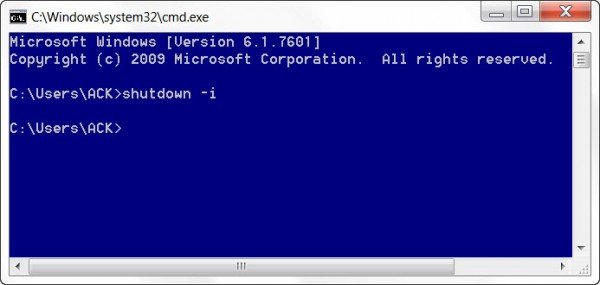
To open the Remote Shutdown Dialog box, open a command prompt, type shutdown -i and hit Enter.
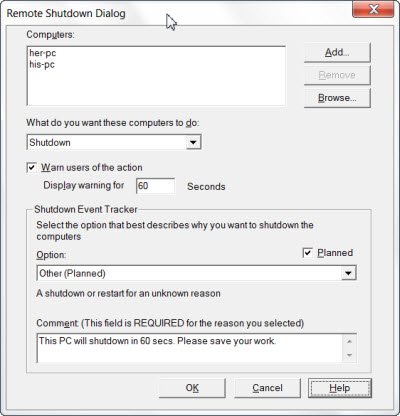
 The Remote Shutdown Dialog window will open.
Read: How to search for files from the MS-DOS Command Prompt
Remote Shutdown Command
In the window that opens, click Add. This will let you add the name of the computer you want to remote-shutdown. You can find the name of the PC by right-clicking Computer and selecting Properties. As an example, I have used his-pc and her-pc. Alternatively, you can also use the browse button to look for other PC’s on your network.
Next, select the command. I have selected Shutdown and allowed for a 60 seconds time span before shutdown commences. You can also give a message, which will be displayed before the shutdown commences.
Once done, click OK.
You can also document the reason for an unexpected restart or shutdown of a remote computer without logging on locally to that computer.
Do note that:
- To send commands to other PC’s you will have to have administrative privileges on those computers as well
- For Shutdown Event Tracker to be able to record information, the Remote Registry service must be enabled on the remote computer
- The Remote Administration and Windows Management Instrumentation firewall exceptions must be enabled on the remote computer.
Read next: How to Remotely Restart a Windows computer using PowerShell.


old 1..
…that doesn’t work.
Delivers an error when you hit “Browse” on the dialog:
“The Active Directory Domain Service is currently unavailable.”
Lots of reports of this one out in Googleland. No solutions.
When you opened Command prompt did you Right clicked and run as administrator? Make sure RPC Server, RPC Server Locator, Remote Registry, Remote Desktop Services, services are running on Remote computer. See if you can RDP into that computer as well. Sometime Firewall might block the connection. Remote Administration and Windows Management Instrumentation must be added to Firewall exception.
The above command does not work.
I tried cmd with admin rights.
I checked the RPC,remote registry and remote desktop services were running
When I tried to shut a remote computer connected to my router it gave error access denied, error 5
Worked for me on Win 2003. Thanks alot!
Press ALT+F4 in the remote pc and choose shutdown
I know this is old but Google brought me here…
In my case you also have to enable File and Print Sharing in Firewall. For most people that’s probably a given that it’s already enabled but in my case it was not.