
In this article, I’ll show you how to install Windows 8 DP on your Computer. Windows 8 Developers Edition is a pre-beta from Microsoft for testing and development purpose. It is not recommended to install it on a production computer.
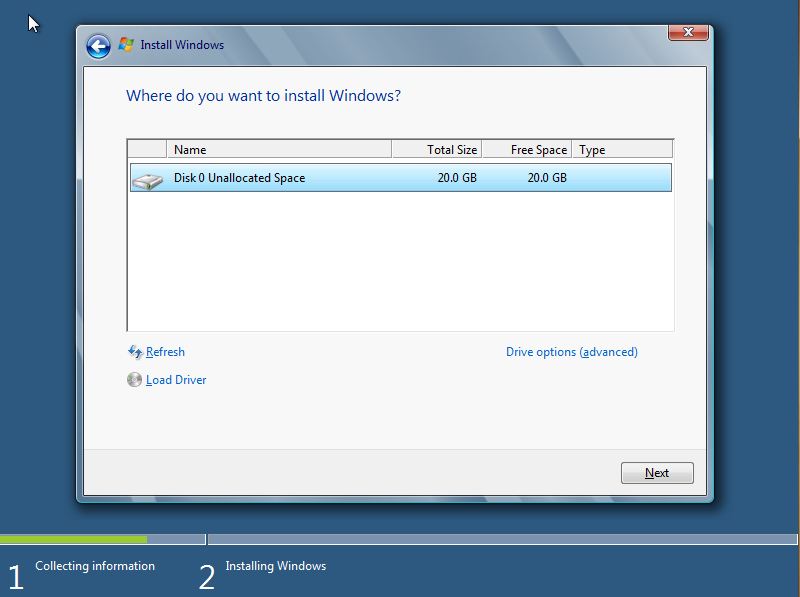
If you’re planning to set up Dual Boot, make sure you create a drive of more than 20 GB as a primary partition. If you’re going for a Clean Install of Windows 8, then back up your files, then format your C drive, and install it fresh.
How to install Windows 8
Step 1:
Boot your computer with the Windows 8 installation media
Step 2:
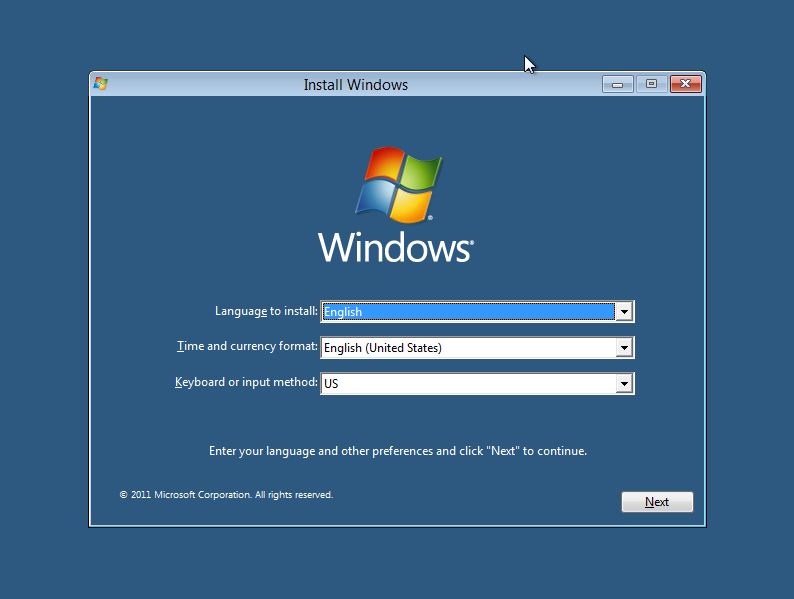
It might take few minutes to load the files, and then it will take you to the installation screen. Select the appropriate option and click next.
Step 3:
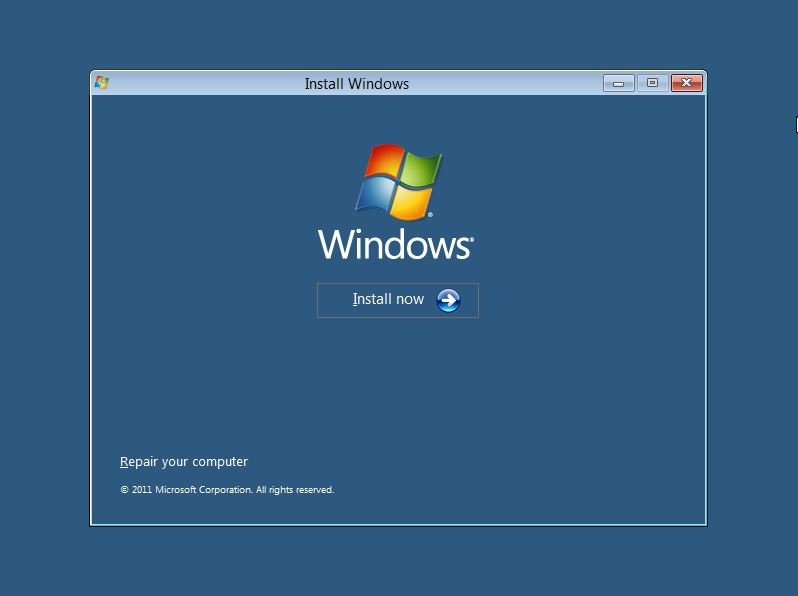
Now click on “Install Now” to proceed
Step 4:
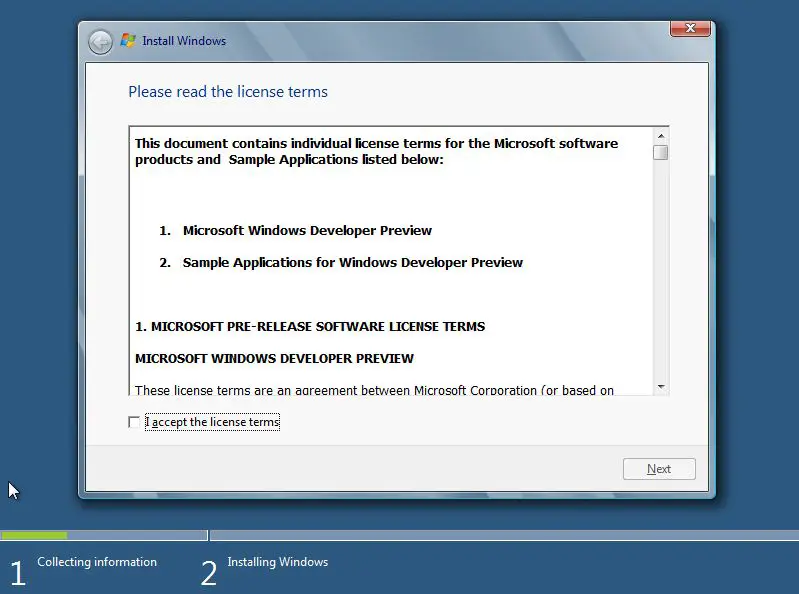
Accept the terms and conditions and then click “Next”.
Step 5:
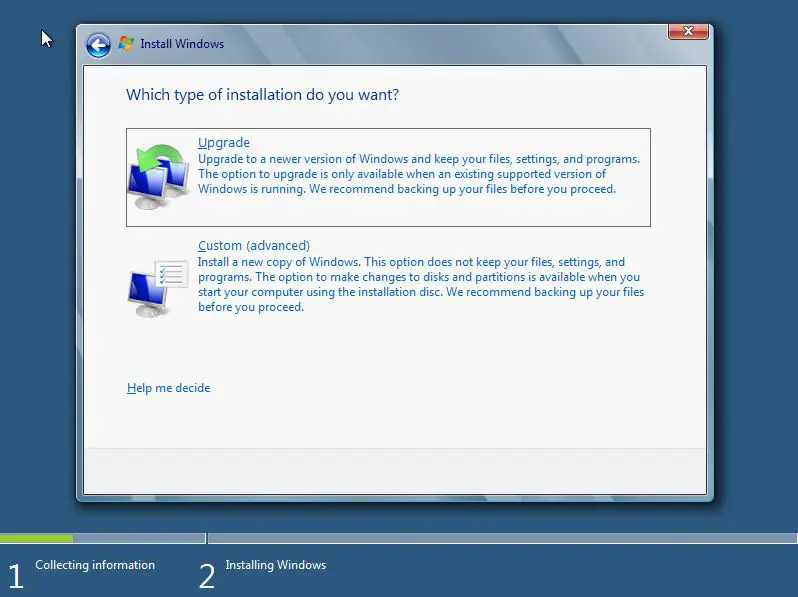
Here you can choose if you want to upgrade your Windows to Windows 8 Developers Edition or you want to do a Clean Install. Choose customize to do a Clean Install.
Step 6:
In this screen you can choose which drive you want to install, here we have the ability to manage the disk, format, create partition etc. If you’re planning to setup Dual boot then you can choose a different drive. Once you configured the drive click “Next”
Step 7:
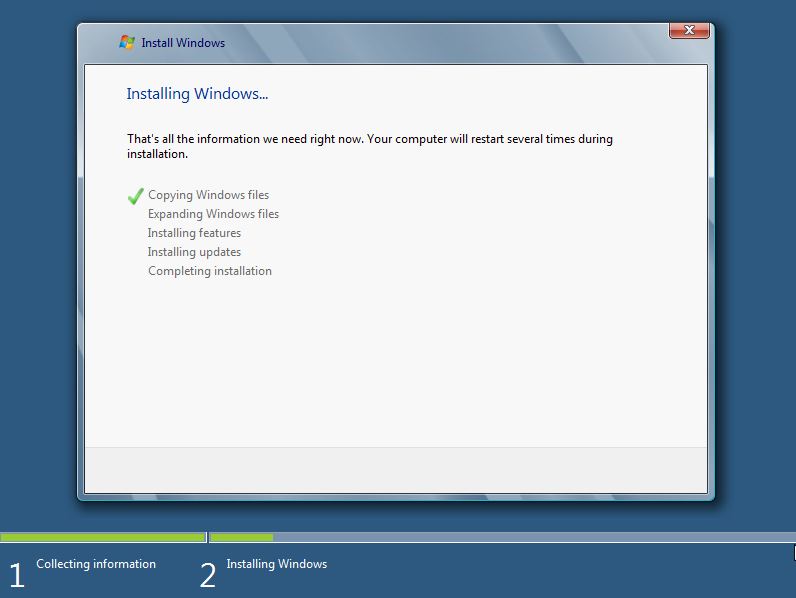
That’s it now it will start the installation process wait until it completes which takes 10 mins to 1 hour depending on your hardware configuration.
Step 8:
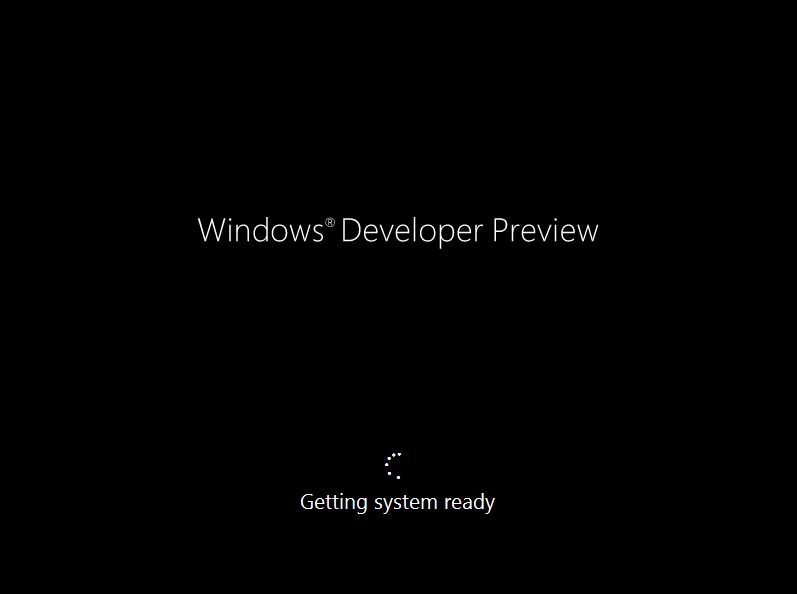
Once it’s complete the installation your machine will reboot and it will prepare your settings. So please wait.
Step 9:
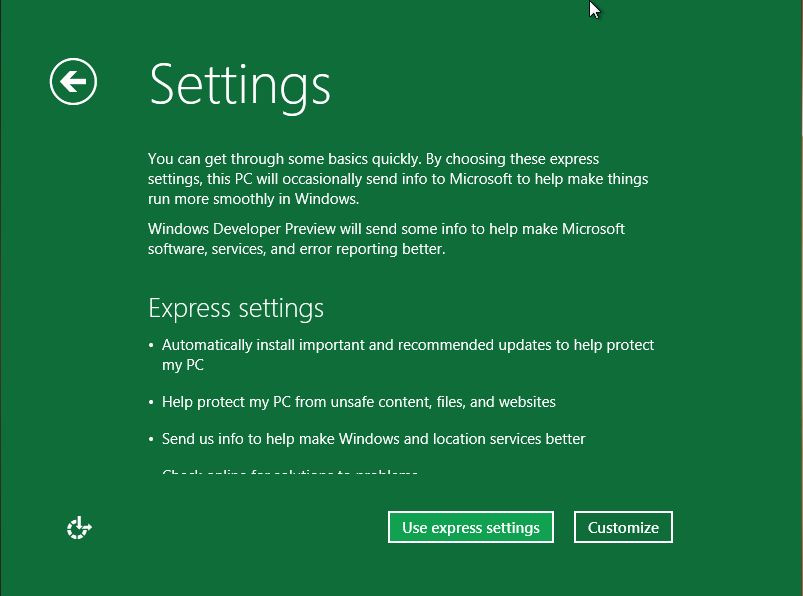
Now it will take you to personalize your desktop settings. I would recommend “Express settings” that screen it will show you what all the express settings do.
Step 10:
Unlike other operating systems, on Windows 8 you can log in using your Windows Live account. So you can enter your Microsoft account information.
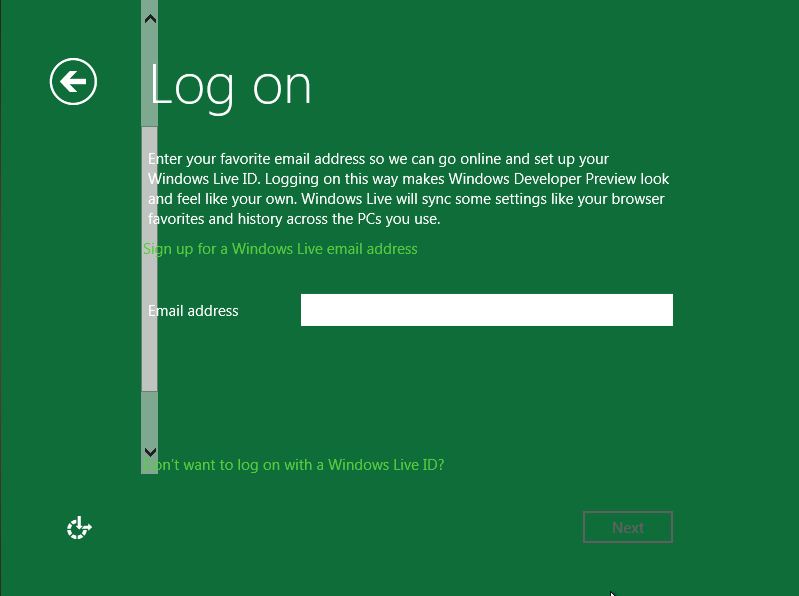
If you don’t want to use that login Method then click on “I don’t want to log in with a Microsoft Account”
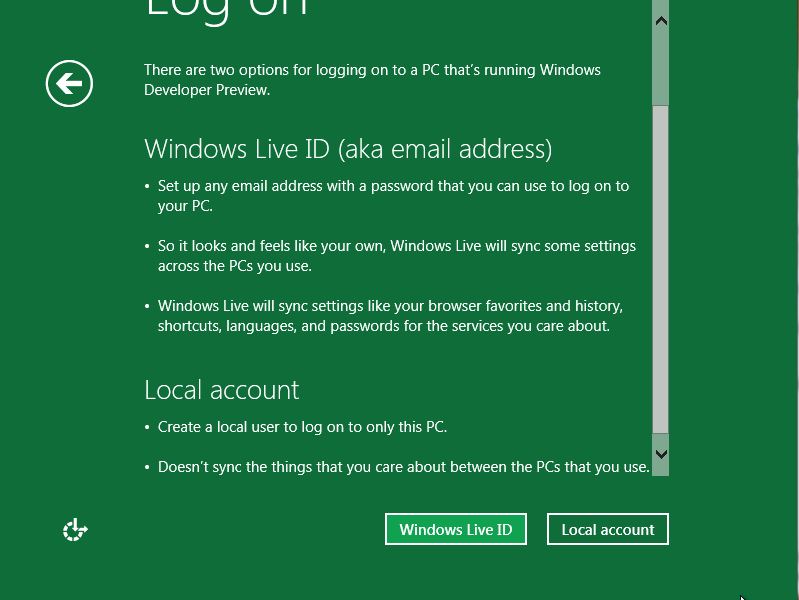
You can chose “Local account” to create a Username and Password to login to your Windows.
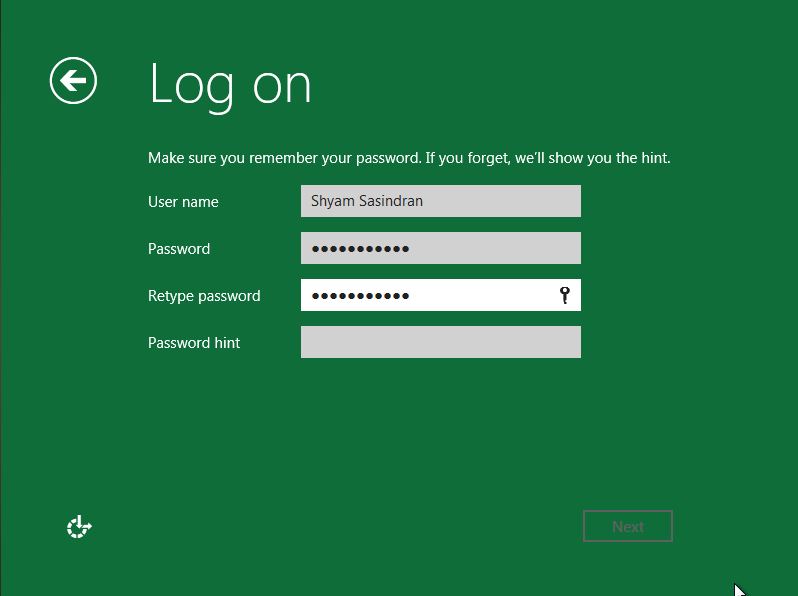
Once you enter all the information click “Next”
Step 11:
Now the Windows will configure your settings
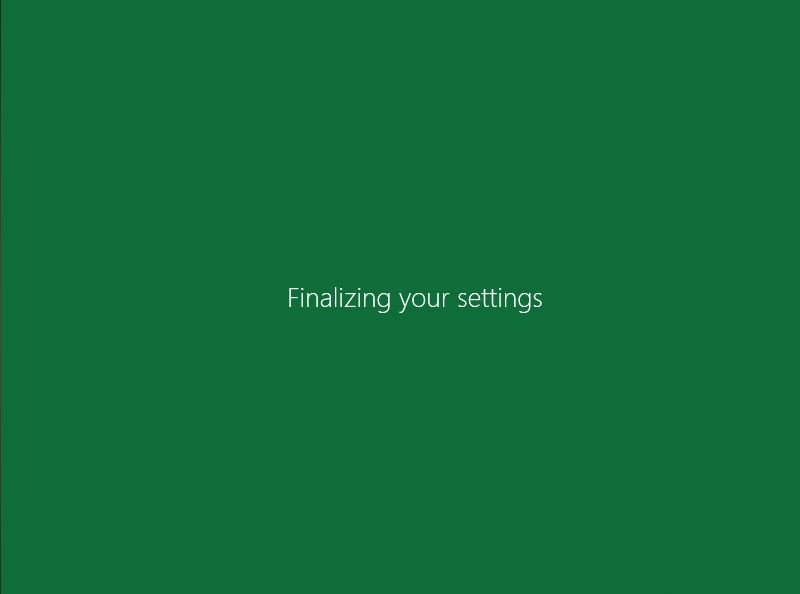
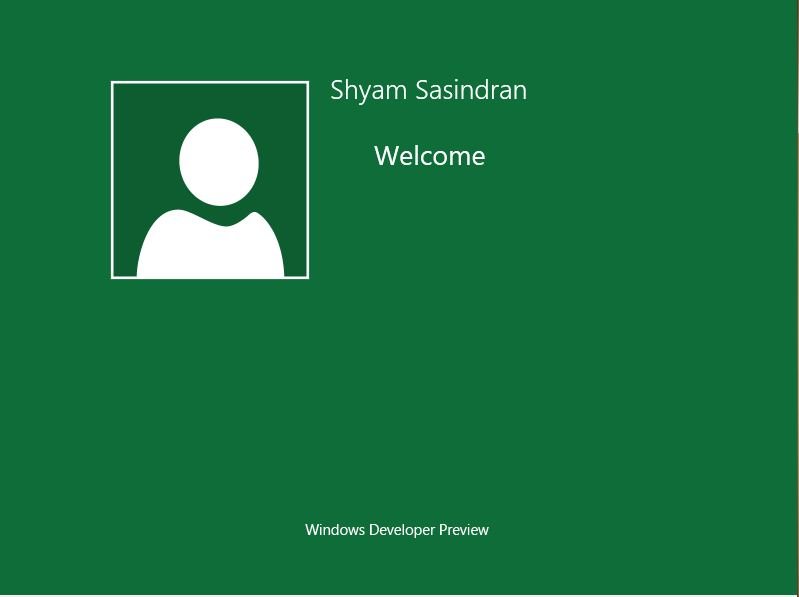
Once everything is setup it will take you to your desktop.
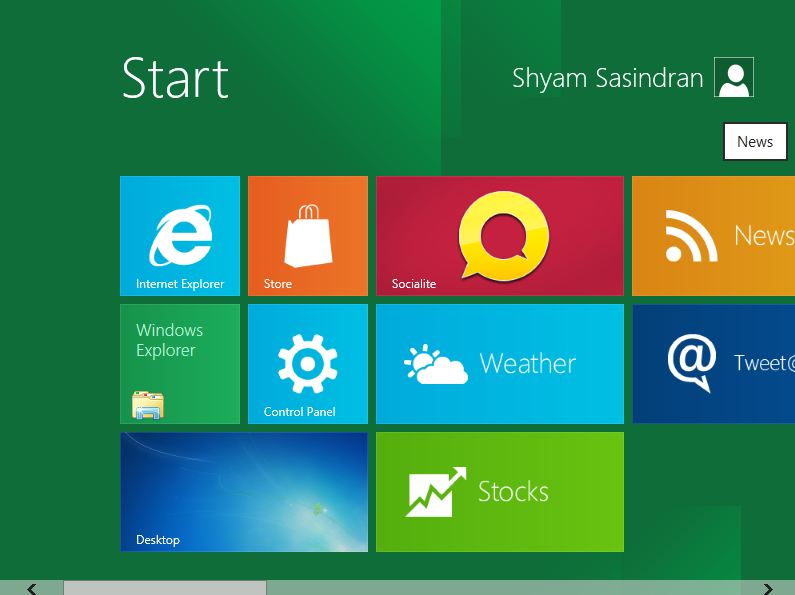
Congratulations! You have now successfully installed Windows 8 Developer Preview on your computer.
These links may also interest you:
- How to install Windows 8 on Mac OS X using VMware Fusion
- How to Install Windows 8 on VirtualBox
- How to Install Windows 8 from a USB drive
- How to dual boot Windows 8 and Windows 7 on one PC.
