
VideoInspector is a tool designed to provide you with as much information as possible about your video files. With VideoInspector you’ll know why your video files have no sound or refuse to play correctly.
VideoInspector will identify missing Audio & Video Codecs
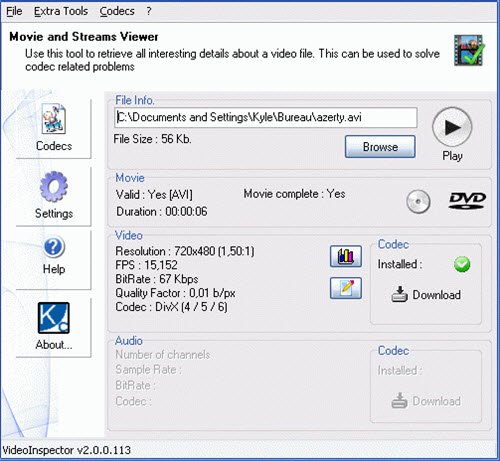
VideoInspector will help you installing the required Codecs for optimal performance. It can also inspect your system to find which codecs are available, and it can also process multiple video files and export its result in HTML or plain text files.
Features:
- Container support : AVI, Matroska, MPEG I, MPEG II, QuickTime
- Codecs requirements automatic detection
- Lists installed Audio & Video Codecs
- FourCC Changer
- Bitrate Grapher
- Batch file analysis, exports to CSV and HTML files
- File integrity check
- Download required codecs
- Automatic, content-based container format-detection
- Displays movie info: Duration, streams
- Displays Video stream info: Resolution, bitrate, frames per seconds (FPS)
- Displays Audio stream info: Sample rate, bitrate, number of channels
- Calculates video quality factor
- Ability to burn CDs/DVDs
- Windows Shell Integration.
You can download it here.
This post will show you how to check the installed codecs.
